# Wealthfolio
Wealthfolio is an open-source, private, and local-first portfolio tracker. Keep your financial data on your device, with optional cloud sync via Connect.
Site: https://wealthfolio.app
================================================================================
DOCUMENTATION
================================================================================
---
# Wealthfolio Addon Development
Source: https://wealthfolio.app/docs/addons
Wealthfolio addons are TypeScript modules that extend the application's functionality. This guide covers how to build, test, and distribute addons.
**New to addon development?** Start with our [Quick Start Guide](/docs/addons/getting-started) to
create your first addon.
## What are Wealthfolio Addons?
Addons are TypeScript/React-based extensions that provide access to Wealthfolio's financial data and UI system.
**Technical Foundation**
Each addon is a JavaScript function that receives an `AddonContext` object with access to APIs, UI components, and event system.
**Integration Capabilities**
Addons can register new navigation items, routes, and components that integrate directly into Wealthfolio's interface.
**Development Environment**
Built with TypeScript, React, and modern web APIs. Includes hot-reload development server and comprehensive type definitions.
## Architecture Overview
```
┌─────────────────────────────────────────────────────────────────┐
│ Wealthfolio Host Application │
├─────────────────────────────────────────────────────────────────┤
│ ┌─────────────────┐ ┌─────────────────┐ ┌─────────────────┐ │
│ │ Addon Runtime │ │ Permission │ │ API Bridge │ │
│ │ │ │ System │ │ │ │
│ │ • Load/Unload │ │ • Detection │ │ • Type Bridge │ │
│ │ • Lifecycle │ │ • Validation │ │ • Domain APIs │ │
│ │ • Context Mgmt │ │ • Enforcement │ │ • Scoped Access │ │
│ └─────────────────┘ └─────────────────┘ └─────────────────┘ │
├─────────────────────────────────────────────────────────────────┤
│ Individual Addons │
│ ┌─────────────┐ ┌─────────────┐ ┌─────────────┐ ┌─────────────┐ │
│ │ Addon A │ │ Addon B │ │ Addon C │ │ Addon D │ │
│ │ │ │ │ │ │ │ │ │
│ │ enable() │ │ enable() │ │ enable() │ │ enable() │ │
│ │ disable() │ │ disable() │ │ disable() │ │ disable() │ │
│ │ UI/Routes │ │ UI/Routes │ │ UI/Routes │ │ UI/Routes │ │
│ │ API Calls │ │ API Calls │ │ API Calls │ │ API Calls │ │
│ └─────────────┘ └─────────────┘ └─────────────┘ └─────────────┘ │
└─────────────────────────────────────────────────────────────────┘
```
## Basic Addon Structure
Every addon exports an enable function that receives a context object:
```typescript
import type { AddonContext } from '@wealthfolio/addon-sdk';
import { Icons } from '@wealthfolio/ui';
export default function enable(ctx: AddonContext) {
// Access financial data
const accounts = await ctx.api.accounts.getAll();
// Add navigation item
const sidebarItem = ctx.sidebar.addItem({
id: 'my-addon',
icon: ,
label: 'My Tool',
route: '/my-addon'
});
// Register route
ctx.router.add({
path: '/my-addon',
component: MyComponent
});
// Listen to events
const unlisten = ctx.api.events.portfolio.onUpdateComplete(() => {
// Handle portfolio updates
});
// Cleanup function
return {
disable() {
sidebarItem.remove();
unlisten();
}
};
}
```
## Permission System
Addons operate under a permission-based security model with three stages:
#### 1. Static Analysis
During installation, addon code is scanned for API usage patterns:
```typescript
// This pattern is detected:
const accounts = await ctx.api.accounts.getAll();
// Detected permission: accounts.getAll
```
#### 2. Permission Categories
| Category | Risk Level | Functions |
| ------------- | ---------- | ------------------------------------------- |
| `accounts` | High | getAll, create |
| `portfolio` | High | getHoldings, update, recalculate |
| `activities` | High | getAll, search, create, update, import |
| `market-data` | Low | searchTicker, sync, getProviders |
| `assets` | Medium | getProfile, updateProfile, updateDataSource |
| `quotes` | Low | update, getHistory |
| `performance` | Medium | calculateHistory, calculateSummary |
| `goals` | Medium | getAll, create, update, updateAllocations |
| `settings` | Medium | get, update, backupDatabase |
| `files` | Medium | openCsvDialog, openSaveDialog |
| `events` | Low | onDrop, onUpdateComplete, onSyncStart |
| `secrets` | High | set, get, delete |
#### 3. User Approval
During installation, users see both declared and detected permissions, then approve or reject the addon installation.
## Available APIs
The addon context provides access to 14 domain-specific APIs:
```typescript
interface AddonContext {
sidebar: SidebarAPI;
router: RouterAPI;
onDisable: (callback: () => void) => void;
api: {
accounts: AccountsAPI;
portfolio: PortfolioAPI;
activities: ActivitiesAPI;
market: MarketAPI;
assets: AssetsAPI;
quotes: QuotesAPI;
performance: PerformanceAPI;
exchangeRates: ExchangeRatesAPI;
goals: GoalsAPI;
contributionLimits: ContributionLimitsAPI;
settings: SettingsAPI;
files: FilesAPI;
events: EventsAPI;
secrets: SecretsAPI;
};
}
```
## Development Setup
### Required Packages
```bash
npm install @wealthfolio/addon-sdk @wealthfolio/ui react react-dom
npm install -D @wealthfolio/addon-dev-tools typescript vite
```
### Core Dependencies
- **@wealthfolio/addon-sdk**: TypeScript types and API definitions
- **@wealthfolio/ui**: UI components based on shadcn/ui and Tailwind CSS
- **@wealthfolio/addon-dev-tools**: CLI and development server
### Development Server
The development tools include a hot-reload server:
```bash
# Start development server
npm run dev:server
# Available on localhost:3001-3003
# Auto-discovered by Wealthfolio
```
```
Development Server Structure:
├─ /health # Health check
├─ /status # Build status
├─ /manifest.json # Addon manifest
└─ /addon.js # Built addon code
```
## Project Structure
```
hello-world-addon/
├── src/
│ ├── addon.tsx # Main addon entry point
│ ├── components/ # React components
│ ├── hooks/ # React hooks
│ ├── pages/ # Addon pages
│ ├── utils/ # Utility functions
│ └── types/ # Type definitions
├── assets/ # Static assets (optional)
├── dist/ # Built files (generated)
├── manifest.json # Addon metadata and permissions
├── package.json # NPM package configuration
├── vite.config.ts # Build configuration
├── tsconfig.json # TypeScript configuration
└── README.md # Documentation
```
### Manifest File
```json
{
"id": "my-addon",
"name": "My Addon",
"version": "1.0.0",
"main": "dist/addon.js",
"description": "Addon description",
"author": "Your Name",
"permissions": ["accounts.getAll", "portfolio.getHoldings"],
"sdkVersion": "1.0.0"
}
```
## Lifecycle Management
### Installation Process
```
┌─────────────┐ ┌─────────────┐ ┌─────────────┐ ┌─────────────┐
│ │ │ │ │ │ │ │
│ ZIP File │───▶│ Extract │───▶│ Validate │───▶│ Analyze │
│ │ │ │ │ │ │ Permissions │
└─────────────┘ └─────────────┘ └─────────────┘ └─────────────┘
│
┌─────────────┐ ┌─────────────┐ ┌─────────────┐ │
│ │ │ │ │ │ │
│ Running │◀───│ Enable │◀───│ Load │◀─────────────┘
│ │ │ │ │ │
└─────────────┘ └─────────────┘ └─────────────┘
```
1. **Extract**: Unzip addon package and read files
2. **Validate**: Check manifest.json structure and compatibility
3. **Analyze Permissions**: Scan code for API usage patterns
4. **Load**: Create isolated context with scoped APIs
5. **Enable**: Call addon's enable function
6. **Running**: Addon functionality is active
### Context Isolation
Each addon receives an isolated context with scoped secret storage:
```typescript
// Addon "my-addon" accessing secrets
await ctx.api.secrets.set('api-key', 'value');
// Stored as: "addon_my-addon_api-key"
```
## UI Components
Addons have access to Wealthfolio's UI component library:
```typescript
import { Button, Card, Dialog, Input, Table } from '@wealthfolio/ui';
import { AmountDisplay, GainAmount, CurrencyInput } from '@wealthfolio/ui/financial';
import { TrendingUp, DollarSign } from 'lucide-react';
function MyComponent() {
return (
Portfolio Growth
);
}
```
Available libraries:
- All Radix UI components
- **Financial components** (`components/financial`) for amounts, gains, and currency inputs
- Lucide React icons
- Tailwind CSS utilities
- Recharts for data visualization
- React Query for data fetching
- date-fns for date manipulation
## Build and Distribution
### Build Configuration
Standard Vite configuration externalizes React:
```typescript
// vite.config.ts
export default defineConfig({
plugins: [react()],
build: {
lib: {
entry: 'src/addon.tsx',
fileName: () => 'addon.js',
formats: ['es'],
},
rollupOptions: {
external: ['react', 'react-dom'],
plugins: [
externalGlobals({
react: 'React',
'react-dom': 'ReactDOM',
}),
],
},
},
});
```
### Package Scripts
```json
{
"scripts": {
"build": "vite build",
"dev": "vite build --watch",
"dev:server": "wealthfolio dev",
"clean": "rm -rf dist",
"package": "mkdir -p dist && zip -r dist/$npm_package_name-$npm_package_version.zip manifest.json dist/ assets/ README.md",
"bundle": "pnpm clean && pnpm build && pnpm package",
"lint": "tsc --noEmit",
"type-check": "tsc --noEmit"
}
}
```
## Error Handling
### Addon Failures
- Errors are logged but don't affect other addons
- Host application continues normally
- Users see error notifications
### Permission Violations
- `PermissionError` thrown for unauthorized API calls
- API calls are blocked
- Errors are logged for debugging
## Security Model
- Each addon runs in isolated context
- Secrets are scoped by addon ID
- No cross-addon communication
- Runtime permission validation
- Static code analysis during installation
## Publishing
Users can install addons directly from ZIP files. To publish your addon in the Wealthfolio Store, contact **wealthfolio@teymz.com**.
## Quick Start
🏃♂️ Quick Start
Create your first addon
Get Started →
📖 API Reference
Explore available APIs
Browse APIs →
💡 Examples
See real addon implementations
Browse Examples →
🏪 Addon Store
Explore available addons
Visit Store →
---
# API Reference
Source: https://wealthfolio.app/docs/addons/api-reference
# API Reference
Complete reference for APIs available to Wealthfolio addons. All functions require appropriate permissions in `manifest.json`.
## Context Overview
The `AddonContext` is provided to your addon's `enable` function:
```typescript
export interface AddonContext {
api: HostAPI;
sidebar: SidebarAPI;
router: RouterAPI;
onDisable: (callback: () => void) => void;
}
```
Basic usage:
```typescript
export default function enable(ctx: AddonContext) {
// Access APIs
const accounts = await ctx.api.accounts.getAll();
const holdings = await ctx.api.portfolio.getHoldings('account-123');
// UI integration
ctx.sidebar.addItem({ /* ... */ });
ctx.router.add({ /* ... */ });
// Cleanup
ctx.onDisable(() => {
// cleanup code
});
}
```
## API Domains
The API is organized into 16 domains:
| Domain | Description | Key Functions |
|--------|-------------|---------------|
| **Accounts** | Account management | `getAll`, `create` |
| **Portfolio** | Holdings and valuations | `getHoldings`, `getIncomeSummary`, `update`, `recalculate` |
| **Activities** | Trading transactions | `getAll`, `create`, `import`, `search`, `update` |
| **Market** | Market data and symbols | `searchTicker`, `sync`, `getProviders` |
| **Performance** | Performance metrics | `calculateHistory`, `calculateSummary` |
| **Assets** | Asset profiles | `getProfile`, `updateProfile`, `updateDataSource` |
| **Quotes** | Price quotes | `update`, `getHistory` |
| **Goals** | Financial goals | `getAll`, `create`, `update`, `getAllocations` |
| **Contribution Limits** | Investment limits | `getAll`, `create`, `update`, `calculateDeposits` |
| **Exchange Rates** | Currency rates | `getAll`, `update`, `add` |
| **Settings** | App configuration | `get`, `update`, `backupDatabase` |
| **Files** | File operations | `openCsvDialog`, `openSaveDialog` |
| **Events** | Real-time events | `onUpdateComplete`, `onSyncComplete`, `onDrop` |
| **Secrets** | Secure storage | `get`, `set`, `delete` |
| **Logger** | Logging operations | `error`, `info`, `warn`, `debug`, `trace` |
| **Navigation** | Route navigation | `navigate` |
| **Query** | React Query integration | `getClient`, `invalidateQueries`, `refetchQueries` |
## Accounts API
Manage user accounts with full CRUD operations.
### `getAll(): Promise`
Retrieves all user accounts.
```typescript
const accounts = await ctx.api.accounts.getAll();
interface Account {
id: string;
name: string;
currency: string;
isActive: boolean;
totalValue?: number;
createdAt: string;
updatedAt: string;
}
```
#### `create(account: AccountCreate): Promise`
Creates a new account with validation.
```typescript
const newAccount = await ctx.api.accounts.create({
name: 'My Investment Account',
currency: 'USD',
isActive: true
});
```
**Data Validation**: Account creation includes validation for currency codes, name uniqueness, and other business rules.
---
## Portfolio API
Access portfolio data, holdings, and performance information with real-time updates.
### Methods
#### `getHoldings(accountId: string): Promise`
Gets all holdings for a specific account with current valuations.
```typescript
const holdings = await ctx.api.portfolio.getHoldings('account-123');
// Example holding structure
interface Holding {
id: string;
accountId: string;
symbol: string;
quantity: number;
marketValue: number;
totalCost: number;
averagePrice: number;
gainLoss: number;
gainLossPercent: number;
currency: string;
assetType: 'Stock' | 'ETF' | 'Bond' | 'Crypto' | 'Other';
}
```
#### `getHolding(accountId: string, assetId: string): Promise`
Gets a specific holding with detailed information.
```typescript
const holding = await ctx.api.portfolio.getHolding('account-123', 'AAPL');
```
#### `update(): Promise`
Triggers a portfolio update/recalculation across all accounts.
```typescript
await ctx.api.portfolio.update();
```
#### `recalculate(): Promise`
Forces a complete portfolio recalculation from scratch.
```typescript
await ctx.api.portfolio.recalculate();
```
#### `getIncomeSummary(): Promise`
Gets comprehensive income summary across all accounts.
```typescript
const income = await ctx.api.portfolio.getIncomeSummary();
```
#### `getHistoricalValuations(accountId?: string, startDate?: string, endDate?: string): Promise`
Gets historical portfolio valuations for charts and analysis.
```typescript
const history = await ctx.api.portfolio.getHistoricalValuations(
'account-123', // optional, omit for all accounts
'2024-01-01',
'2024-12-31'
);
```
#### `getLatestValuations(accountIds: string[]): Promise`
Gets latest valuations for a set of accounts.
```typescript
const valuations = await ctx.api.portfolio.getLatestValuations(['account-1', 'account-2']);
```
---
## Activities API
Manage trading activities, transactions, and data imports with advanced search capabilities.
### Methods
#### `getAll(accountId?: string): Promise`
Gets all activities, optionally filtered by account.
```typescript
// All activities across all accounts
const allActivities = await ctx.api.activities.getAll();
// Activities for specific account
const accountActivities = await ctx.api.activities.getAll('account-123');
```
#### `search(page: number, pageSize: number, filters: any, searchKeyword: string, sort: any): Promise`
Advanced search with pagination and filters.
```typescript
const results = await ctx.api.activities.search(
1, // page
50, // pageSize
{ // filters
accountId: 'account-123',
activityType: 'BUY',
symbol: 'AAPL',
startDate: '2024-01-01',
endDate: '2024-12-31'
},
'AAPL', // searchKeyword
{ field: 'date', direction: 'desc' } // sort
);
```
#### `create(activity: ActivityCreate): Promise`
Creates a new activity with validation.
```typescript
const activity = await ctx.api.activities.create({
accountId: 'account-123',
activityType: 'BUY',
symbol: 'AAPL',
quantity: 100,
unitPrice: 150.50,
currency: 'USD',
date: '2024-12-01',
isDraft: false
});
```
#### `update(activity: ActivityUpdate): Promise`
Updates an existing activity with conflict detection.
```typescript
const updated = await ctx.api.activities.update({
...existingActivity,
quantity: 150,
unitPrice: 145.75
});
```
#### `saveMany(activities: ActivityUpdate[]): Promise`
Efficiently creates multiple activities in a single transaction.
```typescript
const activities = await ctx.api.activities.saveMany([
{ accountId: 'account-123', activityType: 'BUY', /* ... */ },
{ accountId: 'account-123', activityType: 'DIVIDEND', /* ... */ }
]);
```
#### `delete(activityId: string): Promise`
Deletes an activity and updates portfolio calculations.
```typescript
await ctx.api.activities.delete('activity-456');
```
#### `import(activities: ActivityImport[]): Promise`
Imports validated activities with duplicate detection.
```typescript
const imported = await ctx.api.activities.import(checkedActivities);
```
#### `checkImport(accountId: string, activities: ActivityImport[]): Promise`
Validates activities before import with error reporting.
```typescript
const validated = await ctx.api.activities.checkImport('account-123', activities);
```
#### `getImportMapping(accountId: string): Promise`
Get import mapping configuration for an account.
```typescript
const mapping = await ctx.api.activities.getImportMapping('account-123');
```
#### `saveImportMapping(mapping: ImportMappingData): Promise`
Save import mapping configuration.
```typescript
const savedMapping = await ctx.api.activities.saveImportMapping(mapping);
```
### Activity Types Reference
| Type | Use Case | Cash Impact | Holdings Impact |
|------|----------|-------------|-----------------|
| `BUY` | Purchase securities | Decreases cash | Increases quantity |
| `SELL` | Dispose of securities | Increases cash | Decreases quantity |
| `DIVIDEND` | Cash dividend received | Increases cash | No change |
| `INTEREST` | Interest earned | Increases cash | No change |
| `DEPOSIT` | Add funds | Increases cash | No change |
| `WITHDRAWAL` | Remove funds | Decreases cash | No change |
| `TRANSFER_IN` | Assets moved in | Varies | Increases quantity |
| `TRANSFER_OUT` | Assets moved out | Varies | Decreases quantity |
| `FEE` | Brokerage fees | Decreases cash | No change |
| `TAX` | Taxes paid | Decreases cash | No change |
---
## Market Data API
Access market data, search symbols, and sync with external providers.
### Methods
#### `searchTicker(query: string): Promise`
Search for ticker symbols across multiple data providers.
```typescript
const results = await ctx.api.market.searchTicker('AAPL');
```
#### `syncHistory(): Promise`
Syncs historical market data for all portfolio holdings.
```typescript
await ctx.api.market.syncHistory();
```
#### `sync(symbols: string[], refetchAll: boolean): Promise`
Syncs market data for specific symbols with cache control.
```typescript
// Sync latest data (uses cache if recent)
await ctx.api.market.sync(['AAPL', 'MSFT', 'GOOGL'], false);
// Force refresh all data
await ctx.api.market.sync(['AAPL', 'MSFT', 'GOOGL'], true);
```
#### `getProviders(): Promise`
Gets available market data providers and their status.
```typescript
const providers = await ctx.api.market.getProviders();
```
---
## Assets API
Access and manage asset profiles and data sources.
### Methods
#### `getProfile(assetId: string): Promise`
Gets detailed asset profile information.
```typescript
const asset = await ctx.api.assets.getProfile('AAPL');
```
#### `updateProfile(payload: UpdateAssetProfile): Promise`
Updates asset profile information.
```typescript
const updatedAsset = await ctx.api.assets.updateProfile({
symbol: 'AAPL',
name: 'Apple Inc.',
assetType: 'Stock',
// ... other profile data
});
```
#### `updateDataSource(symbol: string, dataSource: string): Promise`
Updates the data source for an asset.
```typescript
const asset = await ctx.api.assets.updateDataSource('AAPL', 'YAHOO');
```
---
## Quotes API
Manage price quotes and historical data.
### Methods
#### `update(symbol: string, quote: Quote): Promise`
Updates quote information for a symbol.
```typescript
await ctx.api.quotes.update('AAPL', {
symbol: 'AAPL',
price: 150.50,
date: '2024-12-01',
// ... other quote data
});
```
#### `getHistory(symbol: string): Promise`
Gets historical quotes for a symbol.
```typescript
const history = await ctx.api.quotes.getHistory('AAPL');
```
---
## Performance API
Calculate portfolio and account performance metrics with historical analysis.
### Methods
#### `calculateHistory(itemType: 'account' | 'symbol', itemId: string, startDate: string, endDate: string): Promise`
Calculates detailed performance history for charts and analysis.
```typescript
const history = await ctx.api.performance.calculateHistory(
'account',
'account-123',
'2024-01-01',
'2024-12-31'
);
```
#### `calculateSummary(args: { itemType: 'account' | 'symbol'; itemId: string; startDate?: string | null; endDate?: string | null; }): Promise`
Calculates comprehensive performance summary with key metrics.
```typescript
const summary = await ctx.api.performance.calculateSummary({
itemType: 'account',
itemId: 'account-123',
startDate: '2024-01-01',
endDate: '2024-12-31'
});
```
#### `calculateAccountsSimple(accountIds: string[]): Promise`
Calculates simple performance metrics for multiple accounts efficiently.
```typescript
const performance = await ctx.api.performance.calculateAccountsSimple([
'account-123',
'account-456'
]);
```
---
## Exchange Rates API
Manage currency exchange rates for multi-currency portfolios.
### Methods
#### `getAll(): Promise`
Gets all exchange rates.
```typescript
const rates = await ctx.api.exchangeRates.getAll();
```
#### `update(updatedRate: ExchangeRate): Promise`
Updates an existing exchange rate.
```typescript
const updatedRate = await ctx.api.exchangeRates.update({
id: 'rate-123',
fromCurrency: 'USD',
toCurrency: 'EUR',
rate: 0.85,
// ... other rate data
});
```
#### `add(newRate: Omit): Promise`
Adds a new exchange rate.
```typescript
const newRate = await ctx.api.exchangeRates.add({
fromCurrency: 'USD',
toCurrency: 'GBP',
rate: 0.75,
// ... other rate data
});
```
---
## Contribution Limits API
Manage investment contribution limits and calculations.
### Methods
#### `getAll(): Promise`
Gets all contribution limits.
```typescript
const limits = await ctx.api.contributionLimits.getAll();
```
#### `create(newLimit: NewContributionLimit): Promise`
Creates a new contribution limit.
```typescript
const limit = await ctx.api.contributionLimits.create({
name: 'RRSP 2024',
limitType: 'RRSP',
maxAmount: 30000,
year: 2024,
// ... other limit data
});
```
#### `update(id: string, updatedLimit: NewContributionLimit): Promise`
Updates an existing contribution limit.
```typescript
const updatedLimit = await ctx.api.contributionLimits.update('limit-123', {
name: 'Updated RRSP 2024',
maxAmount: 31000,
// ... other updated data
});
```
#### `calculateDeposits(limitId: string): Promise`
Calculates deposits for a specific contribution limit.
```typescript
const deposits = await ctx.api.contributionLimits.calculateDeposits('limit-123');
```
---
## Goals API
Manage financial goals and allocations.
### Methods
#### `getAll(): Promise`
Gets all goals.
```typescript
const goals = await ctx.api.goals.getAll();
```
#### `create(goal: any): Promise`
Creates a new goal.
```typescript
const goal = await ctx.api.goals.create({
name: 'Retirement Fund',
targetAmount: 500000,
targetDate: '2040-01-01',
// ... other goal data
});
```
#### `update(goal: Goal): Promise`
Updates an existing goal.
```typescript
const updatedGoal = await ctx.api.goals.update({
...existingGoal,
targetAmount: 600000,
});
```
#### `updateAllocations(allocations: GoalAllocation[]): Promise`
Updates goal allocations.
```typescript
await ctx.api.goals.updateAllocations([
{ goalId: 'goal-123', accountId: 'account-456', percentage: 50 },
// ... other allocations
]);
```
#### `getAllocations(): Promise`
Gets goal allocations.
```typescript
const allocations = await ctx.api.goals.getAllocations();
```
---
## Settings API
Manage application settings and configuration.
### Methods
#### `get(): Promise`
Gets application settings.
```typescript
const settings = await ctx.api.settings.get();
```
#### `update(settingsUpdate: Settings): Promise`
Updates application settings.
```typescript
const updatedSettings = await ctx.api.settings.update({
...currentSettings,
baseCurrency: 'EUR',
// ... other settings
});
```
#### `backupDatabase(): Promise<{ filename: string; data: Uint8Array }>`
Creates a database backup.
```typescript
const backup = await ctx.api.settings.backupDatabase();
```
---
## Files API
Handle file operations and dialogs.
### Methods
#### `openCsvDialog(): Promise`
Opens a CSV file selection dialog.
```typescript
const files = await ctx.api.files.openCsvDialog();
if (files) {
// Process selected files
}
```
#### `openSaveDialog(fileContent: Uint8Array | Blob | string, fileName: string): Promise`
Opens a file save dialog.
```typescript
const result = await ctx.api.files.openSaveDialog(
fileContent,
'export.csv'
);
```
---
## Secrets API
Securely store and retrieve sensitive data like API keys and tokens. All data is scoped to your addon for security.
### Methods
#### `set(key: string, value: string): Promise`
Stores a secret value encrypted and scoped to your addon.
```typescript
// Store API key securely
await ctx.api.secrets.set('api-key', 'your-secret-api-key');
// Store user credentials
await ctx.api.secrets.set('auth-token', userAuthToken);
```
#### `get(key: string): Promise`
Retrieves a secret value (returns null if not found).
```typescript
const apiKey = await ctx.api.secrets.get('api-key');
if (apiKey) {
// Use the API key
const data = await fetch(`https://api.example.com/data?key=${apiKey}`);
}
```
#### `delete(key: string): Promise`
Permanently deletes a secret.
```typescript
await ctx.api.secrets.delete('old-api-key');
```
**Security Note**: Secrets are encrypted at rest and scoped to your addon. Other addons cannot access your secrets, and you cannot access theirs.
---
## Logger API
Provides logging functionality with automatic addon prefix.
### Methods
#### `error(message: string): void`
Logs an error message.
```typescript
ctx.api.logger.error('Failed to fetch data from API');
```
#### `info(message: string): void`
Logs an informational message.
```typescript
ctx.api.logger.info('Data sync completed successfully');
```
#### `warn(message: string): void`
Logs a warning message.
```typescript
ctx.api.logger.warn('API rate limit approaching');
```
#### `debug(message: string): void`
Logs a debug message.
```typescript
ctx.api.logger.debug('Processing 100 activities');
```
#### `trace(message: string): void`
Logs a trace message for detailed debugging.
```typescript
ctx.api.logger.trace('Entering function processActivity');
```
---
## Event System
Listen to real-time events for responsive addon behavior.
### Portfolio Events
#### `onUpdateStart(callback: EventCallback): Promise`
Fires when portfolio update starts.
```typescript
const unlistenStart = await ctx.api.events.portfolio.onUpdateStart((event) => {
console.log('Portfolio update started');
showLoadingIndicator();
});
```
#### `onUpdateComplete(callback: EventCallback): Promise`
Fires when portfolio calculations are updated.
```typescript
const unlistenPortfolio = await ctx.api.events.portfolio.onUpdateComplete((event) => {
console.log('Portfolio updated:', event.payload);
// Refresh your addon's data
refreshPortfolioData();
});
// Clean up on disable
ctx.onDisable(() => {
unlistenPortfolio();
});
```
#### `onUpdateError(callback: EventCallback): Promise`
Fires when portfolio update encounters an error.
```typescript
const unlistenError = await ctx.api.events.portfolio.onUpdateError((event) => {
console.error('Portfolio update failed:', event.payload);
showErrorMessage();
});
```
### Market Events
#### `onSyncStart(callback: EventCallback): Promise`
Fires when market data sync starts.
```typescript
const unlistenSyncStart = await ctx.api.events.market.onSyncStart(() => {
console.log('Market sync started');
showSyncIndicator();
});
```
#### `onSyncComplete(callback: EventCallback): Promise`
Fires when market data sync is completed.
```typescript
const unlistenMarket = await ctx.api.events.market.onSyncComplete(() => {
console.log('Market data updated!');
// Update price displays
updatePriceDisplays();
});
```
### Import Events
#### `onDropHover(callback: EventCallback): Promise`
Fires when files are hovered over for import.
```typescript
const unlistenHover = await ctx.api.events.import.onDropHover((event) => {
console.log('File hover detected');
showDropZone();
});
```
#### `onDrop(callback: EventCallback): Promise`
Fires when files are dropped for import.
```typescript
const unlistenImport = await ctx.api.events.import.onDrop((event) => {
console.log('File dropped:', event.payload);
// Trigger import workflow
handleFileImport(event.payload.files);
});
```
#### `onDropCancelled(callback: EventCallback): Promise`
Fires when file drop is cancelled.
```typescript
const unlistenCancel = await ctx.api.events.import.onDropCancelled(() => {
console.log('File drop cancelled');
hideDropZone();
});
```
---
## Navigation API
Navigate programmatically within the Wealthfolio application.
### Methods
#### `navigate(route: string): Promise`
Navigate to a specific route in the application.
```typescript
// Navigate to a specific account
await ctx.api.navigation.navigate('/accounts/account-123');
// Navigate to portfolio overview
await ctx.api.navigation.navigate('/portfolio');
// Navigate to activities page
await ctx.api.navigation.navigate('/activities');
// Navigate to settings
await ctx.api.navigation.navigate('/settings');
```
**Navigation Routes**: The navigation API uses the same route structure as the main application. Common routes include `/accounts`, `/portfolio`, `/activities`, `/goals`, and `/settings`.
---
## Query API
Access and manipulate the shared React Query client for efficient data management.
### Methods
#### `getClient(): QueryClient`
Gets the shared QueryClient instance from the main application.
```typescript
const queryClient = ctx.api.query.getClient();
// Use standard React Query methods
const accounts = await queryClient.fetchQuery({
queryKey: ['accounts'],
queryFn: () => ctx.api.accounts.getAll()
});
```
#### `invalidateQueries(queryKey: string | string[]): void`
Invalidates queries to trigger refetch.
```typescript
// Invalidate specific query
ctx.api.query.invalidateQueries(['accounts']);
// Invalidate multiple related queries
ctx.api.query.invalidateQueries(['portfolio', 'holdings']);
// Invalidate all account-related queries
ctx.api.query.invalidateQueries(['accounts']);
```
#### `refetchQueries(queryKey: string | string[]): void`
Triggers immediate refetch of queries.
```typescript
// Refetch portfolio data
ctx.api.query.refetchQueries(['portfolio']);
// Refetch multiple queries
ctx.api.query.refetchQueries(['accounts', 'holdings']);
```
### Integration with Events
Combine Query API with event listeners for reactive data updates:
```typescript
export default function enable(ctx: AddonContext) {
// Invalidate relevant queries when portfolio updates
const unlistenPortfolio = await ctx.api.events.portfolio.onUpdateComplete(() => {
ctx.api.query.invalidateQueries(['portfolio', 'holdings', 'performance']);
});
// Invalidate market data queries when sync completes
const unlistenMarket = await ctx.api.events.market.onSyncComplete(() => {
ctx.api.query.invalidateQueries(['quotes', 'assets']);
});
ctx.onDisable(() => {
unlistenPortfolio();
unlistenMarket();
});
}
```
---
## UI Integration APIs
### Sidebar API
Add navigation items to the main application sidebar.
#### `addItem(item: SidebarItem): SidebarItemHandle`
```typescript
const sidebarItem = ctx.sidebar.addItem({
id: 'my-addon',
label: 'My Addon',
route: '/addon/my-addon',
icon: MyAddonIcon, // Optional React component
order: 100 // Lower numbers appear first
});
// Remove when addon is disabled
ctx.onDisable(() => {
sidebarItem.remove();
});
```
### Router API
Register routes for your addon's pages.
#### `add(route: RouteConfig): void`
```typescript
ctx.router.add({
path: '/addon/my-addon',
component: React.lazy(() => Promise.resolve({ default: MyAddonComponent }))
});
// Multiple routes
ctx.router.add({
path: '/addon/my-addon/settings',
component: React.lazy(() => Promise.resolve({ default: MyAddonSettings }))
});
```
---
## Error Handling
### API Error Types
```typescript
interface APIError {
code: string;
message: string;
details?: any;
}
```
Common error codes:
- `PERMISSION_DENIED` - Insufficient permissions
- `NOT_FOUND` - Resource not found
- `VALIDATION_ERROR` - Invalid data provided
- `NETWORK_ERROR` - Connection issues
- `RATE_LIMITED` - Too many requests
### Best Practices
```typescript
try {
const accounts = await ctx.api.accounts.getAll();
} catch (error) {
if (error.code === 'PERMISSION_DENIED') {
ctx.api.logger.error('Missing account permissions');
// Show user-friendly message
} else if (error.code === 'NETWORK_ERROR') {
ctx.api.logger.warn('Network issue, retrying...');
// Implement retry logic
} else {
ctx.api.logger.error('Unexpected error:', error);
// General error handling
}
}
```
---
## Advanced Usage
### Batch Operations
```typescript
// Efficient batch processing
const activities = await Promise.all([
ctx.api.activities.getAll('account-1'),
ctx.api.activities.getAll('account-2'),
ctx.api.activities.getAll('account-3')
]);
// Batch create
const newActivities = await ctx.api.activities.saveMany([
{ /* activity 1 */ },
{ /* activity 2 */ },
{ /* activity 3 */ }
]);
```
### Real-time Updates
```typescript
export default function enable(ctx: AddonContext) {
// Listen for multiple events
const unsubscribers = [
await ctx.api.events.portfolio.onUpdateComplete(() => refreshData()),
await ctx.api.events.market.onSyncComplete(() => updatePrices()),
await ctx.api.events.import.onDrop((event) => handleImport(event))
];
// Clean up all listeners
ctx.onDisable(() => {
unsubscribers.forEach(unsub => unsub());
});
}
```
### Caching Strategies
```typescript
// Simple in-memory cache
const cache = new Map();
async function getCachedAccounts() {
if (cache.has('accounts')) {
return cache.get('accounts');
}
const accounts = await ctx.api.accounts.getAll();
cache.set('accounts', accounts);
// Invalidate cache on updates
const unlisten = await ctx.api.events.portfolio.onUpdateComplete(() => {
cache.delete('accounts');
});
return accounts;
}
```
---
## TypeScript Support
Full TypeScript definitions are provided for all APIs:
```typescript
import type {
AddonContext,
Account,
Activity,
Holding,
PerformanceHistory,
PerformanceSummary,
// ... and many more
} from '@wealthfolio/addon-sdk';
// Type-safe API usage
const accounts: Account[] = await ctx.api.accounts.getAll();
const holdings: Holding[] = await ctx.api.portfolio.getHoldings(accounts[0].id);
```
## Performance Tips
1. **Use batch operations** when possible
2. **Implement caching** for expensive operations
3. **Listen to relevant events only**
4. **Clean up resources** in disable function
5. **Use React.memo** for expensive components
6. **Debounce user inputs** for search/filter
---
**Ready to build?** Check out our [examples](/docs/addons/examples) to see these APIs in action!
---
# Getting Started
Source: https://wealthfolio.app/docs/addons/getting-started
## Prerequisites
```bash
# Check Node.js version (requires 20+)
node --version
# Check pnpm
pnpm --version
# Install pnpm if needed
npm install -g pnpm
```
Requirements:
- Node.js 20+ and pnpm
- Wealthfolio desktop app (optional but recommended: running in development mode for live reload and testing)
- Basic TypeScript and React knowledge
- Code editor (VS Code recommended)
## Start Wealthfolio (Recommended)
For the best development experience with live addon reloading, start Wealthfolio in addon development mode:
```bash
# Clone Wealthfolio repository (if not already done)
git clone https://github.com/wealthfolio/wealthfolio.git
cd wealthfolio
# Install dependencies
pnpm install
# Start in addon development mode (enables live addon reloading)
VITE_ENABLE_ADDON_DEV_MODE=true pnpm tauri dev
```
This enables:
- Live addon reload when files change
- Better error messages and debugging
- Automatic addon discovery
- Console logging for development
## Create New Addon
```bash
# Navigate to development directory
cd ~/Documents/WealthfolioAddons
# Create addon using CLI
npx @wealthfolio/addon-dev-tools create
# Navigate and install
cd
pnpm install
```
This will scaffold a new addon project with the following structure:
```
hello-world-addon/
├── src/
│ ├── addon.tsx # Main addon entry point
│ ├── components/ # React components
│ ├── hooks/ # React hooks
│ ├── pages/ # Addon pages
│ ├── utils/ # Utility functions
│ └── types/ # Type definitions
├── dist/ # Built files (generated)
├── manifest.json # Addon metadata and permissions
├── package.json # NPM package configuration
├── vite.config.ts # Build configuration
├── tsconfig.json # TypeScript configuration
└── README.md # Documentation
```
## Manifest File
`manifest.json` defines metadata and permissions:
```json
{
"id": "hello-world-addon",
"name": "Hello World Addon",
"version": "1.0.0",
"description": "My first Wealthfolio addon",
"author": "Your Name",
"permissions": {
{
"category": "ui",
"functions": ["sidebar.addItem", "router.add"],
"purpose": "Add navigation items and routes"
}
}
}
```
## Main Addon File
`src/addon.tsx` contains the addon logic:
```typescript
import React from 'react';
import type { AddonContext } from '@wealthfolio/addon-sdk';
function HelloWorldPage() {
return (
Hello Wealthfolio
Your first addon is working.
Success
You've successfully created and loaded your first addon.
);
}
export default function enable(ctx: AddonContext) {
// Add sidebar item
const sidebarItem = ctx.sidebar.addItem({
id: 'hello-world',
label: 'Hello World',
icon: ,
route: '/addon/hello-world',
order: 100
});
// Register route
ctx.router.add({
path: '/addon/hello-world',
component: React.lazy(() => Promise.resolve({
default: () =>
}))
});
ctx.api.logger.info('Hello World addon loaded');
return {
disable() {
sidebarItem.remove();
ctx.api.logger.info('Hello World addon disabled');
}
};
}
```
## Start Development
```bash
# Start development server (recommended)
pnpm dev:server
```
Output:
```
Wealthfolio Addon Development Server
Addon: hello-world-addon
Server: http://localhost:3001
Watching for changes...
```
### Hot Reload Features
- File watching in `src/` directory
- Fast rebuilds with Vite
- Hot Module Replacement for component updates
- Auto-discovery by Wealthfolio
- Error recovery with overlay messages
### Available Commands
```bash
pnpm dev:server # Start development server (recommended)
pnpm build # Production build
pnpm type-check # Run TypeScript checks
pnpm lint # Run ESLint
pnpm format # Run Prettier
pnpm bundle # Bundle addon for distribution
```
Verify in Wealthfolio:
1. Open Wealthfolio (preferably in development mode with `pnpm tauri dev`)
2. Check sidebar for "Hello World"
3. Click to load addon page
4. Check console for log message
## Add Data Access
For data access, it's recommended to use [TanStack Query](https://tanstack.com/query/latest).
First, install TanStack Query in your addon:
```bash
pnpm add @tanstack/react-query@^5.62.7
```
Update `src/addon.tsx` to access portfolio data using TanStack Query:
```typescript
import React from 'react';
import { useQuery } from '@tanstack/react-query';
import type { AddonContext, Account } from '@wealthfolio/addon-sdk';
function HelloWorldPage({ ctx }: { ctx: AddonContext }) {
const {
data: accounts = [],
isLoading,
isError,
error,
refetch
} = useQuery({
queryKey: ['accounts'],
queryFn: () => ctx.api.accounts.getAll(),
onError: (error) => {
ctx.api.logger.error('Failed to load accounts:', error);
},
staleTime: 5 * 60 * 1000, // 5 minutes
refetchOnWindowFocus: false,
});
return (
Hello Wealthfolio
Portfolio Summary
{isLoading ? (
Loading accounts...
) : isError ? (
Failed to load accounts: {error?.message}
) : (
You have {accounts.length} account{accounts.length !== 1 ? 's' : ''}:
## Account
| Field | Purpose |
|-------|---------|
| **Name** | Display label |
| **Group** | Collapses similar accounts (e.g. *RRSP*) |
| **Type** | *Securities · Cash · Crypto* |
| **Currency** | FX source for the account |
| **Default? / Active?** | Workflow helpers |
## Activity
All portfolio changes resolve into one of these actions.
| Type | Cash Δ | Holdings Δ | Notes |
|------|--------|------------|-------|
| **BUY** | − | + | Fee optional |
| **SELL** | + | − | Gain tracked |
| **DIVIDEND** | + | 0 | Cash income |
| **INTEREST** | + | 0 | Cash income |
| **DEPOSIT / WITHDRAWAL** | ± | 0 | Cash only |
| **TRANSFER_IN / OUT** | ± | ± | Keeps cost basis |
| **ADD_HOLDING / REMOVE_HOLDING** | 0/− | ± | Gifts, options, expirations |
| **FEE / TAX** | − | 0 | Stand‑alone charges |
| **SPLIT** | 0 | qty/price adjust | No value change |
Cash legs post to the synthetic symbol `$CASH‑` automatically.
## Symbol lookup
1. Exact ticker (`AAPL`, `BTC‑USD`).
2. Ticker + suffix (`RY.TO`).
3. First Yahoo Finance hit.
Need to override? Use the **Universal Symbol ID**.
## FX rates
- Pulled every 6 h from the default market data provider.
- View/edit: `Settings → General → Exchange Rates`.
- Manual rates override auto values until you change them again.
---
# Core Concepts
Source: https://wealthfolio.app/docs/concepts/activity-types
Activities are the atomic events that drive portfolio state in Wealthfolio—every trade, cash
movement, fee, or corporate action is recorded as an **activity**. Accurate performance,
cash-flow, and tax reporting all start with choosing the right activity type.
---
## 1 · Activity Types at a Glance
| Type | Typical Use Case | Cash Impact | Holdings Impact |
| ------------------ | ------------------------------------------------ | -------------------- | --------------------------- |
| **BUY** | Purchase a security. | ↓ cash | ↑ quantity |
| **SELL** | Sell a security you hold. | ↑ cash | ↓ quantity |
| **SPLIT** | Stock split or reverse split. | — | qty & unit cost adjusted |
| **DIVIDEND** | Cash dividend on a security. | ↑ cash | — |
| **INTEREST** | Interest on cash or fixed-income. | ↑ cash | — |
| **CREDIT** | Cash credit (bonus, rebate, refund). | ↑ cash | — |
| **DEPOSIT** | Funds added from outside Wealthfolio. | ↑ cash | — |
| **WITHDRAWAL** | Funds sent to an external account. | ↓ cash | — |
| **TRANSFER_IN** | Move cash or securities **into** this account. | ↑ cash or ↑ quantity | ↑ quantity (for securities) |
| **TRANSFER_OUT** | Move cash or securities **out of** this account. | ↓ cash or ↓ quantity | ↓ quantity (for securities) |
| **ADD_HOLDING** | Bring in a position without a trade. | Fee only | ↑ quantity |
| **REMOVE_HOLDING** | Remove a position without a sale. | Fee only | ↓ quantity |
| **FEE** | Standalone brokerage or platform fee. | ↓ cash | — |
| **TAX** | Tax deducted from the account. | ↓ cash | — |
| **ADJUSTMENT** | Non-trade correction (see subtypes). | Depends on subtype | Depends on subtype |
---
## 2 · Activity Types in Detail
### Trading Activities
| Type | What It Does | Cash Impact | Holdings Impact |
| --------- | ------------------------------------------------------------------------------------------------------------ | --------------------------------------------------- | ------------------------------------------------------------- |
| **BUY** | Purchase a security (stock, ETF, bond, crypto, option, etc.). | Cash decreases by total cost (qty x price + fees) | Position quantity increases; a new cost-basis lot is created |
| **SELL** | Sell a security you hold. | Cash increases by net proceeds (qty x price - fees) | Position quantity decreases (oldest lots sold first via FIFO) |
| **SPLIT** | Record a stock split or reverse split. Adjusts share count and per-share cost so total value stays the same. | No change | Quantity and unit cost adjusted; total cost basis unchanged |
### Income Activities
| Type | What It Does | Cash Impact | Holdings Impact |
| ------------ | ------------------------------------------------------------------------- | --------------------------------- | --------------- |
| **DIVIDEND** | Cash dividend paid on a security you hold. | Cash increases by dividend amount | No change |
| **INTEREST** | Interest earned on cash balances or fixed-income holdings. | Cash increases by interest amount | No change |
| **CREDIT** | A cash credit applied to your account (see subtypes below for specifics). | Cash increases by credit amount | No change |
### Cash Flow Activities
| Type | What It Does | Cash Impact | Holdings Impact |
| -------------- | -------------------------------------------------------------------------------------------- | -------------- | --------------- |
| **DEPOSIT** | Money you add to your brokerage account from an external source (bank transfer, wire, etc.). | Cash increases | No change |
| **WITHDRAWAL** | Money you take out of your brokerage account to an external destination. | Cash decreases | No change |
### Transfer Activities
| Type | What It Does | Cash Impact | Holdings Impact |
| ---------------- | ------------------------------------------------------------------------------------------------------------------------------------------------------------------- | -------------------------- | -------------------------------------------- |
| **TRANSFER_IN** | Move cash or securities **into** this account. Can be from another Wealthfolio account or an external source. Cost basis is preserved when transferring securities. | Cash or position increases | Position quantity increases (for securities) |
| **TRANSFER_OUT** | Move cash or securities **out of** this account. Cost basis is exported so the receiving account can preserve it. | Cash or position decreases | Position quantity decreases (for securities) |
### Expense Activities
| Type | What It Does | Cash Impact | Holdings Impact |
| ------- | --------------------------------------------------------------------------------------------------------------------------- | -------------- | --------------- |
| **FEE** | A stand-alone brokerage or platform fee not tied to a specific trade (e.g., annual account fee, custody fee, advisory fee). | Cash decreases | No change |
| **TAX** | A tax charge deducted from your account (e.g., dividend withholding tax, capital gains tax). | Cash decreases | No change |
### Position Adjustment Activities
| Type | What It Does | Cash Impact | Holdings Impact |
| ------------------ | --------------------------------------------------------------------------------------------------------------------------------------------------- | ------------------ | --------------------------- |
| **ADD_HOLDING** | Bring in a position without recording a trade. Useful for seeding starting balances when you don't have full trade history. Similar to TRANSFER_IN. | Fee only (if any) | Position quantity increases |
| **REMOVE_HOLDING** | Remove a position without recording a sale. Useful for writing off worthless positions or cleaning up. Similar to TRANSFER_OUT. | Fee only (if any) | Position quantity decreases |
| **ADJUSTMENT** | A non-trade correction or transformation (see subtypes below). | Depends on subtype | Depends on subtype |
---
## 3 · Subtypes
Some activity types have **subtypes** that provide more specific behavior. When you select a subtype, Wealthfolio automatically handles the underlying mechanics for you.
### Dividend Subtypes
| Subtype | Parent Type | What It Does | Example |
| -------------------------------- | ----------- | ------------------------------------------------------------------------------------------------------------------------------------------------------ | -------------------------------------------------------------------------------------------------- |
| **DRIP** (Dividend Reinvestment) | DIVIDEND | Dividend is automatically reinvested to buy more shares of the same security. Wealthfolio records both the dividend income and the resulting purchase. | You own 100 shares of AAPL. A $50 dividend is paid and automatically used to buy 0.25 more shares. |
| **Dividend in Kind** | DIVIDEND | Dividend paid as shares of a different security rather than cash (e.g., a spinoff). | A company spins off a division and you receive shares of the new company as a dividend. |
### Interest Subtypes
| Subtype | Parent Type | What It Does | Example |
| ------------------ | ----------- | --------------------------------------------------------------------------------------------------------------------------------- | ---------------------------------------------------------- |
| **Staking Reward** | INTEREST | Crypto staking income received as additional tokens. Wealthfolio records the interest income and the resulting token acquisition. | You stake 10 ETH and receive 0.05 ETH as a staking reward. |
### Credit Subtypes
| Subtype | Parent Type | What It Does | Counts as New Capital? | Example |
| ------------------ | ----------- | ---------------------------------------------------------------- | ---------------------- | ------------------------------------------------------ |
| **Bonus** | CREDIT | An external cash credit like a sign-up bonus or referral reward. | Yes (like a deposit) | Your broker gives you a $100 welcome bonus. |
| **Trading Rebate** | CREDIT | A rebate on trading costs (e.g., maker rebate, volume discount). | No (reduces costs) | You receive a $5 maker rebate for providing liquidity. |
| **Fee Refund** | CREDIT | A reversal or correction of a previously charged fee. | No (reverses a cost) | Your broker refunds an erroneous $25 service charge. |
### Adjustment Subtypes
| Subtype | Parent Type | What It Does | Example |
| ----------------- | ----------- | -------------------------------------------------------------------------------------- | ---------------------------------------------------------------------------------------------------------------------- |
| **Option Expiry** | ADJUSTMENT | Removes a worthless expired option contract from your holdings. No cash changes hands. | Your call option on TSLA expires out of the money. The position is removed and the premium paid is realized as a loss. |
---
## 4 · Quick-Start Cheat-Sheet
| Scenario | Recommended Activities | Why |
| ---------------------------------- | --------------------------------------------------------- | -------------------------------------------------------------- |
| **Setting up for the first time** | `ADD_HOLDING` for each position + `DEPOSIT` for cash | Fastest way to seed your current portfolio snapshot |
| **Day-to-day trading** | `BUY`, `SELL`, `DIVIDEND`, `INTEREST` | Full profit/loss tracking and cash reconciliation |
| **Moving between accounts** | `TRANSFER_OUT` from source + `TRANSFER_IN` to destination | Preserves cost basis; avoids phantom gains or losses |
| **Standalone charges** | `FEE` for account fees, `TAX` for tax deductions | Keeps expenses explicit and separate from trades |
| **Received a gift or inheritance** | `ADD_HOLDING` | Records the position without implying a purchase |
| **Writing off a worthless stock** | `REMOVE_HOLDING` | Removes the position without needing sale proceeds |
| **Stock split (e.g., 4-for-1)** | `SPLIT` | Adjusts quantity and per-share cost; total value unchanged |
| **Dividend reinvestment (DRIP)** | `DIVIDEND` with DRIP subtype | Automatically records both the dividend and the share purchase |
| **Crypto staking rewards** | `INTEREST` with Staking Reward subtype | Records token income and acquisition in one step |
| **Broker sign-up bonus** | `CREDIT` with Bonus subtype | Tracks the bonus as new capital entering your portfolio |
| **Option expired worthless** | `ADJUSTMENT` with Option Expiry subtype | Cleanly removes the position and realizes the loss |
| **Fee refund from broker** | `CREDIT` with Fee Refund subtype | Reverses the fee without inflating your capital contributions |
---
## 5 · Workflow Styles
### Simple (Holdings-Only)
- Use `ADD_HOLDING` / `REMOVE_HOLDING` to set up your current positions.
- Adjust cash once with `DEPOSIT` / `WITHDRAWAL`.
- **Good for:** Quick onboarding, backfilling missing history, or when you only care about tracking portfolio value over time.
### Full (Transaction-Level)
1. Seed each account with a `DEPOSIT`.
2. Record every `BUY`, `SELL`, `DIVIDEND`, `INTEREST`.
3. Mirror transfers between accounts with `TRANSFER_IN` / `TRANSFER_OUT`.
4. Log ad-hoc expenses via `FEE` and `TAX`.
- **Good for:** Precise time-weighted and money-weighted returns, cash-flow analysis, and tax reporting.
You can freely mix the two styles — for example, backfill long-held shares with `ADD_HOLDING`, then switch to `BUY`/`SELL` going forward.
---
## 6 · How Fees Work
Fees can be recorded in two ways, depending on the situation:
| Method | When to Use | How It Works |
| --------------------------- | ------------------------------------------------------------------------- | -------------------------------------------------------------------------------------------------------------------------------------------- |
| **Inline fee on a trade** | The fee is part of a BUY or SELL order | Add the fee amount directly on the BUY/SELL activity. For buys, the fee increases your cost basis. For sells, the fee reduces your proceeds. |
| **Standalone FEE activity** | The fee is not tied to a specific trade (account fee, advisory fee, etc.) | Create a separate `FEE` activity. Cash is reduced by the fee amount. |
**Never double-count fees.** If your broker statement shows a $10 commission on a BUY order,
either include it as the fee on the BUY activity *or* create a separate FEE activity — not both.
---
## 7 · How Transfers Work
Transfers come in two flavors:
### Cash Transfers
Record a `TRANSFER_OUT` on the source account and a `TRANSFER_IN` on the destination account for the same amount. No security/symbol is needed.
### Securities Transfers
When you transfer a stock or other holding between accounts, Wealthfolio preserves the original cost basis:
1. `TRANSFER_OUT` on the source account (specify the security and quantity)
2. `TRANSFER_IN` on the destination account (same security and quantity)
The receiving account inherits the original purchase cost, so your gain/loss calculations remain accurate.
**Tip:** If the transfer is from an external source (not another Wealthfolio account), a
`TRANSFER_IN` by itself is fine — you don't need a matching `TRANSFER_OUT`.
---
## 8 · Key Rules & Gotchas
| Topic | What to Know | Why It Matters |
| ------------------------------ | ------------------------------------------------------------------------------------------------------------------------------------------------ | ------------------------------------------------------------------------------ |
| **Lot selection** | FIFO (First In, First Out) is the default method. When you sell, the oldest shares are sold first. | Affects your realized profit/loss and tax calculations. |
| **Fractional shares** | Quantities support up to eight decimal places. | You can accurately track fractional share purchases and crypto holdings. |
| **Retroactive entries** | Activities can be inserted for any past date — Wealthfolio recalculates all balances automatically. | You can backfill historical trades at any time without breaking anything. |
| **Multi-currency** | Currency conversion uses the exchange rate on the trade date. | Keeps cross-currency returns and cash balances matching your broker statement. |
| **Options multiplier** | For options, the price is per-share but each contract covers multiple shares (typically 100). The multiplier is applied automatically. | Ensures correct cost basis for option positions. |
| **Inline fees vs. standalone** | `BUY`/`SELL` can include an inline fee, or you can log a separate `FEE`. Never do both for the same charge. | Avoids double-counting expenses. |
| **CSV import format** | CSV files must be UTF-8 encoded with ISO-8601 dates (`2025-03-15`), decimal points (not commas), and headers matching the expected column names. | Prevents import errors. |
---
**Next step:** Import or create activities manually or via CSV uploader, then view the timeline
in the **Activities** tab to verify that cash and positions reconcile as expected.
---
# Core Concepts
Source: https://wealthfolio.app/docs/concepts/market-data-and-fx
### Supported Securities
Wealthfolio uses Universal Symbol objects, which can be identified by either a ticker or a Universal
Symbol ID. When you input a ticker, the system returns the first matching result. We primarily
adhere to the Yahoo Finance ticker format for consistency and accuracy.
Here are some examples to illustrate the ticker format:
- For stocks traded on the Toronto Stock Exchange (TSX), append `.TO` to the ticker. For instance,
`RY.TO` for Royal Bank of Canada.
- For stocks traded on the London Stock Exchange (LSE), use `.L` at the end. For example, `HSBA.L`
for HSBC Holdings.
- Stocks traded on NASDAQ or NYSE typically don't require a suffix. For example, `AAPL` for Apple
Inc.
To ensure the most accurate results, always use the ticker with the appropriate suffix for the
exchange where the security is traded. For comprehensive information about market coverage and
potential data delays, please consult the Yahoo Finance Market Coverage documentation.
#### Custom Assets
You can also record custom assets without an automatic ticker lookup. This is useful for tracking assets where market data is not automatically available or for assets you wish to price manually. For such custom assets, you will need to regularly update their price information through the asset's page, typically in a "Quote" or "Pricing" section.
## Symbol lookup
1. Exact ticker (`AAPL`, `BTC-USD`).
2. Ticker + suffix (`RY.TO`).
3. First Yahoo Finance hit.
## FX rates
- Pulled with the other market data from the default market data provider.
- View/edit and add manual rates via `Settings→General→Exchange Rates`.
- Manual rates you define take precedence over automatically fetched market data for the specified currency pairs and will be used by the system until you modify or remove them.
### Levels of Currency
The application handles currencies at four distinct levels to provide accurate and flexible financial tracking:
1. **Base Currency**: This is the primary currency for your entire portfolio. All aggregated reports and overall wealth summaries are presented in this currency. You set this once, typically when you first set up the application.
2. **Account Currency**: Each account (e.g., a specific bank account, brokerage account) can have its own designated currency. This is the currency in which the account itself is denominated. For example, you might have a USD-denominated brokerage account and a EUR-denominated bank account.
3. **Asset/Holding Currency**: This refers to the currency in which a specific asset or holding is traded or valued. For instance, if you own shares of a company listed on the Tokyo Stock Exchange, the asset currency would likely be JPY.
4. **Activity Currency**: This is the currency used for a specific transaction or activity, such as a buy/sell order, dividend payment, or fee. For example, if you buy US stocks using your CAD bank account, the activity of purchasing might involve a CAD to USD conversion, and the activity currency for the purchase itself would be USD.
The system uses the FX rates to convert between these different currency levels as needed for calculations, reporting, and displaying values consistently.
### Automatic Currency Unit Normalization
Wealthfolio automatically handles minor currency units and normalizes them to their major currency equivalents. This means you don't need to manually configure exchange rates for these conversions.
For example, market data from sources like Yahoo Finance often provides prices for securities traded on the London Stock Exchange (LSE) in pence (GBp or GBX, where GBX is the official currency code for Penny Sterling) rather than pounds (GBP). The application automatically recognizes these minor units and converts them to the major currency (GBP) using the correct conversion factor.
#### Supported Minor Currency Units
The system automatically normalizes the following minor currency units:
- **GBp, GBX** (Pence) → **GBP** (British Pound) at 0.01 conversion factor
- **ZAc, ZAC** (South African Cents) → **ZAR** (South African Rand) at 0.01 conversion factor
- **ILA** (Agorot) → **ILS** (Israeli New Shekel) at 0.01 conversion factor
- **KWF** → **KWD** (Kuwaiti Dinar) at 0.01 conversion factor
When prices are quoted in these minor units, the application automatically converts them to the major currency for accurate valuation and reporting. This resolves common discrepancies without requiring manual intervention, as previously discussed in community threads (see [GitHub Issue #107](https://github.com/wealthfolio/wealthfolio/issues/107) and [GitHub Issue #134](https://github.com/wealthfolio/wealthfolio/issues/134)).
The currency conversion processes exchange rates with the following logic:
- **Historical Data**: The system stores and utilizes historical exchange rates.
- **Daily Rate Selection**: For a given currency pair (e.g., USD/EUR) on a specific day, if multiple rate entries exist, the system selects the rate with the latest timestamp of that day. This ensures the most up-to-date daily rate is used.
- **Automatic Rate Derivation**:
- **Inverse Rates**: If a rate such as USD to EUR is provided, the converter automatically calculates and makes available the inverse rate (EUR to USD).
- **Transitive Rates**: The system can derive rates through a common currency. For instance, if rates for USD to EUR and EUR to GBP are known, the rate for USD to GBP can be automatically calculated.
- **Identity Rates**: Converting a currency to itself (e.g., CAD to CAD) is treated as a 1:1 conversion.
- **Rate Lookup Options**:
- **Specific Date Lookup**: You can request an exchange rate for a precise date.
- **Nearest Date Lookup**: If an exchange rate is not available for the exact specified date, the system can find and use the rate from the closest available date. It considers both past and future dates relative to your request and selects the one chronologically nearest.
- **Currency Code Handling**: Currency codes (e.g., "USD", "cad", "Eur") are processed while preserving their original casing for lookups and storage.
---
# Core Concepts - Performance Metrics
Source: https://wealthfolio.app/docs/concepts/performance-metrics
Wealthfolio employs several performance metrics and calculation methods to provide a comprehensive view of your portfolio's performance. Understanding these concepts is key to interpreting your financial progress accurately.
## Key Performance Metrics
Here are the primary metrics used throughout the application:
### 1. Time-Weighted Return (TWR)
* **Definition:** Time-Weighted Return (TWR) measures the compound growth rate of a portfolio. Its calculation aims to remove the distorting effects of cash inflows (deposits) and outflows (withdrawals), thereby reflecting the performance of the underlying investments and the manager's ability to select them.
* **Use Case:** TWR is ideal for comparing the performance of investment managers or strategies because it focuses purely on investment decisions, not on the timing or size of investor cash flows. The `calculate_performance_history` and `calculate_symbol_performance` functions prominently feature TWR.
* **Calculation Insight:** It geometrically links sub-period returns, where each sub-period is defined by a cash flow.
### 2. Money-Weighted Return (MWR)
* **Definition:** Money-Weighted Return (MWR), also known as the Internal Rate of Return (IRR), measures the performance of a portfolio taking into account the size and timing of cash flows. It is the discount rate at which the present value of all cash flows (both inflows and outflows) equals the present value of the ending investment value.
* **Use Case:** MWR reflects the investor's actual return experience, as it's sensitive to when money was added to or removed from the portfolio. The `calculate_account_performance` function (called by `calculate_performance_history` for accounts) calculates MWR.
* **Calculation Insight:** It solves for the rate `r` in the equation: `Ending Value = Σ (CashFlow_i * (1+r)^(t_i))`, where `t_i` is the time period for each cash flow.
### 3. Simple Return
* **Definition:** Simple Return is a basic measure of the gain or loss on an investment relative to its initial cost. It's calculated as: `(Ending Value - Starting Value - Net Cash Flows) / Starting Value`.
* **Use Case:** Provides a quick, straightforward understanding of overall return. It's used in `calculate_account_performance_summary` and `calculate_simple_performance`.
* **Limitations:** Can be misleading if there are significant cash flows during the period, as it doesn't account for the timing of those flows.
### 4. Annualized Return
* **Definition:** Annualized Return shows the geometric average amount of money earned by an investment each year over a selected period, as if the returns were compounded annually. It standardizes returns over different time frames for comparison.
* **Use Case:** Allows for comparing investments held for different periods by expressing their returns on a common yearly basis. Wealthfolio calculates annualized versions of TWR, MWR, and Simple Return.
* **Calculation Insight:** Calculated as `(1 + Total Return)^(1 / Number of Years) - 1`. If the period is less than a year, it's often not annualized or annualized with caution. The `calculate_annualized_return` function handles this logic.
### 5. Volatility
* **Definition:** Volatility measures the dispersion of returns for a given investment or portfolio. It's typically calculated as the standard deviation of returns. Higher volatility means the investment's price can change dramatically over a short time period in either direction.
* **Use Case:** Indicates the level of risk associated with an investment. High volatility suggests higher risk. Calculated by `calculate_volatility` and included in `calculate_performance_history` and `calculate_symbol_performance`.
* **Calculation Insight:** It involves calculating the average return, the squared differences from this average, the variance, and then the square root of the variance (standard deviation). This daily volatility is then typically annualized by multiplying by the square root of the number of trading days in a year (e.g., 252).
### 6. Maximum Drawdown (Max DD)
* **Definition:** Maximum Drawdown represents the largest percentage decline from a peak to a subsequent trough in portfolio value during a specified period.
* **Use Case:** Indicates the downside risk an investor might have experienced. A larger Max DD means the investment has suffered more significant drops from its highs. Calculated by `calculate_max_drawdown` and included in `calculate_performance_history` and `calculate_symbol_performance`.
* **Calculation Insight:** Tracks the cumulative return, notes the highest peak achieved, and measures the largest drop from any peak to a subsequent low before a new peak is established.
### 7. Gain/Loss Amount
* **Definition:** The absolute monetary gain or loss on an investment or portfolio over a specific period.
* **Use Case:** Provides a clear, absolute measure of profit or loss. Calculated in various performance functions.
* **Calculation Insight:** `Ending Value - Starting Value - Net Cash Flows`.
### 8. Daily Returns / Modified Dietz Method
* **Definition:** For daily performance, especially when intraday cash flows might occur, a precise return calculation is needed. The Modified Dietz method is often used as an approximation. It estimates the return by considering cash flows to be halfway through the period.
* **Use Case:** The `calculate_simple_performance` function calculates `day_return_percent_mod_dietz` to give an estimated daily percentage change adjusted for cash flows.
* **Calculation Insight:** `Day's Gain / (Starting Value + 0.5 * Day's Net Cash Flow)`.
### 9. Portfolio Weight
* **Definition:** The proportion an account's value represents of the total portfolio value (or a specified base value).
* **Use Case:** Helps understand asset allocation and concentration. Calculated in `calculate_simple_performance` when `total_portfolio_value_base` is provided.
* **Calculation Insight:** `(Account Value in Base Currency / Total Portfolio Value in Base Currency)`.
## Understanding the Differences
* **TWR vs. MWR:** TWR is best for judging investment strategy performance in isolation from cash flow timing. MWR tells you your actual personal rate of return, influenced by when you added or withdrew funds.
* **History vs. Summary:** `calculate_performance_history` gives a deep dive with charts and risk metrics. `calculate_performance_summary` gives a quick, high-level profit/loss and simple return.
* **Symbol vs. Account Performance:** Symbol performance is based purely on price movements from market data. Account performance incorporates your actual transactions, cash flows, and holdings.
By understanding these metrics and how they are calculated, you can gain deeper insights into your investment journey with Wealthfolio.
---
# Tracking Modes
Source: https://wealthfolio.app/docs/concepts/tracking-modes
import { ListChecks, Camera, AlertTriangle } from 'lucide-react';
Wealthfolio offers two ways to track your investment accounts. The choice comes down to how much detail you want to maintain and what metrics matter to you.
---
## Why Two Modes?
Maintaining a complete transaction history takes effort. Every buy, sell, dividend, deposit, and withdrawal must be recorded accurately with correct dates and amounts. Some users want this level of detail for precise performance analytics and tax reporting. Others just want to track their net worth without the bookkeeping overhead.
Wealthfolio lets you choose the approach that fits your needs. You can use different modes for different accounts within the same portfolio.
---
## The Two Modes
Transactions Mode
Performance Tracking
Track every trade for full performance analytics. Wealthfolio calculates your current holdings
from this activity history.
Best for:
Accounts where you have records of every trade
When you want detailed performance and tax reports
When you need cost basis and capital gains tracking
Accounts synced with a broker (transactions are imported automatically)
What you get:
Total return over time
Gains & cashflow attribution
Complete performance analytics
Tax lot tracking and cost basis
Note: Requires tracking all transactions. Gaps in history will lead to
incorrect balances and returns.
Holdings Mode
Value Tracking
Enter or import your current positions directly—how many shares of each security you hold. No
trade history needed.
Best for:
Simple net worth tracking without bookkeeping overhead
Accounts where you don't want to track every transaction
401(k), pension, or external platforms
Fast setup and low maintenance
What you get:
Net worth & allocation
Value & unrealized P&L
Price-based performance
Note: Requires maintaining holdings/positions as they change. No
cashflow-adjusted performance.
---
## Comparison
| | Transactions | Holdings |
| ------------------------ | ------------------------ | --------------------- |
| Holdings come from | Your trade history | Direct entry |
| Performance tracking | Full (cashflow-adjusted) | Price changes only |
| Total return calculation | Yes | No |
| Setup effort | More (enter all trades) | Less (enter balances) |
| Maintenance | Record new trades | Update positions |
---
## Choosing the Right Mode
### Choose Transactions if:
- You have complete transaction history (or can get it via CSV export or broker sync)
- You want to track true investment performance including dividends, contributions, and withdrawals
- You need tax reporting features like cost basis and capital gains
- You're setting up broker sync (transactions are imported automatically)
### Choose Holdings if:
- You only know your current positions, not how you got there
- It's an old account and reconstructing history isn't practical
- It's a retirement account (401k, pension) where transaction details aren't accessible
- You just want to track net worth without detailed performance metrics
- You want the fastest possible setup
---
## Switching Between Modes
You can change an account's tracking mode at any time in account settings. However, switching from Holdings to Transactions has important implications:
Switching from Holdings to Transactions
Your account value and performance history will be rebuilt entirely from transactions.
Holdings snapshots will no longer be used.
Before switching, make sure:
All buys, sells, deposits & withdrawals are recorded
Dates, quantities & prices are accurate
There are no gaps in your transaction history
Switching from Transactions to Holdings is simpler—your transaction history is preserved but holdings will be managed through snapshots going forward.
---
## How It Affects Your Workflow
### With Transactions Mode
1. **Adding data:** Record individual trades (BUY, SELL), income (DIVIDEND, INTEREST), and cash movements (DEPOSIT, WITHDRAWAL)
2. **Importing:** Use CSV import or broker sync to bring in transaction history
3. **Holdings:** Calculated automatically from your transaction history
4. **Updates:** Record new trades as they happen
### With Holdings Mode
1. **Adding data:** Enter your current positions directly (symbol, quantity, optionally price paid)
2. **Importing:** Import holdings snapshots showing positions at a point in time
3. **Holdings:** What you enter is what you see
4. **Updates:** Periodically update positions when they change, or sync automatically
---
## Frequently Asked Questions
**Can I use both modes in the same portfolio?**
Yes. Each account has its own tracking mode. Use Transactions for your main brokerage and Holdings for your 401(k)—they'll all roll up into your portfolio totals.
**What if I have partial transaction history?**
Use Transfer Holdings (TRANSFER_IN activity type) to bring in positions at a point in time, then record new transactions going forward. This lets you start with accurate holdings without needing to reconstruct every historical trade. See [Activity Types](/docs/concepts/activity-types) for details.
**Will I lose data if I switch modes?**
No data is deleted. When switching modes, Wealthfolio recalculates your holdings and performance based on the new mode's rules. Your transaction records and holdings snapshots are preserved.
**Which mode is better for broker sync?**
It depends on your broker's data accuracy. Holdings mode is recommended for simple, accurate tracking. Transactions mode can require reviewing imported transactions for ambiguous activity types that may need manual correction.
---
# Wealthfolio FAQ
Source: https://wealthfolio.app/docs/faq
## General Questions
### Can I use Wealthfolio on multiple devices?
Wealthfolio runs on desktop (macOS, Windows, Linux), iOS, and self-hosted web. Each platform operates with its own local database. To keep your data in sync across devices, subscribe to [Wealthfolio Connect](/connect), which provides end-to-end encrypted sync.
### What symbols and stock markets are supported?
Wealthfolio uses Universal Symbol objects, which can be identified by either a ticker or a
Universal Symbol ID. When you input a ticker, the system returns the first matching result. We
primarily adhere to the Yahoo Finance ticker format for consistency and accuracy.
Here are some examples to illustrate the ticker format:
- For stocks traded on the Toronto Stock Exchange (TSX), append `.TO` to the ticker. For instance,
`RY.TO` for Royal Bank of Canada.
- For stocks traded on the London Stock Exchange (LSE), use `.L` at the end. For example, `HSBA.L`
for HSBC Holdings.
- Stocks traded on NASDAQ or NYSE typically don't require a suffix. For example, `AAPL` for Apple
Inc.
To ensure the most accurate results, always use the ticker with the appropriate suffix for the
exchange where the security is traded. For comprehensive information about market coverage and
potential data delays, please consult the Yahoo Finance Market Coverage documentation.
## Data and Security
### Where is my data stored?
All your financial data is stored locally in an SQLite database. Wealthfolio is local-first—your data stays on your device unless you opt into [Connect](/connect) for encrypted sync.
**Desktop:**
- **Windows**: `%APPDATA%\Wealthfolio` (usually `C:\Users\\AppData\Roaming\com.teymz.wealthfolio`)
- **macOS**: `~/Library/Application Support/com.teymz.wealthfolio/`
- **Linux**: `~/.local/share/com.teymz.wealthfolio/`
**Mobile:**
- **iOS**: App sandbox storage (managed by iOS, backed up to iCloud if enabled)
**Self-Hosted (Docker):**
- Data volume mounted at `/app/data` inside the container (see [self-hosting guide](/docs/guide/self-hosting))
**With Connect:**
- If you subscribe to [Wealthfolio Connect](/connect), your data is encrypted on-device before syncing. We never see your portfolio data—only your linked devices can decrypt it.
You can also export your data as a CSV or JSON file for backup or migration.
### Can I automatically sync my brokerage accounts?
Yes! With [Wealthfolio Connect](/connect), you can automatically sync your brokerage accounts. We've partnered with [SnapTrade](https://snaptrade.com) to securely connect to your broker and import transactions automatically. Popular supported brokerages include:
- [Fidelity](https://snaptrade.com/brokerage-integrations/fidelity-api)
- [Public](https://snaptrade.com/brokerage-integrations/public-api)
- [Robinhood](https://snaptrade.com/brokerage-integrations/robinhood-api)
- [Webull](https://snaptrade.com/brokerage-integrations/webull-api)
- [E*Trade](https://snaptrade.com/brokerage-integrations/etrade-api)
See the full list of [supported brokerages](/connect/brokerages) for more details.
### Does Wealthfolio track my usage or collect any data?
No, Wealthfolio does not track your usage or collect any data. Your financial data is stored
locally on your computer and is not shared with anyone. The only interaction with external services
our application has are:
- Market Data: Information related to stock prices, which is fetched from Market data Providers.
- Updater Data: Information related to checking for new versions and downloading updates to the
application.
## Features and Usage
### Can Wealthfolio automatically update stock prices?
Yes, Wealthfolio can fetch current market prices for stocks and many other assets. You can also
manually update prices if you prefer.
### Does Wealthfolio support cryptocurrency tracking?
Absolutely! You can track a wide range of cryptocurrencies alongside traditional investments like
stocks and bonds.
### Can I import data from other financial software or spreadsheets?
Wealthfolio supports importing data in CSV format. Check our User Guide for detailed instructions
on how to format your data for import.
## Troubleshooting
### Where can I find the application logs?
If you need to troubleshoot issues, you can find the application log files at:
- on **Windows**: `%LOCALAPPDATA%\com.teymz.wealthfolio\logs` (usually `C:\Users\\AppData\Local\com.teymz.wealthfolio\logs`)
- on **macOS**: `~/Library/Logs/com.teymz.wealthfolio` (e.g., `/Users/Alice/Library/Logs/com.teymz.wealthfolio`)
- on **Linux**: `~/.local/share/com.teymz.wealthfolio/logs` (e.g., `/home/alice/.local/share/com.teymz.wealthfolio/logs`)
These logs can be helpful when reporting issues to our support team.
### My portfolio is not updating. What can I do?
Try the following:
1. Ensure you're running the latest version of Wealthfolio.
2. Restart the application.
3. Check your internet connection.
4. Try triggering a manual update by clicking on the "Update Portfolio" button when you hover over
the portfolio total value in the home page.
### I'm getting errors when importing data. What can I do?
If you're getting errors when importing data, please check the following:
1. Ensure the first row of your csv file is the column headers and not data.
2. Ensure your data is in the correct CSV format (comma-separated values, no quotes or other special characters that could break the import).
3. Make sure to correctly map your CSV columns, activityType, and Unknown stock ticker symbols.
4. Check the stock symbols are valid ones. You can look them up on Yahoo Finance or any other stock screener.
5. Check for any hidden characters or formatting issues in your data file.
---
# Wealthfolio User Guide
Source: https://wealthfolio.app/docs/guide
This guide will walk you through the main features of Wealthfolio and how to use them effectively.
## Initial Setup
### Set Your Main Currency
1. Go to the settings/General tab.
2. Choose your preferred currency from the list provided.
3. Confirm your selection.
### Add Your Accounts
1. Navigate to the settings/Accounts tab.
2. Click "Add Account" and fill out the form:
| Field | Description |
| --- | --- |
| Account Name | Enter a descriptive name for your account |
| Account Group | Enter a group to organize your accounts (e.g. 401k, RRSP, Cash Savings) |
| Account Type | Select from Securities, Cash, or Crypto |
| Account Currency | Choose the currency for this account |
| Is Default | Check this box if you want this to be your default account |
| Is Active | Ensure this is checked to include the account in your portfolio |
3. Click "Save" to add the account.
4. Repeat for each account you want to track.
## Managing Activities
Activities in Wealthfolio represent all your financial transactions, including buys, sells,
dividends, deposits, withdrawals, and more. Properly managing these activities is crucial for
accurate portfolio tracking.
### Supported Activities
Wealthfolio supports the following activity types to track your investments and their impact on your portfolio:
| Activity Type | Description | Impact |
|-----------------|---------------------------------------------------------------------------------------------------------------------|------------------------------------------------------------------------------------------|
| BUY | Purchase securities or other assets. | Decreases cash, increases holdings |
| SELL | Sell securities or other assets. | Increases cash, decreases holdings |
| DIVIDEND | Record dividend payments received from investments. | Increases cash |
| INTEREST | Track interest income earned, typically from cash balances or fixed-income securities. | Increases cash |
| DEPOSIT | Add funds to an account from an external source. | Increases cash |
| WITHDRAWAL | Remove funds from an account to an external source. | Decreases cash |
| ADD_HOLDING | Add assets to your portfolio not acquired through a direct purchase (e.g., initial holdings, gifts received, stock options). Specifies cost basis. | Increases holdings; cash decreases only by any associated transaction fee. |
| REMOVE_HOLDING | Remove assets from your portfolio not disposed of via a direct sale (e.g., gifts given, assets becoming worthless, expirations). | Decreases holdings; cash decreases only by any associated transaction fee. |
| TRANSFER_IN | Transfer cash or assets into this account from another source (e.g., another brokerage, another of your accounts not tracked here). For assets, preserves original cost basis. | If cash: Increases cash. If assets: Increases holdings; cash may decrease by transaction fee. |
| TRANSFER_OUT | Transfer cash or assets out of this account to another destination. For assets, tracks the cost basis of removed assets. | If cash: Decreases cash. If assets: Decreases holdings; cash may decrease by transaction fee. |
| FEE | Record account-related fees or transaction charges not included in a buy/sell activity. | Decreases cash |
| TAX | Record tax payments related to investment activities (e.g., withholding tax on dividends, capital gains tax paid). | Decreases cash |
| SPLIT | Record stock splits or reverse splits. Adjusts the quantity and per-share cost basis of a holding. | Adjusts holdings (quantity and cost per share); no direct impact on cash or total value. |
### Supported Securities
Wealthfolio uses Universal Symbol objects, which can be identified by either a ticker or a Universal
Symbol ID. When you input a ticker, the system returns the first matching result. We primarily
adhere to the Yahoo Finance ticker format for consistency and accuracy.
Here are some examples to illustrate the ticker format:
- For stocks traded on the Toronto Stock Exchange (TSX), append `.TO` to the ticker. For instance,
`RY.TO` for Royal Bank of Canada.
- For stocks traded on the London Stock Exchange (LSE), use `.L` at the end. For example, `HSBA.L`
for HSBC Holdings.
- Stocks traded on NASDAQ or NYSE typically don't require a suffix. For example, `AAPL` for Apple
Inc.
To ensure the most accurate results, always use the ticker with the appropriate suffix for the
exchange where the security is traded. For comprehensive information about market coverage and
potential data delays, please consult the Yahoo Finance Market Coverage documentation.
### Adding Activities Manually
This method is ideal for entering one-off trades or transactions as they occur.
1. Click on "Activities" in the main sidebar of the app.
2. Click "Add Activity" to record a new transaction.
3. Fill out the activity form:
- Select the account from the dropdown menu.
- Choose the activity type (`BUY`, `SELL`, `DIVIDEND`, `INTEREST`, `DEPOSIT`, `WITHDRAWAL`,
`TRANSFER_IN`, `TRANSFER_OUT`, `CONVERSION_IN`, `CONVERSION_OUT`, `FEE`, `TAX`).
- Set the transaction date and time.
- Enter the symbol of the security (if applicable).
- Input the quantity (number of shares or units).
- Enter the unit price.
- Select the currency.
- Add any fees associated with the transaction.
4. Review the entered information and click "Add Activity" to save, or "Cancel" to discard.
#### CSV Import
Wealthfolio provides a flexible CSV import feature that allows you to easily map your data fields
and save mappings for future use:
1. Ensure your CSV file includes column headers in the first row.
2. Click on the "Import CSV" option
3. Drop your CSV file or click to select it
4. The import wizard will guide you through mapping your CSV columns:
- Match your CSV columns to Wealthfolio fields (date, symbol, quantity, etc.)
- Map your activity types to Wealthfolio's supported types (BUY, SELL, DIVIDEND, etc.)
- Map any non standard ticker symbol to ensure they match Yahoo Finance format.
5. Review the mapped data preview, errors, and make any necessary adjustments.
6. Save the mapping for this account to streamline future imports
7. Confirm the import if everything looks correct
Your column mappings will be saved for the selected account, making future imports faster and
more consistent.
The application will also check the ticker symbols and notify you of any errors. You can filter the
error and view the details by clicking on the error icon.
Here is an example of default CSV format:
```
date,symbol,quantity,activityType,unitPrice,currency,fee
2024-03-01T15:02:36.329Z,MSFT,1,DIVIDEND,57.5,USD,0
2024-02-15T15:02:36.329Z,MSFT,30,BUY,368.6046511627907,USD,0
2024-06-05T09:15:22.456Z,$CASH-USD,1,INTEREST,180.5,USD,0
2024-04-02T11:20:15.321Z,$CASH-USD,1,WITHDRAWAL,1000,USD,0
2024-05-18T13:45:30.789Z,AAPL,5,SELL,210.75,USD,0
2024-01-07T09:10:20.987Z,MSFT,30,BUY,360.75,USD,9.99
2024-01-23T11:40:50.456Z,AMZN,15,BUY,170.00,CAD,9.99
2024-01-18T13:55:05.789Z,AAPL,1,DIVIDEND,50.25,USD,9.99
2024-01-11T15:10:20.321Z,AAPL,10,BUY,189.60,USD,9.99
2023-02-12T16:25:35.654Z,TSLA,20,BUY,212.50,USD,9.99
2023-01-15T12:10:20.456Z,SHOP,25,BUY,61.23,USD,9.99
2023-01-18T15:55:05.654Z,NVDA,12,BUY,52.40,USD,9.99
2023-03-11T14:55:30.863Z,$CASH-USD,100000,DEPOSIT,1,USD,0
```
## Dashboards Overview
The dashboards provides a quick snapshot of your portfolio:
**Total portfolio value and accounts breakdown**
**Asset allocation**
**Income Dashboard**
/>
## Tracking Performance
- View performance charts for individual investments or your entire portfolio.
- Set up custom date ranges to analyze specific periods.
- Monitor your overall gain/loss percentage and amount.
For more detailed information on specific features or troubleshooting, please refer to our
[FAQ section](/docs/faq).
## Tracking Contribution Limits
Wealthfolio helps you track your contribution limits for tax-advantaged accounts like IRAs, 401(k)s,
or TFSAs. You can set contribution limits for each account and track your available contribution
room. To do this:
1. Go to the settings/Limits tab.
2. Click on "Add Limit".
3. Create a the contribution limit with an identifiable name (e.g. `2025 RRSP` or `2025 Roth IRA`),
Year and set the contribution limit in base currency.
4. Save the limit
5. Select all accounts you want to track for this limit and click "Save selected accounts".
6. You can now track your contribution limits and available contribution room in each account page
or in the limits settings page.
---
# Manage Accounts
Source: https://wealthfolio.app/docs/guide/accounts
### Add Your Accounts
1. Navigate to the settings/Accounts tab.
2. Click "Add Account" and fill out the form:
| Field | Description |
| ---------------- | ----------------------------------------------------------------------- |
| Account Name | Enter a descriptive name for your account |
| Account Group | Enter a group to organize your accounts (e.g. 401k, RRSP, Cash Savings) |
| Account Type | Select from Securities, Cash, or Crypto |
| Account Currency | Choose the currency for this account |
| Is Default | Check this box if you want this to be your default account |
| Is Active | Ensure this is checked to include the account in your portfolio |
3. Click "Save" to add the account.
4. Repeat for each account you want to track.
## Account Groups
Account groups help you organize your accounts. You can create custom groups or use the default ones.
---
# Add Activities
Source: https://wealthfolio.app/docs/guide/activities
## Manual entry
1. Select `Activities` from the sidebar then click `+ Add Manually` on the top right
2. Select the activity category from the tabs
3. Select the type of activity you want to add
4. Fill the form → **Add Activity**
## Using inline edit
1. On the activities list, toggle inline edit by clicking the **Grid** icon in the top right.
2. Click on a cell to edit the value.
3. click on `Checkmark` button to save the value or `X` to cancel the edit the row.
## CSV import
Follow these steps to import your account activities from a CSV file:
1. Make sure the first line of your CSV file is the header and contains all the required fields
2. Select an account and drop your CSV file in the upload area or click to select it
3. Map your CSV columns to the required fields:
- **date** - Transaction date
- **symbol** - Stock/Asset symbol
- **quantity** - Number of units
- **activityType** - Type of transaction
- **unitPrice** - Price per unit
- **currency** - Transaction currency
- **fee** - Transaction fee (optional)
- **amount** - Total amount (mandatory for cash activities)
4. Map your activity types to our supported types
5. Map your stock symbols if needed
6. Preview and verify the mapped data
7. Click Import to confirm and save your activities
**Note:** Don't worry if your CSV columns have different names or your activity types don't match exactly - you'll be able to map them during the import process. The mapping is saved for future imports for this account.
**About the amount field:** For cash activities (DIVIDEND, DEPOSIT, WITHDRAWAL, TAX, FEE, INTEREST, TRANSFER_IN, TRANSFER_OUT), the amount is mandatory, and quantity/unitPrice are ignored.
Here is an example of default CSV format:
```csv
date,symbol,quantity,activityType,unitPrice,currency,fee,amount
2024-01-01T15:02:36.329Z,MSFT,1,DIVIDEND,57.5,USD,0,57.5
2023-12-15T15:02:36.329Z,MSFT,30,BUY,368.60,USD,0
2023-08-11T14:55:30.863Z,$CASH-USD,1,DEPOSIT,1,USD,0,600.03
2023-06-05T09:15:22.456Z,$CASH-USD,1,INTEREST,180.5,USD,0,180.5
2023-05-18T13:45:30.789Z,GOOGL,5,SELL,2500.75,USD,10
2023-04-02T11:20:15.321Z,$CASH-USD,1,WITHDRAWAL,1,USD,0,1000
```
---
# Contribution Limits
Source: https://wealthfolio.app/docs/guide/contribution-limits
Most tax-advantaged accounts — RRSPs, TFSAs, IRAs, 401(k)s, ISAs, PEAs — have a yearly cap on how much you can contribute. Wealthfolio tracks those caps for you, sums up what counts as a contribution, and tells you how much room you have left.
## Setting up a Limit
1. Go to `Settings → Limits`.
2. Click **Add Limit**.
3. Fill in:
- **Name** — an identifiable label (e.g. `2026 RRSP`, `2026 Roth IRA`, `2026 TFSA`).
- **Year** — the contribution year the cap applies to.
- **Limit amount** — the cap, in your base currency.
- **Custom date range** *(optional)* — if your limit doesn't follow the calendar year (e.g. UK ISA tax year), set explicit start and end dates.
4. Save the limit.
5. Select every account that contributes toward this cap and click **Save selected accounts**. A single limit can cover several accounts — for example a personal RRSP plus a spousal RRSP under the same room.
You can now see the limit and the remaining room on the account page itself or in the Limits settings page.
## How Room Is Calculated
Used room for a limit is the sum of every contributing activity on the linked accounts, recorded inside the limit's date window, converted to your base currency at the **exchange rate on the activity date**.
Available room is simply `limit_amount − used_room`.
The trickier question is *which activities count*. Wealthfolio uses these rules:
### Deposits always count
A `DEPOSIT` activity on a linked account is always counted. Deposits represent new money entering the portfolio from outside.
### Transfers — only new money counts
The most common source of confusion with contribution rooms is internal transfers. Wealthfolio treats them as follows:
- **Linked transfer pair (`TRANSFER_OUT` + `TRANSFER_IN` between two of your accounts)**:
- If **both** the sending and receiving accounts are in the same limit, the transfer is internal — neither leg counts. Moving money between two of your TFSAs, for example, doesn't use any room.
- If only the **receiving** account is in the limit, the `TRANSFER_IN` counts as a contribution. New money is entering the limit from outside it.
- If only the **sending** account is in the limit, nothing is counted. (See "Withdrawals" below for what doesn't happen.)
- **Unlinked transfers** (a standalone `TRANSFER_IN` with no matching `TRANSFER_OUT`): counted only if you explicitly mark the transfer as **external** (its `flow.is_external` metadata flag is `true`). This is how you should record money coming in from a payroll bonus, an inheritance, or any source outside the portfolio.
### Other activity types
- `CREDIT` activities count only when explicitly flagged as external — same rule as unlinked transfers.
- `TRANSFER_OUT`, `WITHDRAWAL`, dividends, fees, buys, sells, and any other activity type **never** consume room.
### Multi-currency handling
If a contribution is recorded in a currency other than your base currency, it is converted using the FX rate on the **activity date**, not today's rate. This keeps historical room usage stable — re-importing a year-old deposit doesn't shift your remaining room because the dollar moved last week.
## Withdrawals Don't Restore Current-Year Room
Wealthfolio mirrors the rule used by most tax authorities: withdrawing money from a registered account does **not** add room back to the current year's limit.
- `WITHDRAWAL` and `TRANSFER_OUT` activities are ignored by the limit calculation.
- A withdrawal made today doesn't reduce *this year's* used room and doesn't reduce *this year's* available room.
- For accounts where withdrawals do create future room (Canadian TFSA, for instance, where withdrawals reinstate room on January 1 of the following year), record the recovered room by **increasing next year's `Limit amount`** when you create that year's limit. Wealthfolio doesn't auto-roll withdrawn amounts into a new year.
- For accounts where withdrawals never create new room (RRSP, IRA, 401(k)), the cap simply continues unchanged.
If you re-deposit money you previously withdrew, the new `DEPOSIT` (or external `TRANSFER_IN`) is counted like any other contribution — including against the current year's room.
## Multiple Limits, Multiple Years
- Create one limit per **year × cap**: `2024 RRSP`, `2025 RRSP`, `2026 RRSP`. Past years stay around as a permanent record of how much room you used.
- A single account can be attached to several different limits (for example a USD brokerage that holds both Roth IRA and Traditional IRA sleeves) — Wealthfolio sums each limit independently using only the activities that fall within its window.
- Carry-forward room from prior years is not auto-detected. If your jurisdiction grants unused room from previous years, add it manually to the current year's `Limit amount`.
## Where to Watch It
- **Settings → Limits** — full list of every limit with progress bars.
- **Account detail page** — each account shows the limits it belongs to and the remaining room across them.
---
# Custom Market Data Providers
Source: https://wealthfolio.app/docs/guide/custom-providers
Custom providers let you connect Wealthfolio to virtually any market data source — whether that's a paid API service, a free public API, or a website you want to scrape. You define a URL pattern, tell Wealthfolio where to find the price in the response, and the app handles the rest — fetching, parsing, and storing quotes alongside the built-in providers.
**Common use cases:**
- **Connect to paid data APIs** — Use services like Twelve Data, Polygon.io, or Alpha Vantage Pro with your own API key, passing it via authentication headers.
- **Add free public APIs** — CoinGecko for crypto, ExchangeRate API for currencies, or any other free JSON API.
- **Scrape websites** — Extract prices from web pages like FT.com, Euronext, or Borsa Italiana using CSS selectors.
- **Cover niche assets** — Regional bonds, private funds, illiquid ETFs, or anything the built-in providers don't support.
## Overview
A custom provider is a reusable, named configuration that:
- Fetches data from a URL you specify (JSON API, HTML page, HTML table, or CSV)
- Extracts prices (and optionally dates, currency, high/low/volume) using path expressions
- Supports URL templates with variables like `{SYMBOL}`, `{CURRENCY}`, `{FROM}`, `{TO}`
- Appears in the provider dropdown when editing any asset
- Runs automatically during market data sync
Each provider can have two sources:
| Source | Purpose | Required |
|--------|---------|----------|
| **Latest** | Fetches the current price | Yes |
| **Historical** | Fetches a date range of prices for backfilling | No |
Having separate sources lets you point at different API endpoints for real-time vs. historical data — a common pattern with most data APIs.
## Supported Formats
| Format | Best for | Extraction method |
|--------|----------|-------------------|
| **JSON** | REST APIs (CoinGecko, Twelve Data, etc.) | JSONPath expressions (`$.data.price`) |
| **HTML** | Web pages with a single visible price | CSS selectors (`.price-value`, `#quote`) |
| **HTML Table** | Pages with tabular historical data (FT.com, etc.) | Table & column index (`0:4` = first table, 5th column) |
| **CSV** | APIs that return CSV downloads | Column name or index (`close`, `3`) |
## Creating a Custom Provider
1. Go to **Settings > Market Data**.
2. Click **Add Custom Provider**.
3. Fill in the provider details:
- **Name** — A display name (e.g., "CoinGecko", "FT London").
- **Code** — Auto-generated from the name. Lowercase letters, numbers, and hyphens only. Must be unique and cannot use reserved names (yahoo, finnhub, etc.).
- **Description** — Optional note for your reference.
### Configuring a Source
Each source (Latest / Historical) is configured in its own tab:
1. **Choose a format** — JSON, HTML, HTML Table, or CSV.
2. **Enter the URL** — Use template variables to make it dynamic (see [URL Template Variables](#url-template-variables)).
3. **Set the price path** — Tells Wealthfolio where to find the price value in the response.
4. **Click "Test"** — Fetches a sample response so you can verify extraction works.
5. **Optionally configure** date path, currency path, headers, factor, and other advanced options.
### Using Templates
To get started quickly, click the template dropdown and select a pre-configured provider. Templates fill in the URL, format, extraction paths, and a test symbol automatically.
**Available latest templates:**
| Template | Format | Description |
|----------|--------|-------------|
| CoinGecko | JSON | Free crypto prices (use coin ID: bitcoin, ethereum...) |
| ExchangeRate API | JSON | Free currency exchange rates |
| FT.com | HTML | LSE ETFs & equities |
| Euronext | HTML | EU funds & equities (ISIN-MIC) |
| Twelve Data | JSON | Stocks, crypto, FX (requires API key) |
| Borsa Italiana | HTML | Italian bonds & stocks |
**Available historical templates:**
| Template | Format | Description |
|----------|--------|-------------|
| Twelve Data (JSON) | JSON | Full OHLCV time series |
| Twelve Data (CSV) | CSV | Same data in CSV format |
| FT.com | HTML Table | LSE historical price tables |
| CoinGecko | JSON | Daily crypto price history |
### Testing Your Configuration
After entering a URL and price path, click **Test** to validate the setup:
- For **JSON** responses: The raw JSON is displayed with clickable numeric values. Click any value to auto-populate the price path field.
- For **HTML** responses: Detected numeric elements are listed with their CSS selectors and nearby labels.
- For **HTML Table** responses: All detected tables are shown with column roles auto-detected (date, close, high, low, volume).
- For **CSV** responses: Parsed rows and columns are previewed.
The test panel shows the **extracted price**, **date**, and **currency** so you can confirm everything looks correct before saving.
## Managing Custom Providers
All your custom providers are listed in **Settings > Market Data** alongside the built-in providers.
### Enable / Disable
Each provider has an **enable toggle**. Disabled providers are ignored during sync — they won't be tried for any asset, even if set as that asset's preferred provider. This is useful for temporarily pausing a provider without deleting its configuration.
### Priority
Use the **priority slider** to control the order in which providers are tried when no preferred provider is set on an asset. Lower numbers = higher priority. Custom providers can be interleaved with built-in providers in any order you like.
Note: If an asset has a **Preferred Provider** set, that always overrides the global priority order for that asset.
### Editing and Deleting
- Click **Edit** to modify a provider's sources, URL, paths, or headers.
- Click **Delete** to permanently remove a provider.
You cannot delete a provider that is still assigned to one or more assets. First change those assets' preferred provider to something else (or "Auto"), then delete.
## URL Template Variables
Use these variables in your URL — they are replaced at runtime with values from the asset being fetched:
| Variable | Replaced with | Example |
|----------|--------------|---------|
| `{SYMBOL}` | The asset's ticker symbol | `AAPL`, `bitcoin`, `VWCE` |
| `{ISIN}` | The asset's ISIN code | `IE00BK5BQT80` |
| `{CURRENCY}` | Currency hint (uppercase) | `EUR`, `USD` |
| `{currency}` | Currency hint (lowercase) | `eur`, `usd` |
| `{MIC}` | Exchange MIC code | `XETR`, `XAMS` |
| `{TODAY}` | Current date (YYYY-MM-DD) | `2026-03-30` |
| `{FROM}` | Start of date range (YYYY-MM-DD) | `2025-01-01` |
| `{TO}` | End of date range (YYYY-MM-DD) | `2026-03-30` |
| `{DATE:format}` | Current date with custom format | `{DATE:%Y%m%d}` → `20260330` |
**Example URL:**
```
https://api.coingecko.com/api/v3/simple/price?ids={SYMBOL}&vs_currencies={currency}
```
For an asset with symbol `bitcoin` and currency `EUR`, this becomes:
```
https://api.coingecko.com/api/v3/simple/price?ids=bitcoin&vs_currencies=eur
```
## Extraction Paths
### JSON — JSONPath
Use [JSONPath](https://goessner.net/articles/JsonPath/) expressions to extract values from JSON responses.
**Single value (latest price):**
```
$.bitcoin.eur → { "bitcoin": { "eur": 62500 } }
$.price → { "price": 152.30 }
$.data[0].close → { "data": [{ "close": 152.30 }] }
```
**Array of values (historical):**
```
$.prices[*][1] → { "prices": [[1711843200000, 62500], [1711929600000, 63100]] }
$.values[*].close → { "values": [{ "close": 152 }, { "close": 153 }] }
```
Template variables work inside paths too:
```
$.{SYMBOL}.{currency} → resolves to $.bitcoin.eur
```
### HTML — CSS Selectors
Use standard CSS selectors to target elements on a web page:
```
.mod-tearsheet-overview__quote .mod-ui-data-list__value
#header-instrument-price
.summary-value strong
```
The text content of the matched element is parsed as a number.
### HTML Table — Table Coordinates
Use the format `table_index:column_index` (both zero-based):
```
0:4 → First table on the page, 5th column (e.g., "Close")
0:0 → First table, 1st column (e.g., "Date")
1:2 → Second table, 3rd column
```
When testing an HTML table source, Wealthfolio auto-detects column roles (date, close, high, low, volume) based on header text — in English, German, French, Spanish, and Italian.
### CSV — Column Names or Indices
Reference columns by their header name or zero-based index:
```
close → Column named "close" (case-insensitive)
datetime → Column named "datetime"
4 → 5th column by index
```
## Advanced Options
Each source configuration has a set of advanced options that let you handle edge cases in how data is returned by different APIs and websites.
### Authentication Headers
If the API requires authentication, add custom HTTP headers as a JSON object:
```json
{
"Authorization": "apikey YOUR_API_KEY",
"Accept": "application/json"
}
```
Common header patterns:
| API style | Header example |
|-----------|---------------|
| API key in header | `{"Authorization": "apikey abc123"}` |
| Bearer token | `{"Authorization": "Bearer abc123"}` |
| Custom header | `{"X-Api-Key": "abc123"}` |
| Multiple headers | `{"Authorization": "Bearer abc123", "Accept": "application/json"}` |
**Secure storage for secrets:** Prefix any sensitive value with `__SECRET__` (e.g., `__SECRET__my_api_key`) and Wealthfolio will store it in your OS keyring (macOS Keychain, Windows Credential Manager, Linux Secret Service) rather than in the database. Non-secret headers like `Accept` are stored in the database as-is. At runtime, `__SECRET__` placeholders are resolved transparently.
### Factor
Multiply the extracted price by a constant number. Set this when the raw value from the API doesn't match the unit you need:
| Scenario | Factor | Why |
|----------|--------|-----|
| API returns pence (GBX), you need pounds (GBP) | `0.01` | 1 pence = 0.01 pounds |
| API returns basis points | `0.0001` | 1 bp = 0.0001 |
| API returns percentage, you need decimal | `0.01` | 5% → 0.05 |
| NAV reported per 1000 units | `0.001` | Scale to per-unit |
Leave empty (or `1`) to use the raw extracted value.
### Invert
When enabled, the final result becomes `1 / extracted_price`. This is applied **after** the factor.
Typical use case: your source provides USD/EUR (how many euros per dollar) but your asset tracks EUR/USD (how many dollars per euro). Enable **Invert** to flip the rate.
### Currency Path
A path expression (JSONPath or CSS selector, depending on format) to extract the currency code from the response. If the API response includes the currency of the quoted price, point this path to it. Otherwise leave it empty — the asset's own currency is used.
```
$.currency → { "price": 152.30, "currency": "USD" }
$.meta.currency → { "meta": { "currency": "EUR" }, "price": 62500 }
```
### Locale
Controls how numbers with commas and dots are interpreted:
| Source value | Auto-detect result | With locale `de` |
|--------------|--------------------|-------------------|
| `1,234.56` | 1234.56 (US format) | 1234.56 (US format) |
| `1.234,56` | 1234.56 (European) | 1234.56 (European) |
| `1.234` | 1.234 (ambiguous → US) | 1234 (European: dot = thousands) |
Auto-detect works in most cases. Set an explicit locale (`de`, `fr`, `es`, `it`) when the source consistently uses European formatting and you want to eliminate ambiguity — especially for values without a decimal part like `1.234` which could mean either 1.234 or 1234.
The parser also strips currency symbols (`$`, `€`, `£`, `¥`, `₹`, `%`, etc.) automatically before parsing.
### Date Format
For historical sources, Wealthfolio needs to parse dates from the response. It auto-detects these formats:
| Format | Example | Auto-detected? |
|--------|---------|----------------|
| ISO 8601 | `2026-03-30` or `2026-03-30T12:00:00Z` | Yes |
| Unix seconds | `1711843200` | Yes |
| Unix milliseconds | `1711843200000` | Yes |
| Day serial (Excel) | `45381` | Yes |
If the API returns dates in a different format, set a custom format string using [chrono syntax](https://docs.rs/chrono/latest/chrono/format/strftime/index.html):
| Date example | Format string |
|-------------|---------------|
| `30/03/2026` | `%d/%m/%Y` |
| `Mar 30, 2026` | `%b %d, %Y` |
| `20260330` | `%Y%m%d` |
| `30-Mar-2026` | `%d-%b-%Y` |
### Date Timezone
Specify a timezone when the source returns dates without timezone info and you need them interpreted in a specific zone. Uses IANA timezone names:
- `Europe/Berlin`
- `America/New_York`
- `Asia/Tokyo`
Leave empty to use UTC (the default).
### Default Price
A fallback price returned when the HTTP request fails entirely (network error, timeout, server error after retry). This does **not** apply when the request succeeds but the extraction path finds no value.
Useful for:
- Private/internal APIs that may be intermittently unavailable
- Sources behind VPNs where connectivity is unreliable
- Assets with a known stable value (e.g., a money market fund at ~1.00)
### Optional OHLCV Paths
For historical sources, you can extract additional market data beyond the closing price. Each uses the same path syntax as the price path for the selected format:
| Field | What it captures | Path example (JSON) |
|-------|-----------------|---------------------|
| **High path** | Daily high price | `$.values[*].high` |
| **Low path** | Daily low price | `$.values[*].low` |
| **Volume path** | Trading volume | `$.values[*].volume` |
These are optional — if omitted, only the closing price is stored.
For **HTML Table** format, use the same `table_index:column_index` syntax:
```
High path: 0:2
Low path: 0:3
Volume path: 0:5
```
For **CSV** format, use column names:
```
High path: high
Low path: low
Volume path: volume
```
### All Advanced Options at a Glance
| Option | Purpose | When to use |
|--------|---------|-------------|
| **Headers** | Custom HTTP headers (auth, accept, etc.) | API requires authentication |
| **Factor** | Multiply price by a constant | Price in wrong unit (pence, basis points) |
| **Invert** | Compute 1/price | FX pair is inverted vs. what you need |
| **Currency path** | Extract currency from response | API returns multi-currency data |
| **Locale** | Force European number parsing | Source uses comma as decimal separator |
| **Date format** | Custom date parsing | Non-standard date format in response |
| **Date timezone** | Interpret dates in a timezone | Source has no timezone info |
| **Default price** | Fallback on request failure | Unreliable or private sources |
| **OHLCV paths** | Extract high, low, volume | You want full candle data |
## Configuring Market Data per Asset
The **Market Data** tab on each asset lets you control exactly how prices are fetched for that specific asset. You can set a preferred provider, override the symbol sent to each provider, and switch between automatic and manual pricing.
### Preferred Provider
By default, Wealthfolio uses **Auto** — it tries providers in priority order until one succeeds (see [How Provider Resolution Works](#how-provider-resolution-works)). You can override this per asset:
1. Open the asset detail page and click **Edit**.
2. Go to the **Market Data** tab.
3. In the **Preferred Provider** dropdown, select a provider.
The dropdown is divided into two groups:
- **Built-in** — Yahoo, Alpha Vantage, Finnhub, etc.
- **Custom** — Any custom providers you've created.
When you select a provider, it becomes the **first** provider tried for this asset. If it fails, the system still falls through to other providers in priority order.
### Symbol Mapping (Overrides)
Different providers often use different symbols for the same asset. For example, Shopify trades on the Toronto Stock Exchange:
- Yahoo Finance expects `SHOP.TO`
- Alpha Vantage expects `SHOP`
- A custom CoinGecko provider expects `shopify-token`
By default, Wealthfolio applies built-in rules to derive the correct symbol per provider (e.g., appending `.TO` for Yahoo when the exchange MIC is `XTSE`). When these rules don't work, you can set explicit overrides:
1. In the **Market Data** tab, find the **Symbol Mapping** section.
2. Click **Add**.
3. Select the **Provider** and enter the **Symbol** that provider expects.
4. Add as many mappings as needed — one per provider.
Each mapping tells that specific provider to use your custom symbol instead of the default. Other providers are unaffected.
**Example:** An asset with ticker `VWCE` on Euronext Amsterdam (`XAMS`):
| Provider | Default symbol (from rules) | Override needed? |
|----------|----------------------------|------------------|
| Yahoo | `VWCE.AS` (auto-derived) | No |
| Custom: Euronext | `VWCE` | Yes — set to `IE00BK5BQT80-XAMS` |
| Custom: FT.com | `VWCE` | Yes — set to `VWCE` |
### Automatic vs. Manual Pricing
The **Automatic Updates** toggle controls whether prices sync from providers:
- **On** (default): Prices are fetched automatically during each sync cycle. The Preferred Provider and Symbol Mapping settings apply.
- **Off**: Automatic syncing is disabled. You enter and maintain prices manually. Existing manual quotes are preserved.
Switching from manual back to automatic may overwrite your manually entered quotes on the next sync.
## How Provider Resolution Works
When Wealthfolio needs a price for an asset, it follows a structured resolution process to determine which provider to query and what symbol to send.
### Step 1: Order Providers by Priority
Providers are sorted to determine the order in which they are tried:
1. **Preferred provider** (if set on the asset) — always tried first.
2. **Custom priority** — providers you've reordered in Settings > Market Data.
3. **Default priority** — the provider's built-in priority.
If no preferred provider is set, the app uses the global priority order from your settings.
### Step 2: Resolve the Symbol
For each provider (in order), the app resolves what symbol to send using a two-step chain:
1. **Check asset-level overrides** — If you've set a symbol mapping for this specific provider on this asset, use it. This is the highest precedence.
2. **Apply built-in rules** — If no override exists, derive the symbol using rules based on the asset type and exchange:
- **Equities**: Ticker + exchange suffix (e.g., `SHOP` on `XTSE` → `SHOP.TO` for Yahoo)
- **Crypto**: Provider-specific format (e.g., `BTC-USD` for Yahoo, `bitcoin` for CoinGecko)
- **FX pairs**: Provider-specific format (e.g., `EURUSD=X` for Yahoo)
- **Bonds**: ISIN code directly
- **Custom providers**: Use the asset's ticker (or symbol override) as-is, inserted into the URL template via `{SYMBOL}`
### Step 3: Fetch with Fallback
The app tries each provider in order:
1. Resolve the symbol for this provider.
2. Fetch the quote.
3. **If successful** — store the quote and stop.
4. **If failed** — classify the error:
- *Auth/not found (401, 403, 404)* — stop immediately, don't try other providers for this error type.
- *Rate limited or server error (429, 5xx)* — mark provider as temporarily unreliable, try the next provider.
- *Network/timeout* — try the next provider.
5. If all providers fail, the asset has no price for this sync cycle.
### How Custom Providers Fit In
Custom providers participate in this same resolution chain. When an asset's preferred provider is set to a custom provider:
1. The app routes the request to the single internal `CUSTOM_SCRAPER` engine.
2. The engine looks up the provider configuration by its code (e.g., `coingecko`).
3. It resolves the symbol: first checking for a symbol override keyed as `CUSTOM:coingecko`, then falling back to the asset's default ticker.
4. It expands the URL template, fetches the response, and extracts the price.
This means you can have multiple custom providers (CoinGecko, FT.com, Euronext) and assign different ones to different assets — they all use the same underlying engine but with different configurations.
### Resolution Example
Consider an asset: **VWCE** (Vanguard FTSE All-World ETF) on Euronext Amsterdam.
| Setting | Value |
|---------|-------|
| Ticker | `VWCE` |
| Exchange (MIC) | `XAMS` |
| Preferred provider | Custom: Euronext |
| Symbol mapping | `CUSTOM:euronext` → `IE00BK5BQT80-XAMS` |
**Resolution:**
1. **Preferred provider: Euronext (custom)** — tried first
- Symbol override found: `IE00BK5BQT80-XAMS`
- URL: `https://live.euronext.com/en/ajax/getDetailedQuote/IE00BK5BQT80-XAMS`
- Fetches successfully → done.
2. **If Euronext fails → Yahoo (next in priority)**
- No override → built-in rules: `VWCE` + `XAMS` suffix → `VWCE.AS`
- Fetches from Yahoo with `VWCE.AS`
3. **If Yahoo fails → Alpha Vantage (next)**
- No override → built-in rules: `VWCE`
- And so on...
## Examples
### Example 1: CoinGecko (Crypto)
Fetch crypto prices using CoinGecko's free API.
**Latest source:**
- Format: JSON
- URL: `https://api.coingecko.com/api/v3/simple/price?ids={SYMBOL}&vs_currencies={currency}`
- Price path: `$.{SYMBOL}.{currency}`
**Historical source:**
- Format: JSON
- URL: `https://api.coingecko.com/api/v3/coins/{SYMBOL}/market_chart?vs_currency={currency}&days=365&interval=daily`
- Price path: `$.prices[*][1]`
- Date path: `$.prices[*][0]`
**Asset setup:** Set the asset's symbol override to the CoinGecko coin ID (e.g., `bitcoin`, `ethereum`, `solana`).
---
### Example 2: FT.com (LSE ETFs)
Scrape latest prices from the Financial Times website and historical data from their table page.
**Latest source:**
- Format: HTML
- URL: `https://markets.ft.com/data/etfs/tearsheet/summary?s={SYMBOL}:LSE:GBX`
- Price path: `.mod-tearsheet-overview__quote .mod-ui-data-list__value`
**Historical source:**
- Format: HTML Table
- URL: `https://markets.ft.com/data/etfs/tearsheet/historical?s={SYMBOL}:LSE:GBX`
- Price path: `0:4` (Close column)
- Date path: `0:0` (Date column)
- High path: `0:2`
- Low path: `0:3`
---
### Example 3: Twelve Data (Stocks with API Key)
Use Twelve Data's API for stocks, crypto, and FX with your API key.
**Latest source:**
- Format: JSON
- URL: `https://api.twelvedata.com/price?symbol={SYMBOL}`
- Price path: `$.price`
- Headers: `{"Authorization": "apikey YOUR_API_KEY"}`
**Historical source:**
- Format: JSON
- URL: `https://api.twelvedata.com/time_series?symbol={SYMBOL}&interval=1day&start_date={FROM}&end_date={TO}&format=JSON`
- Price path: `$.values[*].close`
- Date path: `$.values[*].datetime`
- High/Low/Volume paths: `$.values[*].high`, `$.values[*].low`, `$.values[*].volume`
- Headers: `{"Authorization": "apikey YOUR_API_KEY"}`
---
### Example 4: Euronext (EU Funds)
Scrape fund prices from the Euronext live data endpoint.
**Latest source:**
- Format: HTML
- URL: `https://live.euronext.com/en/ajax/getDetailedQuote/{SYMBOL}`
- Price path: `#header-instrument-price`
**Asset setup:** Set the asset's symbol override to the ISIN-MIC format (e.g., `NL0015000GU4-XAMS`).
---
### Example 5: ExchangeRate API (Currency Rates)
Fetch free currency exchange rates.
**Latest source:**
- Format: JSON
- URL: `https://open.er-api.com/v6/latest/{SYMBOL}`
- Price path: `$.rates.EUR`
**Asset setup:** Set the asset's symbol to the base currency code (e.g., `USD`). Adjust the price path to your target currency.
## Limitations
- **No JavaScript execution** — Pages that require JavaScript to load content (SPAs, dynamic widgets) are not supported. The scraper fetches raw HTML only.
- **No XPath** — HTML extraction uses CSS selectors, not XPath.
- **No XML/RSS** — Only JSON, HTML, HTML table, and CSV formats are supported.
- **No GraphQL** — Only REST-style HTTP GET/POST endpoints are supported.
- **Global sync interval** — Custom providers run on the same sync schedule as built-in providers. Per-provider intervals are not supported.
- **Rate limiting** — Requests are rate-limited to 30 per minute with a maximum of 2 concurrent requests and a 500ms minimum delay between requests.
- **HTTP timeout** — Each request has a 15-second timeout with 1 automatic retry on server errors.
## Troubleshooting
**"No price extracted" after testing**
- Verify the URL returns data by opening it in a browser.
- For JSON: Check that your JSONPath matches the response structure. Use the clickable values in the test preview to auto-populate the correct path.
- For HTML: The CSS selector may not match. Use browser DevTools to inspect the element and copy its selector.
- For HTML Table: Verify the table and column indices. The test preview shows all detected tables.
**Provider not appearing in asset dropdown**
- Make sure the provider is **enabled** in Settings > Market Data.
- Confirm it was saved successfully (check for validation errors).
**Prices not updating during sync**
- The asset must have its **Preferred Provider** set to your custom provider.
- Check that "Automatic Updates" is enabled on the asset's Market Data tab.
- If only a "Latest" source is configured, only the current price is fetched each sync — historical backfill requires a "Historical" source.
**Authentication errors (401/403)**
- Double-check your API key in the headers JSON.
- Some APIs require specific header formats (e.g., `Bearer TOKEN` vs. `apikey TOKEN`).
**European number formats not parsed correctly**
- If the source returns numbers like `1.234,56`, set the **Locale** to `de`, `fr`, `es`, or `it` to force European decimal parsing.
The dashboards provides a quick snapshot of your portfolio:
**Total portfolio value and accounts breakdown**
**Asset allocation**
**Income Dashboard**
/>
## Tracking Performance
- View performance charts for individual investments or your entire portfolio.
- Set up custom date ranges to analyze specific periods.
- Monitor your overall gain/loss percentage and amount.
For more detailed information on specific features or troubleshooting, please refer to our
[FAQ section](/docs/faq).
You can export your data to a CSV or JSON files or as a full database SQL file for backup or transfer to another computer.
1. Click on the "Exports" button in the Settings menu.
2. Choose your export format.
3. Choose the type of data you want to export (Accounts, Transactions, Goals, etc.).
4. Confirm the export location and file format.
4. Click "Export" to start the process.
The Goals feature turns Wealthfolio into a planning tool: pick a goal, link the accounts that fund it, and the app projects your progress and tells you whether you're on track.
> Looking for the retirement planner or FIRE calculator? See
> [Retirement Planning](/docs/guide/retirement-planning).
> For tax-advantaged contribution caps (RRSP, TFSA, IRA, 401(k)…), see
> [Contribution Limits](/docs/guide/contribution-limits).
## The Goals Dashboard
Open `Goals` from the sidebar to see every goal at a glance.
The dashboard summarises:
- **Saved** — total current value across all active goals.
- **Target** — sum of every goal's target amount.
- **Overall** — combined progress percentage.
- **On track** — number of goals projected to hit their target.
Each goal is shown as a card with a cover image, a title, the target date and time remaining, the current saved amount, the remaining amount, and a colour-coded progress bar:
- **Green** — On track (projected to reach the target).
- **Amber** — At risk (projected between 90 % and 100 % of the target).
- **Red** — Off track (projected below 90 % of the target).
- **Grey** — Not applicable (no target or no target date).
Archived goals are collapsed under the **Archived (n)** toggle so the dashboard stays focused on what's still active.
## Creating a Goal
Click **+ New Goal**. Six templates are available:
| Template | Default target | Notes |
| --- | --- | --- |
| Retirement | — | Opens the [retirement planner](/docs/guide/retirement-planning). One per portfolio. |
| Education | 50,000 | Save-up goal. |
| Home Purchase | 100,000 | Save-up goal. |
| Car Purchase | 40,000 | Save-up goal. |
| Wedding | 30,000 | Save-up goal. |
| Savings Goal | 10,000 | Generic save-up goal. |
For non-retirement goals, the wizard asks for:
1. **Title** (required).
2. **Description** (optional).
3. **Target amount** in your base currency.
4. **Target date**.
Retirement goals have their own setup flow — see the [Retirement Planning](/docs/guide/retirement-planning) guide.
## Funding a Goal
Goals don't hold money themselves — they reference your real accounts.
In the goal's **Funding** section, allocate a percentage of each account to the goal:
- A single account can fund **multiple goals** as long as the combined share across all *active* goals stays at or under **100 %**.
- Eligible account types are **investment / securities**, **cash**, and **cryptocurrency** accounts.
- Accounts that already feed a Defined-Contribution income stream in a retirement plan cannot also be linked as a generic funding source for that goal — the income stream already accounts for them.
The current value of each goal is the share-weighted sum of the linked account balances, recomputed automatically when balances change.
## Goal Lifecycle
A goal can be in one of three states:
- **Active** — counts toward the dashboard totals and progress.
- **Completed** — keeps the goal in the dashboard but marks it done.
- **Archived** — hides the goal from the active list (still recoverable).
Use the **⋮** menu on the goal detail page to edit the title, description, or status, or to delete the goal entirely.
## The Save-Up Calculator
Every non-retirement goal opens into a Save-Up workspace with a hero card, a projection chart, and a milestones panel.
### Inputs
The sidebar lets you tune four levers:
| Lever | Unit | Default | Range |
| --- | --- | --- | --- |
| Target amount | base currency | template default | 0 – 1,000,000,000,000 |
| Target date | calendar date | — | within 100 years |
| Monthly contribution | base currency | 0 | 0 – 1,000,000,000 |
| Expected annual return | percent | 5 % | -20 % – 50 % |
The **current value** is read-only — it comes from the funding allocation.
### Outputs
The calculator returns:
- **Progress** — current value ÷ target, capped at 100 %.
- **Health status** — `on_track`, `at_risk`, or `off_track`.
- **Projected value at target date** — what you'll likely have on the target date if you keep contributing.
- **Required monthly contribution** — what you'd need to deposit each month to reach the target on time.
- **Projected completion date** — the first month your balance is expected to reach the target.
- **Trajectory** — month-by-month projection in three scenarios: *pessimistic* (return − 2 %), *nominal* (your input), and *optimistic* (return + 2 %), drawn against the target line.
Milestones (25 %, 50 %, 75 %, 100 %) show when each step is expected to be hit under the nominal scenario.
### How the projection works
The save-up engine runs a deterministic month-by-month simulation:
1. The current balance is grown daily at `annual_return ÷ 365`.
2. Your monthly contribution is added at the end of each calendar month.
3. The simulation runs forward to the target date (or up to 100 years for the completion-date search).
4. The required monthly contribution is solved by bisection (50 iterations, ±$0.01 accuracy) so it is always the *minimum* deposit that hits the target by the target date.
### Assumptions and limitations
The save-up calculator deliberately keeps the model simple. It does **not** account for:
- **Volatility** — returns are treated as a constant rate, not a distribution. The optimistic / pessimistic bands are a fixed ±2 % spread, not statistical confidence intervals.
- **Inflation** — every figure is nominal. If you want today's-money equivalence, lower your expected return by your assumed inflation rate.
- **Taxes and fees** — the model assumes a net-of-everything return. Use a return that already nets out fees and tax drag.
- **Irregular contributions** — only a single recurring monthly amount is supported.
- **Account-level returns** — the same expected return is applied to the whole goal balance regardless of how the underlying accounts are actually invested.
For more sophisticated retirement modelling — Monte Carlo runs, glide paths, tax buckets, multiple income streams — use the [retirement planner](/docs/guide/retirement-planning) instead.
---
# Retirement & FIRE Planning
Source: https://wealthfolio.app/docs/guide/retirement-planning
The retirement planner is a first-class goal type that simulates your portfolio year by year, models the spending, income, taxes, and asset allocation that will apply in retirement, and tells you when (and whether) you can stop working. It powers both **traditional retirement planning** and **FIRE** (Financial Independence, Retire Early).
It is the most opinionated calculator in Wealthfolio — please read the [assumptions](#engine-assumptions) and [limitations](#limitations) sections below before acting on its output.
## Creating a Retirement Goal
1. Open `Goals → + New Goal` and choose **Retirement**.
2. Pick a **Planning Style**:
- **Traditional** — you nominate a retirement age and the planner reports whether you'll be funded by then.
- **FIRE** — the planner finds the earliest age at which you become financially independent, and only "starts withdrawals" once you actually have the required capital.
3. Enter your **birth month** and your **planned retirement age** (or **desired independence age**).
4. Save. Only one retirement goal is allowed per portfolio.
Retirement goals open into a two-tab workspace:
- **Overview** — the projection dashboard with the configurator sidebar.
- **What If** — Monte Carlo runs, stress tests, and sensitivity analysis.
## The Plan: What You Configure
The configurator sidebar groups inputs into the sections below. Defaults are shown in parentheses.
### Personal profile
| Field | Unit | Default | Notes |
| --- | --- | --- | --- |
| Current age | years | from birth month | |
| Target retirement age | years | — | Must be > current age, ≤ 120. |
| Planning horizon age | years | 90 | The age the plan must still be funded through. |
### Investment assumptions
| Field | Unit | Default | Range |
| --- | --- | --- | --- |
| Pre-retirement annual return | % | 5.77 | -99 – 99 |
| Retirement annual return | % | 3.37 | -99 – 99 |
| Annual investment fee rate | % | 0.6 | 0 – 5 |
| Annual volatility | % | 12 | 0 – 100 |
| Inflation rate | % | 2 | -20 – 50 |
| Monthly contribution | currency | — | 0 – 1,000,000,000 |
| Contribution growth rate | % | 0 | -20 – 20 |
The fee rate is subtracted from both pre-retirement and retirement returns to produce the **net** rate used in the projection.
### Expenses
You add **expense buckets**, each with:
- A **monthly amount** in today's money.
- An optional **start age** and **end age** (e.g. mortgage paid off at 65, healthcare from 67).
- An optional **custom inflation rate** that overrides the general inflation rate (useful for healthcare).
- An **essential** flag — essential expenses must be funded for the plan to count as successful; discretionary expenses are nice-to-have.
### Income streams
Add Social Security, pensions, annuities, or any DC fund that pays out in retirement.
| Field | Notes |
| --- | --- |
| Stream type | **DB** (defined benefit, fixed payout) or **DC** (defined contribution, accumulating fund) |
| Start age | When the payout begins |
| Monthly amount | Payout in today's money (DB), or override for DC payouts |
| Adjust for inflation | If on, the stream tracks general inflation; otherwise nominal |
| Annual growth rate | Optional override of the inflation adjustment |
| Current value | DC only — current fund balance |
| Monthly contribution | DC only — ongoing contributions during accumulation |
| Accumulation return | DC only — return while the fund is accumulating (default 4 %) |
For DC funds without an explicit monthly amount, the planner estimates the payout as `accumulated_balance × 3.5 % ÷ 12`. This 3.5 % rate is **baked in** and not configurable.
### Tax profile *(optional)*
| Field | Unit | Notes |
| --- | --- | --- |
| Taxable withdrawal rate | % | Effective rate on regular brokerage withdrawals |
| Tax-deferred withdrawal rate | % | Effective rate on 401(k) / Traditional IRA / RRSP withdrawals |
| Tax-free withdrawal rate | % | Usually 0 % (Roth IRA, TFSA, ISA) |
| Early withdrawal penalty rate | % | Extra penalty on tax-deferred withdrawals before `penalty_age` |
| Early withdrawal penalty age | years | The age the penalty stops (e.g. 59 for IRAs) |
| Withdrawal bucket balances | currency | Initial split of your portfolio across taxable / tax-deferred / tax-free |
The bucket balances drive the **withdrawal ordering**: taxable accounts are drawn down first, then tax-deferred, then tax-free.
### Funding
Like other goals, retirement is funded by allocating percentages of your existing accounts. Accounts already linked to a DC income stream cannot also be added as plain funding sources for the same goal — they're already part of the projection.
## What the Dashboard Shows
The Overview tab renders three primary visualisations:
**Portfolio trajectory chart** — your projected balance year by year, split into the accumulation phase (blue) and the retirement phase (orange). Behind it, faded bands show the 10th / 25th / 50th / 75th / 90th percentiles from the Monte Carlo run, and a dashed line shows the **required capital glide path** — the minimum balance you need to be at each age to fund the rest of the plan. A marker shows the **FIRE milestone** (the earliest age you cross the required capital) and the **retirement start** (when withdrawals actually begin).
**Coverage chart** — a stacked area showing where each year's spending comes from: essential expenses on the bottom, discretionary above, then income streams stacked on top, with portfolio withdrawals filling whatever is left.
**Snapshot table** — a year-by-year breakdown: portfolio value, contributions, withdrawals, taxes paid, required capital, surplus or shortfall.
A **value mode toggle** switches every figure between **nominal** (future-dollar) and **today's money** display.
### KPIs
- **Progress to FIRE target** — % of required capital you have at the goal age.
- **FI age** — first age your portfolio reaches the required capital.
- **Retirement start age** — when withdrawals actually begin under your selected mode.
- **Funded at retirement** — whether your portfolio meets or exceeds the required capital at the retirement start.
- **Portfolio at goal age** — projected nominal balance.
- **Shortfall / surplus** — gap between projected portfolio and required capital.
- **Coast FIRE amount** — minimum *today's* balance needed to reach the goal with **zero further contributions**.
- **Coast reached** — whether your current portfolio meets the coast amount.
- **Funded through age** — the latest age the plan still covers essential spending.
- **Failure age** / **spending shortfall age** — first age the portfolio depletes, or the first age essential spending is materially under-funded.
- **Required additional monthly contribution** — extra savings needed to close the gap.
- **Suggested goal age** — if your target age isn't reachable, the earliest age that is.
## What If
The What If tab runs the same plan through stochastic and stress scenarios:
- **Monte Carlo** — randomised paths (return draws from a lognormal distribution calibrated to your input return and volatility, inflation correlated -0.25 to returns). Default is 5,000 paths and you can dial it up to 500,000. Reports a **success rate** plus the percentile bands shown on the trajectory chart.
- **Sensitivity** — sweeps a single parameter (return, contribution, retirement age…) and shows how the outcome moves.
- **Sequence-of-returns risk (SORR)** — stress-tests the early retirement years where a market drop hurts the most.
A Monte Carlo run is considered successful when, in every year: essential spending was fully funded, and the portfolio remained above zero at the planning horizon. (FIRE plans additionally require that FI was reached.)
## How the Engine Works
The retirement engine is a **deterministic year-by-year simulation** with an optional **Monte Carlo overlay**. There is no separate "4 % rule" calculator — the FIRE number falls out of the simulation.
### The deterministic projection
Year by year, from current age to the horizon age:
1. **Accumulation phase** — the portfolio grows at the **net pre-retirement return** (gross minus fees). Monthly contributions are added during the year and grow with the contribution-growth rate annually. Contributions stop at the retirement start age.
2. **FIRE transition** — the simulation switches to the retirement phase the first time *either* of these is true: the portfolio reaches the required capital glide-path target (FIRE mode), or you hit your target retirement age (Traditional mode forces it).
3. **Retirement phase** — the portfolio grows at the **net retirement return**. Each year, expenses (less income streams) are withdrawn following the bucket order: taxable → tax-deferred → tax-free. Withdrawals are grossed up to cover the relevant tax rate; tax-deferred withdrawals before `penalty_age` also pay the early-withdrawal penalty.
4. The plan **succeeds** as long as no year shows a material shortfall (gap larger than the greater of $1 or 0.1 % of the year's spending).
All inputs are interpreted in **today's money (real terms)** — inflation is then applied annually to expenses and income streams, and outputs are reported in nominal dollars by default. Use the value-mode toggle to flip back to today's money.
### How "required capital" is found
The engine binary-searches for the smallest starting balance at the retirement age that lets the year-by-year ledger run from there to the horizon without a material shortfall. This is the **FIRE number** for your plan and the basis of the dashed glide-path line.
### How Monte Carlo works
Returns each year are drawn from a lognormal distribution calibrated to your mean return and volatility (the median of the lognormal is anchored to the deterministic return so the median MC path matches the deterministic line). Inflation is drawn each year with a -0.25 correlation to returns. Paths are evaluated in parallel (default 5,000); success is the share of paths that meet the success criteria above.
## Engine Assumptions
These are baked into the model and worth knowing before you trust the output:
- **Real terms inputs** — every rate and amount you enter is treated as today's money. Inflation is then applied internally.
- **Deterministic return path** — the central projection uses constant returns. Volatility only feeds the Monte Carlo / What If tab.
- **Annual ledger** — withdrawals, contributions, and growth are settled once per year. The model isn't designed for sub-annual planning.
- **Withdrawal ordering** — strictly taxable → tax-deferred → tax-free. There is no smart Roth-conversion or tax-bracket-aware optimisation.
- **DC pension default draw rate** — 3.5 % per year, hard-coded.
- **Return / inflation correlation** — -0.25, hard-coded.
- **Contribution routing** — future contributions are added to the existing tax buckets in the same proportion as the current bucket balances. Per-account contribution routing isn't modelled.
- **No rebalancing modelling** — buckets aren't rebalanced; their proportions drift only as withdrawals deplete them.
- **Inflation guardrail** — the cumulative inflation factor is clamped to a minimum of 0.01 to prevent divide-by-zero blow-ups in extreme deflation scenarios.
- **Search ceiling** — the required-capital binary search is capped at $1 trillion. Any plan that needs more than that is reported as unreachable.
## Limitations
The planner is a strong directional tool, not a financial advisor. Specifically, it does not model:
- **Tax brackets, marginal rates, or capital gains** — only flat effective rates per bucket.
- **Roth conversions, RMDs, or IRMAA** — withdrawal ordering is fixed.
- **Healthcare-specific accounts** (HSA, FSA) other than as a generic tax-free bucket.
- **Social Security claiming strategy** — only a fixed start age and amount.
- **Variable spending strategies** (guardrails, CAPE-based, Guyton-Klinger) — every year withdraws the planned schedule, no more, no less.
- **Survivor / spousal planning** — single-life model.
- **Currency mix during retirement** — the whole plan runs in your base currency.
- **Rebalancing trades or transaction costs** — only aggregate fees via the fee rate.
- **Estate planning** — what's left at the horizon age is just reported, not modelled forward.
If your situation needs any of the above with precision, treat the planner's output as a sanity check rather than a final answer.
## FIRE Mode in Detail
FIRE in Wealthfolio is not a separate calculator — it's a mode of the retirement planner. Under FIRE mode:
- **The FIRE number** is the required capital the engine solves for at your target age.
- **FI age** is the first year the projected portfolio crosses the required capital glide path.
- **Coast FIRE** is the minimum balance you'd need *today* to ride to the goal with zero further contributions: `required_capital ÷ (1 + accumulation_return)^years_to_goal`.
- **Lean FIRE / Fat FIRE** aren't separate switches — model them by adjusting your expense buckets (lower = lean, higher = fat) and re-running.
Even in FIRE mode the planner won't start drawing down before your target retirement age; reaching FI early just unlocks the *option* to retire, it doesn't force the simulation to do so.
## Related
- [Goals & Save-Up Planner](/docs/guide/goals) — for non-retirement goals.
- [Contribution Limits](/docs/guide/contribution-limits) — track yearly room on retirement accounts.
- [Performance Metrics](/docs/concepts/performance-metrics) — how returns are computed from your real history.
Wealthfolio is local-first by design. The desktop app keeps everything on
your machine. The **web edition** packages the same engine into a single
Docker image so you can run it on a homelab, NAS, or VPS and access it from
any browser.
This guide is split into platform-specific pages. Pick the one that matches
how you already host services.
## Image
Multi-arch (`linux/amd64`, `linux/arm64`), published on every release:
| Registry | Image |
| ---------- | ---------------------------------------- |
| Docker Hub | `wealthfolio/wealthfolio:latest` |
| GHCR | `ghcr.io/wealthfolio/wealthfolio:latest` |
The legacy `afadil/wealthfolio` Docker Hub image is still published on
every release as a backwards-compat mirror, so existing compose files
don't need changes.
Pin to a specific tag (e.g. `3.3.0`) in production rather than `latest`.
## Pick your platform
| You already use… | Read this |
| ----------------------------------------- | -------------------------------------------------------------------------- |
| Plain Docker on a Linux box | [**Docker**](/docs/guide/self-hosting/docker) |
| Docker Compose / a `compose.yml` workflow | [**Docker Compose**](/docs/guide/self-hosting/docker-compose) |
| **Unraid** (NAS / homelab) | [**Unraid**](/docs/guide/self-hosting/unraid) |
| **Proxmox VE** (LXC or VMs) | [**Proxmox**](/docs/guide/self-hosting/proxmox) |
| **Coolify** (self-hosted PaaS) | [**Coolify**](/docs/guide/self-hosting/coolify) |
| Something else | [**Docker**](/docs/guide/self-hosting/docker) (works anywhere Docker runs) |
After install, all platforms share the same configuration:
- 📋 [**Configuration reference**](/docs/guide/self-hosting/configuration): every `WF_*` env var explained, plus Argon2 hash escaping
- 🌐 [**Reverse proxy setup**](/docs/guide/self-hosting/reverse-proxy): Nginx, Caddy, Traefik, NPM examples for HTTPS
## What you'll need before you start
Two values are required in every deployment:
1. **A 32-byte secret key** that encrypts your stored API keys and signs JWTs:
```bash
openssl rand -base64 32
```
Save this somewhere safe. Losing it means losing access to all stored
broker credentials and exchange API keys.
2. **A login password hash** (Argon2id PHC string):
```bash
printf 'your-password' | argon2 yoursalt16chars! -id -e
```
(`brew install argon2`, `apt install argon2`, or use
[argon2.online](https://argon2.online).)
Both go into environment variables your platform will ask for. The
[Configuration reference](/docs/guide/self-hosting/configuration) walks
through every variable.
Use `printf` (not `echo -n`) when generating the hash. `echo` adds a trailing newline on some
shells that breaks login silently.
## Quick taste: Docker one-liner
If you just want to kick the tires:
```bash
docker run --rm -d \
--name wealthfolio \
-p 8088:8088 \
-v wealthfolio-data:/data \
-e WF_LISTEN_ADDR=0.0.0.0:8088 \
-e WF_DB_PATH=/data/wealthfolio.db \
-e WF_SECRET_KEY=$(openssl rand -base64 32) \
-e WF_AUTH_PASSWORD_HASH='$argon2id$v=19$m=19456,t=2,p=1$...' \
-e WF_CORS_ALLOW_ORIGINS=http://localhost:8088 \
wealthfolio/wealthfolio:latest
```
Open `http://localhost:8088` and log in with your password. For anything
beyond a quick try, follow the platform-specific guide above.
## Getting help
- **Discord**: [discord.gg/WDMCY6aPWK](https://discord.gg/WDMCY6aPWK)
- **GitHub Issues**: [github.com/wealthfolio/wealthfolio/issues](https://github.com/wealthfolio/wealthfolio/issues)
- **Source**: [github.com/wealthfolio/wealthfolio](https://github.com/wealthfolio/wealthfolio) (AGPL-3.0)
All Wealthfolio configuration is done through environment variables prefixed
with `WF_`. This page is the source of truth. The platform-specific guides
link back here for the details.
## Quick reference
| Variable | Required | Default |
| --------------------------- | ------------------ | ---------------------------- |
| `WF_SECRET_KEY` | ✅ always | — |
| `WF_AUTH_PASSWORD_HASH` | ✅ for web access | — |
| `WF_CORS_ALLOW_ORIGINS` | ✅ when auth on | `*` (rejected with auth on) |
| `WF_LISTEN_ADDR` | recommended | `0.0.0.0:8088` |
| `WF_DB_PATH` | recommended | `./db/app.db` |
| `WF_AUTH_REQUIRED` | optional | `true` |
| `WF_AUTH_TOKEN_TTL_MINUTES` | optional | `60` |
| `WF_COOKIE_SECURE` | optional | `auto` |
| `WF_REQUEST_TIMEOUT_MS` | optional | `300000` (5 min) |
| `WF_STATIC_DIR` | optional | `dist` |
| `WF_SECRET_FILE` | optional | `/secrets.json` |
| `WF_ADDONS_DIR` | optional | `` (DB directory) |
| `WF_LOG_FORMAT` | optional | `text` |
## Startup safety checks
Wealthfolio refuses to start under two specific configurations to prevent
accidentally exposing an unauthenticated instance to the network:
- **Non-loopback listen + no auth**: if `WF_LISTEN_ADDR` binds to anything
other than `127.0.0.1` and `WF_AUTH_PASSWORD_HASH` is unset, the server
panics. Set `WF_AUTH_REQUIRED=false` to opt out (only do this if a
reverse proxy authenticates for you).
- **Wildcard CORS + auth**: if `WF_CORS_ALLOW_ORIGINS=*` and auth is
enabled, the server panics. Set explicit origins (e.g.
`https://wealthfolio.example.com`).
## Security
### `WF_SECRET_KEY`
**Required.** A 32-byte key used to:
- Encrypt sensitive data at rest (broker credentials, API keys)
- Sign JWT access tokens
Generate once and persist it forever:
```bash
openssl rand -base64 32
```
**Back this up.** Losing the secret key means losing access to all stored
encrypted secrets. There's no recovery. Treat it like a master password.
### `WF_SECRET_FILE`
**Default:** `/secrets.json`
Path to the encrypted secrets file. By default it sits next to your
database. Override only if you have a reason (e.g. mounting secrets on a
separate volume).
## Authentication
### `WF_AUTH_PASSWORD_HASH`
**Required for web access** (unless `WF_AUTH_REQUIRED=false`).
An Argon2id PHC string that defines the login password. Generate it with
the `argon2` CLI:
```bash
printf 'your-password' | argon2 yoursalt16chars! -id -e
```
- The first arg is the **salt** (use 16+ random characters).
- Use `printf`, not `echo -n`. `echo` adds a trailing newline on some
shells.
- Output starts with `$argon2id$v=19$...`. That's the value you set.
### Escaping dollar signs in your hash
Argon2 hashes contain `$` which most shells and Compose interpolate as
variable references. Use the right syntax for your environment:
| Environment | Syntax | Notes |
| -------------------------------------------- | -------------------------------------------- | -------------------------------------------------------- |
| Docker CLI `--env-file` | `WF_AUTH_PASSWORD_HASH=$argon2id$...` | Docker CLI does not interpolate env files |
| Docker Compose `env_file` with `format: raw` | `WF_AUTH_PASSWORD_HASH=$argon2id$...` | Requires Docker Compose 2.30+ |
| Docker Compose `env_file` (default) | `WF_AUTH_PASSWORD_HASH='$argon2id$...'` | Single quotes prevent Compose interpolation |
| Docker Compose `env_file` (default) | `WF_AUTH_PASSWORD_HASH=$$argon2id$$...` | Alternative: double every `$` |
| Docker Compose YAML inline | `WF_AUTH_PASSWORD_HASH: '$$argon2id$$...'` | Double every `$` to escape Compose |
| Docker CLI `-e` (single quotes) | `-e WF_AUTH_PASSWORD_HASH='$argon2id$...'` | Single quotes prevent shell expansion |
| Docker CLI `-e` (double quotes) | `-e WF_AUTH_PASSWORD_HASH="\$argon2id\$..."` | Backslash-escape each `$` |
| Unraid template UI | _paste raw hash_ | Unraid handles escaping internally |
| Coolify env var (marked as secret) | _paste raw hash_ | Coolify handles escaping internally |
**Common mistakes:**
- Double quotes in Docker CLI (`"$argon..."`): the shell expands `$argon2id` to empty.
- Single quotes inside `--env-file` files: Docker keeps the quotes as part of the value.
- Unquoted/unescaped `$` in Compose YAML: Compose treats `$argon` as a substitution.
### `WF_AUTH_REQUIRED`
**Default:** `true`
Set to `false` only if a reverse proxy handles authentication for you (e.g.
Authentik, Authelia, Coolify's built-in auth). When `false`,
`WF_AUTH_PASSWORD_HASH` is ignored and the server starts without its own
login layer.
### `WF_AUTH_TOKEN_TTL_MINUTES`
**Default:** `60`
JWT access token lifetime in minutes. Users re-authenticate after this
expires.
```
60 # 1 hour (default)
1440 # 24 hours
10080 # 7 days
```
### `WF_COOKIE_SECURE`
**Default:** `auto`
Controls the `Secure` attribute on the auth session cookie. Accepted
values:
| Value | Behavior |
| ---------------------- | ------------------------------------------------------------------------- |
| `auto` _(default)_ | Sets `Secure` automatically based on whether the request was HTTPS. |
| `true`, `1`, `yes` | Always sets `Secure`. Use behind a reverse proxy that terminates HTTPS. |
| `false`, `0`, `no` | Never sets `Secure`. Only safe for local-only or testing setups. |
If you sit behind a reverse proxy doing TLS termination, `auto` works in
most cases, but force `true` if cookies aren't sticking after login.
## Server
### `WF_LISTEN_ADDR`
**Default:** `0.0.0.0:8088`
Bind address. The default works for Docker out of the box. For local
non-Docker use, switch to a loopback address.
```
0.0.0.0:8088 # Docker / network-accessible (default)
127.0.0.1:8080 # Local non-Docker
0.0.0.0:3000 # Custom port
```
Listening on a non-loopback address (anything other than `127.0.0.1`)
without setting `WF_AUTH_PASSWORD_HASH` causes the server to refuse to
start. Set `WF_AUTH_REQUIRED=false` to opt out (only safe if a reverse
proxy authenticates for you).
### `WF_DB_PATH`
**Default:** `./db/app.db`
Path to the SQLite database. Either a file path or a directory (in which
case `app.db` is created inside).
```
/data/wealthfolio.db # Recommended for Docker (with /data volume mount)
/data # Same: app.db gets created inside
./database/app.db # Local relative path
```
### `WF_STATIC_DIR`
**Default:** `dist`
Directory the server reads static frontend assets from. Only relevant if
you're serving a custom frontend build.
### `WF_REQUEST_TIMEOUT_MS`
**Default:** `300000` (5 minutes)
HTTP request timeout in milliseconds. The default is generous to
accommodate large broker syncs; lower it if you want stricter timeouts.
## Network
### `WF_CORS_ALLOW_ORIGINS`
**Default:** `*` (wildcard). **Rejected at startup if auth is enabled.**
Comma-separated list of allowed CORS origins. When you enable auth (which
you should for any network-accessible deployment), you **must** set
explicit origins matching the URL in your browser's address bar exactly
(scheme + host + port).
```
http://192.168.1.10:8088
https://wealthfolio.example.com
http://localhost:1420,http://localhost:3000 # multi-origin
```
Wildcard CORS combined with cookie-based auth is a CSRF vector. That's
why the server refuses to start in that combination. If you see a
startup panic mentioning CORS, set explicit origins.
## Add-ons
### `WF_ADDONS_DIR`
**Default:** parent directory of `WF_DB_PATH`
Path where Wealthfolio reads installable add-ons from. Defaults to the
same directory as your database, so a single `/data` mount holds
everything.
## Logging
### `WF_LOG_FORMAT`
**Default:** `text`
Log output format: `text` (human-readable, colored) or `json` (structured,
ship to log aggregators).
## Complete `.env` example
```bash
# Server (default 0.0.0.0:8088 already works inside Docker; included for clarity)
WF_LISTEN_ADDR=0.0.0.0:8088
WF_DB_PATH=/data/wealthfolio.db
# Security (required, back up the secret key!)
WF_SECRET_KEY=replace-with-output-of-openssl-rand-base64-32
# Authentication (this is your login password)
WF_AUTH_PASSWORD_HASH='$argon2id$v=19$m=19456,t=2,p=1$...'
WF_AUTH_TOKEN_TTL_MINUTES=480
# Network: explicit origin required when auth is on
WF_CORS_ALLOW_ORIGINS=https://wealthfolio.example.com
# Logging
WF_LOG_FORMAT=text
```
[Coolify](https://coolify.io) is a self-hosted PaaS, think Heroku you
run on your own VPS. It handles HTTPS, env vars, persistent storage,
and rolling updates, so deploying Wealthfolio is mostly clicks plus a
few values to paste in.
## Prerequisites
- A Coolify instance (v4 or newer) with a configured server and
destination
- A domain pointed at your Coolify server (for HTTPS)
- `openssl` and `argon2` on any machine for generating secrets
## Deploy
### Step 1: Create a new resource
In Coolify: **+ New Resource → Docker Image**.
| Field | Value |
| ------------------ | -------------------------------- |
| **Image** | `wealthfolio/wealthfolio:latest` |
| **Port (exposed)** | `8088` |
Pin to a specific tag (e.g. `wealthfolio/wealthfolio:3.3.0`) for production.
### Step 2: Set the domain
Under **Domains**, add the FQDN you want (e.g.
`wealthfolio.example.com`). Coolify provisions a Let's Encrypt
certificate automatically through its built-in proxy (Traefik or Caddy).
### Step 3: Generate your secrets
On any machine:
```bash
# 32-byte secret key. Back this up!
openssl rand -base64 32
# Argon2id password hash for your login
printf 'your-password' | argon2 yoursalt16chars! -id -e
```
### Step 4: Set environment variables
Under **Environment Variables**, add:
| Name | Value | Notes |
| --------------------------- | ----------------------------------------- | ------------------------------------------------ |
| `WF_LISTEN_ADDR` | `0.0.0.0:8088` | Required for container networking |
| `WF_DB_PATH` | `/data/wealthfolio.db` | SQLite database location |
| `WF_SECRET_KEY` | _(paste your 32-byte key)_ | Toggle **Is Secret**, Coolify masks the value |
| `WF_AUTH_PASSWORD_HASH` | _(paste the full `$argon2id$...` string)_ | Toggle **Is Secret**, Coolify handles `$` safely |
| `WF_CORS_ALLOW_ORIGINS` | `https://wealthfolio.example.com` | Must match your domain exactly |
| `WF_AUTH_TOKEN_TTL_MINUTES` | `480` | Optional (8 hours) |
Coolify's env var UI escapes `$` characters correctly when stored as secrets. Paste the raw Argon2
hash without doubling or quoting.
### Step 5: Add persistent storage
Under **Storage** (or **Persistent Volumes**), add a mount:
| Field | Value |
| --------------- | ------------------ |
| **Mount path** | `/data` |
| **Type** | Volume Mount |
| **Volume name** | `wealthfolio-data` |
This holds your SQLite database and encrypted secrets. Without it, all
data is lost on container restart.
### Step 6: Deploy
Click **Deploy**. Coolify pulls the image, mounts the volume, sets the
env, and starts the container behind its proxy. After ~30 seconds, your
domain serves Wealthfolio over HTTPS.
## Updating
Coolify auto-fetches new images if you've enabled **Watchtower** /
auto-update; otherwise click **Redeploy** to pull `:latest` (or change
the tag). For zero-downtime, enable **Rolling Updates** in the resource
settings.
**Upgrading from a pre-`v3.4.0` image?** The container now runs as non-root UID `1000`. Existing
Coolify volumes were written by the old `root` image and need a one-time chown — otherwise the
new container fails to write and restarts. SSH into the Coolify host and run the snippet below,
then **Redeploy** in Coolify.
```bash
# Find the volume with: docker volume ls | grep wealthfolio
docker run --rm -v :/data alpine chown -R 1000:1000 /data
```
## Health checks
Wealthfolio exposes a health endpoint at `/api/v1/healthz`. Configure
Coolify's healthcheck:
| Field | Value |
| ---------------- | ----------------- |
| **Path** | `/api/v1/healthz` |
| **Port** | `8088` |
| **Interval** | `30s` |
| **Start period** | `15s` |
## Letting Coolify handle authentication
If you use Coolify's **basic auth** or front it with **Authentik /
Authelia**, you can disable Wealthfolio's built-in login:
| Variable | Value |
| ----------------------- | --------- |
| `WF_AUTH_REQUIRED` | `false` |
| `WF_AUTH_PASSWORD_HASH` | _(empty)_ |
Wealthfolio will trust whatever Coolify's proxy lets through.
## Backups
Coolify's S3 backup integration handles the volume. Point it at your
`wealthfolio-data` volume and your storage backend.
Back up `WF_SECRET_KEY` **separately** from the volume. The encrypted secrets in
`/data/secrets.json` are useless without the key.
## Troubleshooting
| Symptom | Fix |
| ------------------------------------------- | --------------------------------------------------------------------------- |
| Container restarts: `WF_SECRET_KEY` missing | Variable wasn't saved as a secret. Re-add it under Environment Variables. |
| Login rejects the right password | Hash captured a trailing newline. Regenerate with `printf` (not `echo -n`). |
| `502 Bad Gateway` from Coolify proxy | Check `WF_LISTEN_ADDR=0.0.0.0:8088` and that the resource port matches. |
| CORS errors in browser console | `WF_CORS_ALLOW_ORIGINS` must match the domain in your address bar exactly. |
## Configuration reference
Every variable Wealthfolio reads is documented in
[**Configuration**](/docs/guide/self-hosting/configuration).
The fastest way to self-host Wealthfolio: pull the official multi-arch
image and run it with `docker run`. For a Compose-based setup with
restart policies and an env file, see
[**Docker Compose**](/docs/guide/self-hosting/docker-compose).
## Prerequisites
- Docker installed ([install guide](https://docs.docker.com/get-docker/))
- `openssl` and `argon2` for generating the secret key and password hash
(`brew install argon2` on macOS, `apt install argon2` on Debian/Ubuntu)
## Pull the image
```bash
docker pull wealthfolio/wealthfolio:latest
```
Or from GHCR:
```bash
docker pull ghcr.io/wealthfolio/wealthfolio:latest
```
Both registries publish identical multi-arch builds (`linux/amd64`,
`linux/arm64`). Pin to a version tag in production:
```bash
docker pull wealthfolio/wealthfolio:3.3.0
```
## Generate your secrets
Two values are required (see [Configuration](/docs/guide/self-hosting/configuration)
for full details):
```bash
# 32-byte secret key. Save this somewhere safe!
SECRET=$(openssl rand -base64 32)
# Argon2id password hash for your login
HASH=$(printf 'your-password' | argon2 yoursalt16chars! -id -e)
```
## Run
### Quick start (inline env vars)
```bash
docker run -d \
--name wealthfolio \
-p 8088:8088 \
-v wealthfolio-data:/data \
-e WF_LISTEN_ADDR=0.0.0.0:8088 \
-e WF_DB_PATH=/data/wealthfolio.db \
-e WF_SECRET_KEY="$SECRET" \
-e WF_AUTH_PASSWORD_HASH="$HASH" \
-e WF_CORS_ALLOW_ORIGINS=http://localhost:8088 \
--restart unless-stopped \
wealthfolio/wealthfolio:latest
```
Open `http://localhost:8088` and log in with the password you hashed.
Inside the container, `WF_LISTEN_ADDR` **must** be `0.0.0.0:PORT`. Binding to `127.0.0.1` makes
the app reachable only from inside the container.
### Production (env file)
For anything beyond a quick try, put your config in a file:
```bash
cat > .env.docker <<'EOF'
WF_LISTEN_ADDR=0.0.0.0:8088
WF_DB_PATH=/data/wealthfolio.db
WF_SECRET_KEY=replace-me
WF_AUTH_PASSWORD_HASH=$argon2id$v=19$m=19456,t=2,p=1$...
WF_CORS_ALLOW_ORIGINS=https://wealthfolio.example.com
WF_AUTH_TOKEN_TTL_MINUTES=480
EOF
chmod 600 .env.docker
```
```bash
docker run -d \
--name wealthfolio \
-p 8088:8088 \
-v wealthfolio-data:/data \
--env-file .env.docker \
--restart unless-stopped \
wealthfolio/wealthfolio:latest
```
When using `--env-file`, Docker keeps `$` characters in the hash as-is. No escaping needed. If you
switch to `-e` flags or YAML inline values, see the [escaping
table](/docs/guide/self-hosting/configuration#escaping-dollar-signs-in-your-hash).
## Volumes and ports
### Volumes
`/data` is the only mount you need. It holds:
- `wealthfolio.db`: SQLite database with all your portfolio data
- `secrets.json`: encrypted broker credentials and API keys
```bash
# Named volume (recommended, Docker manages location)
-v wealthfolio-data:/data
# Bind mount (you control the path)
-v /opt/wealthfolio:/data
# Bind mount in current directory
-v "$(pwd)/wealthfolio-data:/data"
```
The container runs as non-root UID/GID `1000:1000`. If you bind-mount a host directory, make sure
it's writable by that user: `sudo chown -R 1000:1000 /opt/wealthfolio`. Named volumes don't need
this for fresh installs — Docker creates them with the right ownership automatically.
**Upgrading from a pre-`v3.4.0` image?** Older images ran as `root`, so existing data is owned by
root and the new container can't write to it. Chown the volume once before starting the new image
using the snippet below. If you manage Wealthfolio with Compose, see the
[Docker Compose upgrade notes](/docs/guide/self-hosting/docker-compose#permissions) — the volume name will be prefixed with your compose project.
```bash
# Named volume (volume name matches what you used with `docker run -v`)
docker run --rm -v wealthfolio-data:/data alpine chown -R 1000:1000 /data
# Bind mount
sudo chown -R 1000:1000 /opt/wealthfolio
```
### Ports
The container exposes `8088` by default. Map it however you like:
```bash
-p 8088:8088 # Default
-p 3000:8088 # Different host port
-p 127.0.0.1:8088:8088 # Localhost only (for reverse proxy)
```
## Updating
```bash
docker pull wealthfolio/wealthfolio:latest
docker stop wealthfolio
docker rm wealthfolio
# Re-run with the same flags as before
```
If you need rolling updates without downtime, switch to
[Docker Compose](/docs/guide/self-hosting/docker-compose) or a proper
orchestrator.
Always back up `/data` (and your `WF_SECRET_KEY` outside the volume) before updating. See
[Backups](#backups) below.
## Backups
The only state lives in the `/data` volume. Tar it up:
```bash
docker run --rm \
-v wealthfolio-data:/data \
-v "$(pwd):/backup" \
alpine tar czf /backup/wealthfolio-$(date +%Y%m%d).tar.gz -C / data
```
For a named volume, restore by stopping the container and untarring back
into the same volume.
Back up the volume **and** `WF_SECRET_KEY` together. Either alone is useless: the volume holds
encrypted secrets that only the key can decrypt.
## Reverse proxy
For HTTPS and a real domain, put Wealthfolio behind a reverse proxy. See
[**Reverse proxy setup**](/docs/guide/self-hosting/reverse-proxy) for
Nginx, Caddy, Traefik, and NPM examples.
## Troubleshooting
### Container won't start
```bash
docker logs wealthfolio
```
| Log says | Fix |
| ---------------------------------- | ------------------------------------------------------------------------------------------------------------------------------------------------------ |
| `WF_SECRET_KEY missing or invalid` | Set the variable; must decode to exactly 32 bytes (use `openssl rand -base64 32`) |
| `Address already in use` | Change the host port: `-p 3000:8088` |
| `Permission denied` on `/data` | Volume is owned by `root` (pre-`v3.4.0` upgrade) or the bind-mount path isn't writable by UID `1000`. Run the chown step in the upgrade callout above. |
### Login rejects the right password
Most common cause: the hash captured a trailing newline (you used `echo
-n` instead of `printf`), or the `$` characters got eaten by your shell.
Regenerate with `printf` and quote the value with single quotes when
passing via `-e`.
### CORS errors in browser console
`WF_CORS_ALLOW_ORIGINS` must match your browser's address bar **exactly**:
scheme, host, and port all have to line up. If you access via
`http://192.168.1.10:8088`, that exact string is what goes in.
If you already manage your homelab with Compose, this is the path you
want. The Wealthfolio repo ships a production-ready `compose.yml` that
plays nicely with any reverse proxy (Coolify, Nginx, Caddy, Traefik).
## Prerequisites
- Docker + Docker Compose v2 (`docker compose`, not `docker-compose`)
- `openssl` and `argon2` for generating secrets
## Get the compose file
The official compose file lives in the [project repo](https://github.com/wealthfolio/wealthfolio/blob/main/compose.yml).
Pull it locally:
```bash
mkdir -p /opt/wealthfolio && cd /opt/wealthfolio
curl -fsSL https://raw.githubusercontent.com/wealthfolio/wealthfolio/main/compose.yml -o compose.yml
```
It declares a single service backed by the `wealthfolio/wealthfolio:latest`
image, with a named volume, healthcheck, resource limits, and security
hardening (read-only filesystem + dropped privileges).
## Create your `.env`
Generate the required secrets and write them to `.env`:
```bash
SECRET=$(openssl rand -base64 32)
HASH=$(printf 'your-password' | argon2 yoursalt16chars! -id -e)
cat > .env <
**Single quotes around `WF_AUTH_PASSWORD_HASH` are mandatory.** Compose interpolates `$` in `.env`
files by default, and the Argon2 hash is full of `$` characters. Single-quote it, or double every
`$` (`$$argon2id$$...`). Compose 2.30+ also supports `format: raw` in `env_file` to skip
interpolation entirely — see the [escaping
table](/docs/guide/self-hosting/configuration#escaping-dollar-signs-in-your-hash).
## Start it
```bash
docker compose up -d
```
The compose file uses `expose` (not `ports`), so the container is only
reachable from other containers on the same Docker network, perfect for
sitting behind a reverse proxy. To expose it directly to your host (for
local testing), use the dev overlay:
```bash
docker compose -f compose.yml -f compose.dev.yml up -d
```
Now `http://localhost:8088` works from the host.
## Inspect & manage
```bash
docker compose logs -f # Follow logs
docker compose ps # Status
docker compose restart # Bounce the container
docker compose down # Stop and remove (volume persists)
docker compose pull && docker compose up -d # Update to latest
```
## Reverse proxy integration
The shipped compose file is built for "publish via expose, terminate at
the proxy." Add Wealthfolio to your existing proxy network:
```yaml
# compose.override.yml
services:
wealthfolio:
networks:
- proxy
networks:
proxy:
external: true
```
Then point your proxy at `wealthfolio:8088` over the `proxy` network. See
[**Reverse proxy setup**](/docs/guide/self-hosting/reverse-proxy) for full
examples.
### Traefik labels
If you're on Traefik, add labels in your `compose.override.yml`:
```yaml
services:
wealthfolio:
labels:
- traefik.enable=true
- traefik.http.routers.wealthfolio.rule=Host(`wealthfolio.example.com`)
- traefik.http.routers.wealthfolio.entrypoints=websecure
- traefik.http.routers.wealthfolio.tls.certresolver=letsencrypt
- traefik.http.services.wealthfolio.loadbalancer.server.port=8088
```
Set `WF_CORS_ALLOW_ORIGINS=https://wealthfolio.example.com` in your
`.env` to match.
## Permissions
The container runs as non-root UID/GID `1000:1000`. The shipped compose
file uses a named volume (`wealthfolio-data`), so fresh installs get the
right ownership automatically. If you swap in a bind mount, `chown` it
to `1000:1000` first.
**Upgrading from a pre-`v3.4.0` image?** Older images ran as `root`, so the existing volume is
owned by root and the new container can't write to it. Stop the stack and chown the volume once
using the snippet below.
```bash
docker compose down
# Replace `wealthfolio_wealthfolio-data` with your actual volume name.
# Compose prefixes the volume with the project name (folder name or `-p` flag).
# Run `docker volume ls` to find it.
docker run --rm -v wealthfolio_wealthfolio-data:/data alpine chown -R 1000:1000 /data
docker compose up -d
```
## Pinning the version
`wealthfolio/wealthfolio:latest` rolls forward on every release. For
production, pin a tag:
```yaml
services:
wealthfolio:
image: wealthfolio/wealthfolio:3.3.0
```
Then update deliberately by bumping the tag and running
`docker compose up -d`.
## Backups
The compose file uses a named volume `wealthfolio-data`. Back it up by
running a sidecar tar:
```bash
docker run --rm \
-v wealthfolio_wealthfolio-data:/data \
-v "$(pwd):/backup" \
alpine tar czf /backup/wealthfolio-$(date +%Y%m%d).tar.gz -C / data
```
(Volume name is `_`. Adjust if your
project name differs.)
Back up `.env` (which holds `WF_SECRET_KEY`) **separately** from the data volume. The encrypted
secrets in the volume are useless without the key.
## Configuration
Every variable Wealthfolio reads is documented in the
[**Configuration reference**](/docs/guide/self-hosting/configuration).
---
# Proxmox VE
Source: https://wealthfolio.app/docs/guide/self-hosting/proxmox
There are three sensible ways to run Wealthfolio on Proxmox. Pick based
on how you already run other services.
| Approach | Pros | Cons |
| ----------------------------------- | ---------------------------------------------------------------------------- | ---------------------------------------------------------------------------------------------------------------------------------------- |
| [LXC via community-scripts](#lxc) | Native execution, lowest overhead, fits the Proxmox idiom (no Docker-in-LXC) | Builds from source (~15–25 min on a typical homelab CPU on first install, [#563](https://github.com/wealthfolio/wealthfolio/issues/563)) |
| [Docker inside an LXC](#docker-lxc) | Fast install (image pull only), easy updates | Docker-in-LXC needs nesting + a couple of LXC tweaks |
| [Docker inside a VM](#docker-vm) | Most isolated, no LXC quirks | Higher RAM/CPU overhead than LXC |
If you're already a community-scripts user, **stick with the LXC path**.
If you already run a Docker host VM on Proxmox, **just deploy the
container there** like any other service. See
[**Docker Compose**](/docs/guide/self-hosting/docker-compose).
## 1. LXC via community-scripts (recommended)
The [community-scripts](https://community-scripts.github.io/ProxmoxVE/)
project maintains an installer that creates a Debian 13 LXC, installs
all dependencies, builds Wealthfolio from source, and registers a
systemd service.
### Install
Open a shell on the **Proxmox host** (not inside an existing container)
and run:
```bash
bash -c "$(curl -fsSL https://raw.githubusercontent.com/community-scripts/ProxmoxVE/main/ct/wealthfolio.sh)"
```
The script prompts for resources. The defaults are sensible:
| Resource | Default | Notes |
| ---------- | --------- | ----------------------------------------------------------------- |
| OS | Debian 13 | |
| CPU | 4 cores | Used heavily during the initial Rust build, can be lowered after. |
| RAM | 4096 MB | Same: the build is the peak; ~256 MB at runtime. |
| Disk | 10 GB | |
| Privileged | No | Unprivileged container |
| Port | 8080 | Note: the official Docker image uses 8088, this script uses 8080. |
When the script finishes:
- WebUI: `http://:8080`
- Login credentials: `/root/wealthfolio.creds` inside the container
(`pct enter ` then `cat ~/wealthfolio.creds`)
- `WF_SECRET_KEY` is generated for you and persisted in
`/etc/systemd/system/wealthfolio.service`. **Back this file up** along
with `/opt/wealthfolio_data/`.
### Layout inside the LXC
| Path | Purpose |
| ----------------------------------------- | ----------------------------------------------- |
| `/opt/wealthfolio` | Source + built static assets (`dist/`) |
| `/opt/wealthfolio_data/wealthfolio.db` | SQLite database |
| `/usr/local/bin/wealthfolio-server` | Compiled server binary |
| `/etc/systemd/system/wealthfolio.service` | Systemd unit (holds env vars including the key) |
### Updating
Re-run the installer one-liner. The script's `update` path pulls the
latest release tag, rebuilds, and restarts the service.
**Heads-up: long builds.** Wealthfolio doesn't yet ship prebuilt Linux binaries, so each
install/update compiles the Rust server from scratch (~15–25 min depending on CPU). Tracked in
[#563](https://github.com/wealthfolio/wealthfolio/issues/563). The Docker paths below avoid this
entirely.
## 2. Docker inside an LXC
If you already run a Docker-host LXC for other services, just add
Wealthfolio to it. Otherwise, create a small unprivileged Debian/Ubuntu
LXC first.
### LXC requirements for Docker
In the LXC's config (`/etc/pve/lxc/.conf` on the Proxmox host):
```
features: nesting=1,keyctl=1
```
Unprivileged containers running storage-driver `overlay2` may also
need:
```
lxc.apparmor.profile: unconfined
lxc.cap.drop:
```
(Drop these only if you understand the security tradeoff. Privileged
LXCs sidestep most of this but lose isolation.)
### Install Wealthfolio
Inside the LXC, install Docker + Compose, then follow the
[**Docker Compose**](/docs/guide/self-hosting/docker-compose) guide.
Quick version:
```bash
mkdir -p /opt/wealthfolio && cd /opt/wealthfolio
# Generate secrets
WF_SECRET_KEY=$(openssl rand -base64 32)
apt install -y argon2
WF_AUTH_PASSWORD_HASH=$(printf 'changeme' | argon2 yoursalt16chars! -id -e)
cat > .env <:8088`. Data lives in the `wealthfolio-data`
Docker volume.
**Upgrading from a pre-`v3.4.0` image?** The container now runs as non-root UID `1000`. Existing
volumes were written by the old `root` image — chown once before starting the new image using the
snippet below.
```bash
# Compose prefixes the volume with the project name (the directory you ran
# `docker compose` from). Run `docker volume ls` to confirm — the name is
# usually `wealthfolio_wealthfolio-data`. Substitute it below if different.
docker compose down
docker run --rm -v wealthfolio_wealthfolio-data:/data alpine chown -R 1000:1000 /data
docker compose up -d
```
## 3. Docker inside a VM
Same flow as a normal Docker host. Nothing Proxmox-specific.
Spin up a Debian/Ubuntu VM, install Docker, and follow
[**Docker**](/docs/guide/self-hosting/docker) or
[**Docker Compose**](/docs/guide/self-hosting/docker-compose).
This is the right choice if you don't want to fiddle with LXC nesting
or if you're already running a "docker VM" pattern.
## Reverse proxy
For HTTPS and a real domain, see
[**Reverse proxy setup**](/docs/guide/self-hosting/reverse-proxy).
## Troubleshooting
| Symptom | Fix |
| -------------------------------------------------- | ----------------------------------------------------------------------------------- |
| LXC install fails near `cargo build` with OOM | Bump RAM to 6–8 GB during the build, drop it back after. |
| Docker container restarts: `WF_SECRET_KEY` missing | The variable wasn't picked up. Check `.env` has single-quoted values. |
| Login screen rejects the right password | Hash captured a trailing newline (use `printf`, not `echo`) or `$` chars got eaten. |
| LXC runs but isn't reachable on the LAN | Check the LXC's network bridge and firewall; the service binds `0.0.0.0`. |
## Reference
- LXC installer source:
[community-scripts/ProxmoxVE → ct/wealthfolio.sh](https://github.com/community-scripts/ProxmoxVE/blob/main/ct/wealthfolio.sh)
- Build/install steps:
[community-scripts/ProxmoxVE → install/wealthfolio-install.sh](https://github.com/community-scripts/ProxmoxVE/blob/main/install/wealthfolio-install.sh)
- Prebuilt-binary tracking issue:
[#563](https://github.com/wealthfolio/wealthfolio/issues/563)
For anything beyond LAN access, put Wealthfolio behind a reverse proxy.
The container speaks plain HTTP on port `8088`. Your proxy terminates
TLS and adds the niceties (HSTS, gzip, access logs).
## Before you start
Whichever proxy you use, two settings on Wealthfolio matter:
1. **`WF_CORS_ALLOW_ORIGINS`** must match the **public** URL you'll
access the app from. Scheme, host, and port all have to match
exactly.
2. **`WF_LISTEN_ADDR=0.0.0.0:8088`** so the proxy can reach the
container. (Already the default in our compose / Unraid templates.)
If your proxy handles authentication (Authentik, Authelia, Cloudflare
Access, Coolify built-in), set `WF_AUTH_REQUIRED=false` and clear
`WF_AUTH_PASSWORD_HASH`.
## Caddy
Caddy is the simplest path: automatic HTTPS via Let's Encrypt, zero
config beyond the domain.
```caddyfile
wealthfolio.example.com {
reverse_proxy localhost:8088
}
```
Or, if Wealthfolio is on the same Docker network as Caddy:
```caddyfile
wealthfolio.example.com {
reverse_proxy wealthfolio:8088
}
```
Then in your Wealthfolio env: `WF_CORS_ALLOW_ORIGINS=https://wealthfolio.example.com`.
## Nginx
```nginx
server {
listen 443 ssl http2;
server_name wealthfolio.example.com;
ssl_certificate /etc/letsencrypt/live/wealthfolio.example.com/fullchain.pem;
ssl_certificate_key /etc/letsencrypt/live/wealthfolio.example.com/privkey.pem;
# Optional but recommended
add_header Strict-Transport-Security "max-age=31536000" always;
client_max_body_size 25M;
location / {
proxy_pass http://localhost:8088;
proxy_http_version 1.1;
proxy_set_header Host $host;
proxy_set_header X-Real-IP $remote_addr;
proxy_set_header X-Forwarded-For $proxy_add_x_forwarded_for;
proxy_set_header X-Forwarded-Proto $scheme;
proxy_set_header Upgrade $http_upgrade;
proxy_set_header Connection "upgrade";
proxy_read_timeout 60s;
}
}
server {
listen 80;
server_name wealthfolio.example.com;
return 301 https://$host$request_uri;
}
```
## Traefik (Docker labels)
Add labels to your Wealthfolio container in `compose.yml` (or
`compose.override.yml`):
```yaml
services:
wealthfolio:
image: wealthfolio/wealthfolio:latest
networks:
- traefik
labels:
- traefik.enable=true
- traefik.http.routers.wealthfolio.rule=Host(`wealthfolio.example.com`)
- traefik.http.routers.wealthfolio.entrypoints=websecure
- traefik.http.routers.wealthfolio.tls.certresolver=letsencrypt
- traefik.http.services.wealthfolio.loadbalancer.server.port=8088
# Optional HTTP→HTTPS redirect
- traefik.http.routers.wealthfolio-http.rule=Host(`wealthfolio.example.com`)
- traefik.http.routers.wealthfolio-http.entrypoints=web
- traefik.http.routers.wealthfolio-http.middlewares=https-redirect
- traefik.http.middlewares.https-redirect.redirectscheme.scheme=https
networks:
traefik:
external: true
```
## Nginx Proxy Manager (NPM)
NPM's UI flow:
1. **Hosts → Proxy Hosts → Add Proxy Host**.
2. **Domain Names**: `wealthfolio.example.com`
3. **Forward Hostname / IP**: `wealthfolio` (Docker network) or your LAN
IP
4. **Forward Port**: `8088`
5. ✅ **Block Common Exploits**
6. ✅ **Websockets Support**
7. **SSL tab**: request a new Let's Encrypt cert, enable Force SSL +
HTTP/2.
8. Save.
## SWAG (LinuxServer.io)
If you run SWAG, drop a config file at
`/config/nginx/proxy-confs/wealthfolio.subdomain.conf`:
```nginx
server {
listen 443 ssl http2;
listen [::]:443 ssl http2;
server_name wealthfolio.*;
include /config/nginx/ssl.conf;
location / {
include /config/nginx/proxy.conf;
include /config/nginx/resolver.conf;
set $upstream_app wealthfolio;
set $upstream_port 8088;
set $upstream_proto http;
proxy_pass $upstream_proto://$upstream_app:$upstream_port;
}
}
```
Then make sure SWAG and the Wealthfolio container share a Docker
network.
## Cloudflare Tunnel
If you don't want to open ports at all, use Cloudflare Tunnel
(`cloudflared`):
1. Install `cloudflared` on the host running Wealthfolio.
2. `cloudflared tunnel create wealthfolio`
3. Map a public hostname to `http://localhost:8088`.
Set `WF_CORS_ALLOW_ORIGINS=https://wealthfolio.example.com`. Cloudflare
handles TLS at the edge.
Cloudflare Tunnel proxies through Cloudflare's network. If you've enabled Cloudflare Access in
front, set `WF_AUTH_REQUIRED=false` and rely on Access. Otherwise you'll have two auth layers and
possible cookie conflicts.
## Common gotchas
| Issue | Fix |
| ------------------------------- | -------------------------------------------------------------------------------------------------------- |
| `502 Bad Gateway` | Container isn't reachable from the proxy. Check the upstream host/port and that they share a network. |
| `CORS error` in browser console | `WF_CORS_ALLOW_ORIGINS` must match the URL in your address bar exactly. Add the scheme (`https://`). |
| Session lost after a few clicks | Proxy isn't forwarding cookies properly. Make sure `proxy_set_header Host $host` (or equivalent) is set. |
| Login screen loops | Mixed content: proxy serves HTTPS but `WF_CORS_ALLOW_ORIGINS` is still `http://...`. Update both. |
## After the proxy is up
If you set up authentication-at-the-edge (Authentik, Authelia, etc.),
disable Wealthfolio's built-in auth so users only log in once:
```
WF_AUTH_REQUIRED=false
WF_AUTH_PASSWORD_HASH=
```
Wealthfolio runs as a standard Docker container on Unraid, configured
through Unraid's Docker tab. The Community Apps (CA) template covers
ports, volumes, and required env vars. You just fill in the secrets.
## Prerequisites
- Unraid 6.10 or newer
- The **Community Applications** plugin
- A directory under `/mnt/user/appdata/` for persistent data (template
defaults to `/mnt/user/appdata/wealthfolio`)
## Install from Community Apps
1. Open the **Apps** tab in the Unraid web UI.
2. Search for **Wealthfolio**.
3. Click **Install**, fill in the required values below, click **Apply**.
That's it. The container starts, and the WebUI is reachable at
`http://:8088`.
## Manual sideload (power users)
If you want to test a newer template before CA picks it up, or run a
template Squid hasn't approved yet, sideload it directly from the
project repo. SSH into Unraid (or use the WebTerminal):
```bash
mkdir -p /boot/config/plugins/dockerMan/templates-user
curl -fsSL \
https://raw.githubusercontent.com/wealthfolio/wealthfolio/main/docs/self-host/unraid/template.xml \
-o /boot/config/plugins/dockerMan/templates-user/my-wealthfolio.xml
```
Then in Unraid: **Docker → Add Container → Template dropdown → User
templates → wealthfolio**.
## Required values
| Field | What to enter |
| ------------------------- | -------------------------------------------------------------------------------- |
| **WebUI Port** | Host port to expose. Default `8088`. Change if it clashes. |
| **Appdata** | Leave at `/mnt/user/appdata/wealthfolio` unless you have a reason to move it. |
| **WF_SECRET_KEY** | `openssl rand -base64 32`. **Back this up**, losing it means losing all secrets. |
| **WF_AUTH_PASSWORD_HASH** | Argon2id PHC hash of your login password (see below). |
| **WF_CORS_ALLOW_ORIGINS** | The exact origin you'll use, e.g. `http://192.168.1.10:8088`. |
### Generating the password hash
On any machine with `argon2` installed (`brew install argon2`,
`apt install argon2`, or [argon2.online](https://argon2.online)):
```bash
printf 'your-password' | argon2 yoursalt16chars! -id -e
```
Copy the entire output (starts with `$argon2id$v=19$...`) into the
`WF_AUTH_PASSWORD_HASH` field.
Unraid handles the `$` escaping for you, so paste the **raw** hash. Do not double the dollar signs
like you would in a Compose `.env` file.
## Permissions
The image runs as a non-root user (UID `1000`) by default. The Unraid
template overrides this with `--user=99:100` in `` so the
container matches Unraid's standard `nobody:users` appdata ownership.
Fresh installs work without any host-side `chown`.
**Upgrading from a pre-`v3.4.0` image?** Older images ran as `root`, so existing data under
`/mnt/user/appdata/wealthfolio` is owned by `root:root` and the new container can't write to it.
Run the chown below once on the Unraid host (via the WebTerminal or SSH), then start the
container.
```bash
chown -R 99:100 /mnt/user/appdata/wealthfolio
```
## Reverse proxy (SWAG, NPM, Traefik)
If you front Wealthfolio with a proxy:
- Set `WF_CORS_ALLOW_ORIGINS` to the public HTTPS URL.
- Forward to the container's host port (default `8088`).
- Standard websocket / `Host` header proxying. No special config needed.
- If your proxy authenticates, set **WF_AUTH_REQUIRED** to `false`
(advanced view) and clear `WF_AUTH_PASSWORD_HASH`.
See [**Reverse proxy setup**](/docs/guide/self-hosting/reverse-proxy)
for full examples.
## Backups
Everything lives in the appdata volume:
- `wealthfolio.db`: your portfolio data
- `secrets.json`: encrypted with `WF_SECRET_KEY`
Back up the volume **and** the secret key together. Either alone is
useless. Tools like CA Backup / Restore Appdata work fine.
## Updating
In the **Docker** tab, click the container → **Force Update**. The
template tracks `wealthfolio/wealthfolio:latest`; switch the **Repository**
field to a specific tag (e.g. `wealthfolio/wealthfolio:3.3.0`) for production
stability.
## Troubleshooting
| Symptom | Likely cause |
| --------------------------------------------------------------- | ----------------------------------------------------------------------------------------------------------------- |
| Container restart loop, log says `WF_SECRET_KEY` missing | The variable wasn't set, or isn't 32 bytes when base64-decoded. Regenerate with `openssl rand -base64 32`. |
| Login screen rejects correct password | Hash was generated with `echo -n` (trailing newline) or pasted with extra whitespace. Regenerate with `printf`. |
| CORS errors in browser console | `WF_CORS_ALLOW_ORIGINS` doesn't match the URL in your address bar (scheme + host + port must match exactly). |
| Port already in use | Change the **WebUI Port** field to a free host port. |
| Container restart loop, log says `Permission denied` on `/data` | Upgrading from a pre-`v3.4.0` image. Run `chown -R 99:100 /mnt/user/appdata/wealthfolio` once on the Unraid host. |
## Configuration reference
Every variable the container reads is documented in
[**Configuration**](/docs/guide/self-hosting/configuration).
The Settings section in Wealthfolio allows you to customize various aspects of the application to suit your preferences and financial needs. This guide will walk you through each settings category and explain how to configure them effectively.
## General Settings
The General settings provide basic configuration options for Wealthfolio.
### Base Currency
- Choose your preferred base currency for portfolio valuation and reporting.
- Select from a list of major global currencies.
- All portfolio calculations and reports will use this currency as the primary reference.
- The app will automatically convert all transactions and balances to the selected base currency. Exchange rates are fetched from market data providers, and can be viewd and updated Manually in Settins.
[Learn more about currency exchange rates](#exchange-rates)
## Accounts
Manage your investment accounts within Wealthfolio.
The Accounts section allows you to add, edit, and manage your investment accounts. Here's a detailed breakdown of the account fields:
### Account Fields
- **Account Name**: Enter a descriptive name for your account
- **Account Group**: Enter a group to organize your accounts (e.g. 401k, RRSP, Cash Savings, etc.). Accounts with the same group will be collapsed together in the Dashboard.
- **Account Type**: Select from Securities, Cash, or Crypto
- **Account Currency**: Choose the currency for this account
- **Is Default**: Check this box if you want this to be your default account
- **Is Active**: Ensure this is checked to include the account in your portfolio
Click "Save" to add the account to your portfolio.
Repeat this process for each account you want to track.
**Key features:**
- Add new accounts: Click the "Add Account" button and fill in the required fields.
- Edit existing accounts: Select an account from the list and modify its details.
- Deactivate accounts: Toggle the "Is Active" switch to deactivate accounts no longer in use without deleting their history. non active accounts will not be shown in the dashboard, and will be excluded from calculations and reporting.
- Remove accounts: Delete accounts that are no longer needed (note: this will remove all associated transactions).
- Set default accounts: Mark an account as default for quicker transaction entry.
Remember to save your changes after adding or modifying account information.
## Goals
Configure your financial goals and asset allocation targets.
### Goal Fields
- **Goal Name**: Enter a descriptive name for your financial goal (e.g., "Retirement", "House Down Payment", "Emergency Fund")
- **Goal Description**: Enter a description for your goal to help you remember what it's for.
- **Target Amount**: Set the monetary target for your goal
Allocate accounts to goals to track them:
- Click on a cell to specify the percentage of each account's allocation to your goals.
- Adjust the percentages to reflect how much of each account you want to dedicate to specific goals.
- The total allocation for each account should sum up to 100%.
- This allocation helps Wealthfolio accurately track your progress towards multiple financial objectives.
- Progress bars show advancement towards each goal in the home dashboard.
Remember to save your changes after setting up or modifying your goals and asset allocation targets.
## Exchange Rates
Manage currency exchange rates for accurate multi-currency portfolio tracking.
### Exchange Rate Management
Exchange rates are primarily added and managed automatically through market data sources. This section allows you to visualize the current rates and manually add any that are not found in the market data.
#### Viewing Exchange Rates
To view the exchange rates, Go to **Settings > General**.
- Browse the list of automatically updated exchange rates.
- Rates are refreshed regularly to ensure accuracy in your multi-currency portfolio calculations.
#### Adding Custom Exchange Rates
To add a custom exchange rate not available in the market data:
1. Click on the "Add Custom Exchange Rate" button.
2. Fill out the form with the following fields:
- **From Currency**: Select the base currency from the dropdown menu.
- **To Currency**: Select the target currency from the dropdown menu.
- **Exchange Rate**: Enter the current exchange rate value.
3. Review the entered information.
4. Click "Add Exchange Rate" to save the new rate, or "Cancel" to discard changes.
#### Currency Variants
Wealthfolio supports handling exchange between currencies and their variants, such as GBP (British Pound) and GBp (British Pence):
- For stocks traded in cents or pence, the system automatically converts to the main currency unit.
- Example: 1 GBP = 100 GBp
- These special conversions are pre-configured and handled automatically in calculations.
Remember that manually added rates will not be automatically updated and may require periodic review to ensure accuracy.
## Appearance
Customize the look and feel of Wealthfolio.
### Theme Selection
- Choose between light and dark modes for comfortable viewing in different environments.
- Option to sync with system theme or set a custom schedule (Coming soon).
### Font Selection
- Select your preferred font family for better readability (Mono, Serif, Sans).
- Adjust font sizes for various elements of the interface.
Remember to save your changes after adjusting any settings. These configurations will help tailor Wealthfolio to your specific needs and preferences, ensuring a personalized and efficient investment tracking experience.
Wealthfolio is a **local-first** investment tracker—no SaaS, no lock-in.
- Track positions **across brokerage, cash, and crypto** accounts
- Keep every byte of data **on your own machine** (SQLite)
- Visual dashboards for value, allocation, income, and goals
- CSV import/export built in—no spreadsheet gymnastics
- 100 % open source,
Broker sync available via [Connect](/connect). Otherwise, add data manually or via CSV.
#### Quick Start
From install to first dashboard in 5 minutes
#### Core Concepts
Accounts · Activities · Symbols · FX
#### Add Data
Manual entry & CSV import
#### Settings
Currency, appearance, export & more
#### FAQ
Common questions & troubleshooting
---
# Wealthfolio Documentation
Source: https://wealthfolio.app/docs/introduction
import { Monitor, Smartphone, Server } from 'lucide-react';
## Introduction
Welcome to Wealthfolio, the simple, open-source portfolio tracker that keeps your financial
data safe. Wealthfolio is designed to provide you with straightforward tools to
manage and grow your wealth, without the need for subscriptions, cloud storage, or complex
spreadsheets.
With Wealthfolio, you can:
- Track your investments **across multiple accounts** and asset types
- Keep your financial data **private and secure** on your local machine
- Enjoy a **user-friendly interface** with powerful portfolio management features
- Set and **monitor financial goals** to stay on track with your wealth-building journey
- **Track investment income**, including dividends and interest, for a comprehensive view of your
returns
- Track **performance and benchmark it** against market indices
- Track **contribution limits** for tax-advantaged accounts
## Available Platforms
Wealthfolio is available in three forms, giving you flexibility in how you access your portfolio:
Desktop
A fully local, optimized experience designed for your desktop.
- **macOS**: Apple Silicon & Intel
- **Windows**: x64 & ARM64
- **Linux**: AppImage (x64 & ARM64)
Mobile
Carry your full Wealthfolio experience everywhere with a touch-first layout.
- **iOS**: iPhone & iPad
- **Android**: Coming Soon
Self-Hosted Web
Run the web app on your own infrastructure using Docker, then connect from any browser while keeping data on your server.
- **Docker**: Compose templates & CLI-friendly deployments
- **Access**: Browser-based experience from anywhere
**Local & Autonomous:** Each version of Wealthfolio operates with its own local, autonomous database. Your data stays on your device (or your server for self-hosted).
**Sync with Connect:** Subscribe to [Wealthfolio Connect](/connect) to keep your data in sync across all your devices with end-to-end encryption.
The core app uses manual entry or CSV import. For automatic broker sync, see [Wealthfolio Connect](/connect).
#### Getting Started
Learn how to get started with Wealthfolio.
#### Concepts
Learn about the key concepts of Wealthfolio.
#### Usage Guide
Learn how to use Wealthfolio to track your investments.
#### FAQ
Learn how to use Wealthfolio to track your investments.
---
# Getting Started with Wealthfolio
Source: https://wealthfolio.app/docs/quick-start
Welcome to Wealthfolio, the simple, open-source desktop portfolio tracker that keeps your financial
data safe on your computer. Wealthfolio is designed to provide you with straightforward tools to
manage and grow your wealth, without the need for subscriptions, cloud storage, or complex
spreadsheets.
With Wealthfolio, you can:
- Track your investments **across multiple accounts** and asset types
- Keep your financial data **private and secure** on your local machine
- Enjoy a **user-friendly interface** with powerful portfolio management features
- Set and **monitor financial goals** to stay on track with your wealth-building journey
- **Track investment income**, including dividends and interest, for a comprehensive view of your
returns
Wealthfolio does not currently support integration with online brokers or aggregators. Data must be
imported manually from CSV files or by manually entering transactions.
## Installation
1. Visit the [download page](/download) to get the latest version of Wealthfolio for your operating
system.
2. Run the installer and follow the on-screen instructions.
3. Launch Wealthfolio after installation is complete.
## First Steps
### 1. Launch Wealthfolio
When launching Wealthfolio, you'll be greeted with an onboarding wizard. This will guide you
through the setup process and the key steps you'll need to take to get started.
### 2. Add Your Accounts
Next, you'll want to add your investment accounts to Wealthfolio. This may include bank accounts,
investment accounts, or crypto wallets.
1. Click on "Add your accounts" or the corresponding arrow or go to the settings/Accounts tab.
2. Fill out the account form with the following details:
### 3. Add or Import Activities
To get a comprehensive view of your financial situation, you'll need to add your financial
activities. Wealthfolio offers two options for this:
1. Click on "activities" in the main sidebar of the app.
2. Choose between two options: a. Add Manually b. Upload CSV
For more details on how to import CSV, please refer to the
[CSV Import Guide](/docs/guide/activities/#csv-import). Whichever method you choose, ensure that all your
financial activities are accurately recorded to get the most out of Wealthfolio's tracking and
analysis features.
### 4. Explore Your Dashboards
After completing the initial setup, click "Let's get started" to access your personalized
Wealthfolio dashboard. Here, you can:
- View an overview of your financial situation, including:
- Aggregated portfolio history
- Total market value of your portfolio
- Overall gain/loss percentage
- Total gain/loss amount
- Set and monitor financial goals
The home page also displays a list of your accounts, each showing:
- Account name
- Current market value
- Total gain/loss percentage
- Total gain/loss amount
This at-a-glance view allows you to quickly assess your overall financial health and the performance
of individual accounts.
## Additional Tips
- Regularly update your activities to ensure accurate tracking.
- Explore the sidebar menu to access different features and dashboards.
- Use the settings (gear icon) to customize Wealthfolio to your preferences.
Congratulations! You've taken the first step towards managing your investments with Wealthfolio.
Explore the User Guide for more detailed information on using the app's features.
================================================================================
BLOG
================================================================================
---
# Goals and Retirement Simulation, Now in Wealthfolio
Source: https://wealthfolio.app/blog/introducing-goals-and-retirement-planning
Author: Fadil
Published: 2026-05-01
Category: Product & Process
import Callout from '@/components/callout.astro';
import MdxImage from '@/components/content/mdx-image.astro';
Wealthfolio started as a tracker, a clean place to see your accounts and holdings, kept locally and out of the way. That part isn't going anywhere. But tracking only answers half the question. The other half is the one most people actually care about: _am I on track, and toward what?_
This release is a step toward Wealthfolio being a real **wealth companion** rather than just a tracker. Two new tools land together:
- **Retirement & FIRE Simulator** for the longer arc, with both Traditional and FIRE modes.
- **Save-Up Simulator** for everyday goals like a house deposit, a car, an emergency fund, or any target with a date.
Both run on the same data you've already been tracking, and both are local-first like everything else in the app.
## Retirement & FIRE Simulator
Retirement is the one financial question that almost every online calculator answers in a single number. _You need $1.6M. Good luck._ That answer isn't very useful, because it doesn't tell you what assumptions it depends on or how fragile they are.
The new retirement simulator walks your portfolio year by year, not as a calculator that spits out one figure but as a model you can poke at. You enter where you are today, what you spend, what you'll spend in retirement, the income streams you expect (pension, social security, DC funds), your tax buckets, and your assumed returns. The engine then runs through accumulation, the moment you stop working, and three decades of withdrawals, taxes, and inflation.
It supports two modes:
- **Traditional**: "I want to retire at 65, am I funded?"
- **FIRE**: "When do I actually become financially independent?"
Same engine, just a different question.
The **Risk Lab** then does what a single number can't:
- **Monte Carlo** runs the same plan 5,000 times under randomised return paths and reports a success rate plus percentile bands.
- **Sensitivity** sweeps a single input (return, contribution, retirement age) so you can see which assumptions actually move the answer.
- **Sequence-of-returns** stresses the early retirement years, where a market drop hurts the most.
The point isn't to give you certainty. There isn't any. The point is to let you see your own assumptions, change them, and watch the answer move.
## Save-Up Simulator
A goal used to be a target and a percentage allocation in Wealthfolio. That worked, but it didn't tell you whether you were going to make it in time. The save-up engine fixes that.
For each goal, the simulator now projects your balance forward year by year, plots a milestone glide path against the target date, and labels the goal **on track**, **at risk**, or **off track** in plain colours. Funding can pull from your existing accounts with awareness of taxable, tax-deferred, and tax-free buckets, so the projection reflects what you'd actually have left after tax.
Useful for a house down payment, a wedding, a car, an emergency fund, a sabbatical, anything with a name and a date.
## Anchored to your real numbers
Most retirement calculators ask you to _guess_ your portfolio balance and savings rate. The simulator inside Wealthfolio uses the accounts and contributions you've already been tracking. The plan is yours, not a generic version of someone like you. Goals can fund themselves from real accounts, and the retirement simulator can include real DC pensions. The data is already there, the simulation just borrows it.
And like everything else in Wealthfolio, this all runs on your computer. The simulator runs locally, the inputs stay local, and the projection never leaves your machine.
**This is a simulator, not a financial planner.** The goals and retirement simulators are tools to
help you explore your own assumptions and see how the math plays out. They are not personalised
financial advice. They don't know your full tax situation, your estate plan, your insurance, your
dependents, or the parts of your life that don't fit in a spreadsheet. For decisions that actually
move your life, please talk to a **licensed financial adviser**, an accountant, or a tax
professional in your jurisdiction. Treat the output as a sanity check or a "what if", not a final
answer.
## What's not modelled
Worth being explicit about what the simulator doesn't try to do, so you can judge how much weight to put on it:
- It doesn't optimise your taxes. Withdrawal ordering is fixed (taxable, then tax-deferred, then tax-free) with flat effective rates per bucket. No bracket-aware optimisation. No Roth conversion strategy.
- It doesn't model spousal claiming, RMDs, IRMAA, or estate planning.
- It doesn't tell you what to invest in. Returns and volatility are assumptions you provide.
- It doesn't account for the parts of your situation that aren't in the app, like health, business equity, real estate beyond what you've entered, or life events.
If you need any of the above with precision, treat the simulator as a directional tool, not the last word.
## Try it
Both simulators are live in this release. Goals get the new save-up engine automatically, and retirement is a new goal type you can create from the Goals page. The full guides are in the docs:
- [Retirement & FIRE Simulation](/docs/guide/retirement-planning)
- [Goals & Save-Up Simulator](/docs/guide/goals)
If you've been using Wealthfolio just to track, this is the natural next step. Same app, same local data, just doing more with it.
---
# On Losing the Thread
Source: https://wealthfolio.app/blog/on-losing-the-thread
Author: Fadil
Published: 2026-03-25
Category: Product & Process
The hardest thing about building an open source app is staying connected to your own work. Issues pile up, and slowly, you become a prisoner of your own issue tracker. You stop opening your app to use it and start opening it to fix it. At some point maker becomes maintainer, and those are not the same thing.
I noticed the shift when I realized I hadn't actually used [Wealthfolio](https://wealthfolio.app/) as a user in weeks. I was only opening it in dev mode. My relationship with the app went from something personal, a tool I was sharpening, to something administrative. A queue I was managing. I lost touch with my own work.
There's a failure mode that looks like productivity. You're closing issues. You're shipping fixes. From the outside, the project is thriving. But you stop building an opinionated piece of software you're attached to. You're reacting. The issue tracker has become a to-do list that other people write for you, and for solo founders this hits harder because there's no one else to absorb the noise.
When ten people use your app, you build what you want. When ten thousand people use it, you start building what the loudest voices want. Those are almost never the same thing. Success feels like losing ownership of your own taste. Saying yes is easy. Living with yes is the hard part.
I started rushing features. Shipping things that worked but that I hadn't lived with yet. Just to close an issue. Just to move the number down. The whole reason I started this project was to build something I'd want to use with joy for many years. You don't get there by sprinting through a backlog. And fighting the rush to ship new features is a hell of a fight, especially now when you can just ask an AI to implement something and have it done in an hour.
The nicest things I've built in Wealthfolio came from a personal connection to the feature. No open issue pushing me. No deadline. Just me noticing things and polishing again and again until I was happy with it.
That kind of noticing only comes from living in your own software. That's the thread. That's what I almost lost, and what I need to keep making room for.
I don't think maintainers burn out from writing code. They burn out from the distance between what they want to build and what everyone else wants them to build. My fix isn't to ignore users. Their feedback is valuable and constantly reminds me how little I know about this domain. But I'm also a user, the first one, and I need to protect the time and space that lets me build from that place.
---
# Introducing Wealthfolio Add-ons
Source: https://wealthfolio.app/blog/introducing-addons
Author: Fadil
Published: 2025-08-19
Category: Product & Process
A year ago, I built Wealthfolio, a simple desktop investment tracker that works offline.
Today, with more than ~6,000 users, ~1,000 who paid to support the app, and more than ~5,000 GitHub stars,
I'm faced with an interesting problem: everyone wants something slightly different. Each feature request makes perfect sense for that person,
but would clutter the app for everyone else and make it difficult to maintain.
So instead of building every possible feature, I'm doing something different. I'm making Wealthfolio extensible through an add-ons system.
## The Logic of Letting Go
The old model assumes the creator knows best; you build something and guard its purity. This is especially true for me since Wealthfolio is my side project,
something I need to craft and shape as I want it to be. But personal finance is deeply individual. The way you track investments depends on your age, tax laws,
risk tolerance, and countless other factors. No single app can capture all these variations without becoming bloated or requiring a large team.
## Freedom Through Constraints
Add-ons work because they're constrained. They can't break the core app. They can't access data they shouldn't. They solve specific problems without creating general chaos.
This constraint is liberating for both users and developers. Users get exactly the functionality they need without paying the complexity cost of features they don't use.
Developers can experiment with ideas that would be too risky or niche to include in the main application.
It's a different kind of democracy than the usual “feature request” model. Instead of voting on what should be built, people build what they need.
The useful add-ons find their audience. The rest disappear without cluttering the experience for everyone else.
## A perfect use case of “Vibe Coding”
There's a shift happening in how people relate to code. We call it "vibe coding".
It's the idea that you can describe what you want in plain language and let AI handle the implementation details. You focus on the creative intent, the "vibe" of what you're building,
rather than wrestling with syntax and boilerplate.
This shift is enabled by powerful language models that can translate your ideas into working code, clearer documentation that helps you articulate what you need, and platforms that make it easy to share and extend existing work.
More importantly, it's enabled by a mindset shift: coding becomes less about memorizing APIs and more about clearly expressing your intent.
When someone with a specific need can spend an afternoon building a small add-on that solves their exact problem,
then share it with others who have the same problem, something interesting happens. The software becomes more useful without becoming more complex for anyone who doesn't need that specific feature.
## Architecture Overview
Wealthfolio's architecture is designed to support a wide range of addons while maintaining security and performance. At a high level, the system consists of three main components:
1. **Addon Runtime**: This is the environment where addons are executed. It manages the lifecycle of each addon, including loading, unloading, and context management.
2. **Permission System**: This component ensures that addons can only access the data and functionality they're explicitly allowed to. It includes detection, validation, and enforcement mechanisms to maintain security.
3. **API Bridge**: The API bridge provides a type-safe interface for addons to interact with Wealthfolio's core functionality. It exposes 14 domain-specific APIs that cover everything from account management to investment tracking.
### Basic Addon Structure
An addon is just a function that receives a context object. That context gives you access to everything you need: financial data through type-safe APIs, UI components that match the app's design system, and event listeners for real-time updates.
```typescript
import React from 'react';
import { QueryClientProvider, useQuery } from '@tanstack/react-query';
import type { AddonContext, Holding, QueryKeys } from '@wealthfolio/addon-sdk';
import { Icons } from '@wealthfolio/ui';
export default function enable(ctx: AddonContext) {
const HoldingsViewer = () => {
const { data: holdings = [], isLoading } = useQuery({
queryKey: [QueryKeys.HOLDINGS],
queryFn: () => ctx.api.portfolio.getHoldings("TOTAL")
});
if (isLoading) return
);
};
const HoldingsWrapper = () => (
);
ctx.sidebar.addItem({
id: 'holdings-viewer',
label: 'Holdings',
icon: ,
route: '/addons/holdings'
});
ctx.router.add({
path: '/addons/holdings',
component: React.lazy(() => Promise.resolve({ default: HoldingsWrapper }))
});
}
```
### Permission System
The permission system works in three stages: static code analysis during installation detects API usage patterns, categorizes them by risk level (from low-risk market data access to high-risk portfolio modifications), and requires explicit user approval. This means you see exactly what an addon can do before you install it.
### Development Experience
The addon system is designed to feel familiar to anyone who's built modern web applications. It's TypeScript and React all the way down—no proprietary languages or frameworks to learn.
The development workflow is straightforward:
```bash
# Create a new addon using the CLI
npx @wealthfolio/addon-dev-tools create
# Navigate to the generated project
cd
# Start the hot-reload development server
npm run dev:server
# Your addon appears in Wealthfolio automatically
# Edit your code, see changes instantly
```
We provide a CLI tool that scaffolds a complete addon project with:
- TypeScript configuration
- React components setup
- Permission manifest template
- Development server configuration
- Example code and documentation
## Wrapping Up
Perhaps this is what boring software really means. Not software that lacks features, but software that stays out of your way while enabling you to build exactly what you need on top of it.
Wealthfolio still does one thing: it tracks your investments locally, privately, simply. But now it also does something else: it gets out of the way when you need it to do more.
This feels like a small thing. Maybe it is. But small things compound. And in a world increasingly dominated by platforms that want to control every aspect of your digital life, the ability to modify your tools to fit your needs feels increasingly radical.
The addons launch next week. We'll see what people build.
---
# How I Built an Open Source App That Went Viral
Source: https://wealthfolio.app/blog/how-i-built-open-source-app-went-viral
Author: Fadil
Published: 2024-09-24
Category: Product & Process
I built [Wealthfolio](https://wealthfolio.app/) to scratch an itch because I couldn't find a decent desktop investment tracker that wasn't a mess. Spreadsheets are fine, but not when you care about aesthetics. Plus, I've always been a fan of small, simple desktop applications that are beautiful, boring, and just work.
As the app started coming together, I realized it could be more than just another personal project that would end up joining the graveyard of my private GitHub repositories. I decided to open source Wealthfolio, partly to give back to the community, and partly because I believed it might resonate with a small, niche group of users who valued simplicity and elegance in their tools as much as I did.
## The Snowball Effect
I wasn't expecting much when I first launched Wealthfolio on Product Hunt: just a simple introduction to the app, highlighting its clean interface and open-source nature. It gained some initial traction, but things really picked up after I posted about it on Hacker News.
That's when Wealthfolio reached a wider audience. The post hit the front page, and soon I was getting feedback, feature requests, and contributions from developers who were eager to improve the project. It was both exciting and overwhelming to see so many people take interest in this thing.
Not long after, Wealthfolio made it to GitHub's trending list, which helped it gain even more visibility. Watching the app resonate with users, especially those who appreciated the simplicity, was incredibly rewarding.

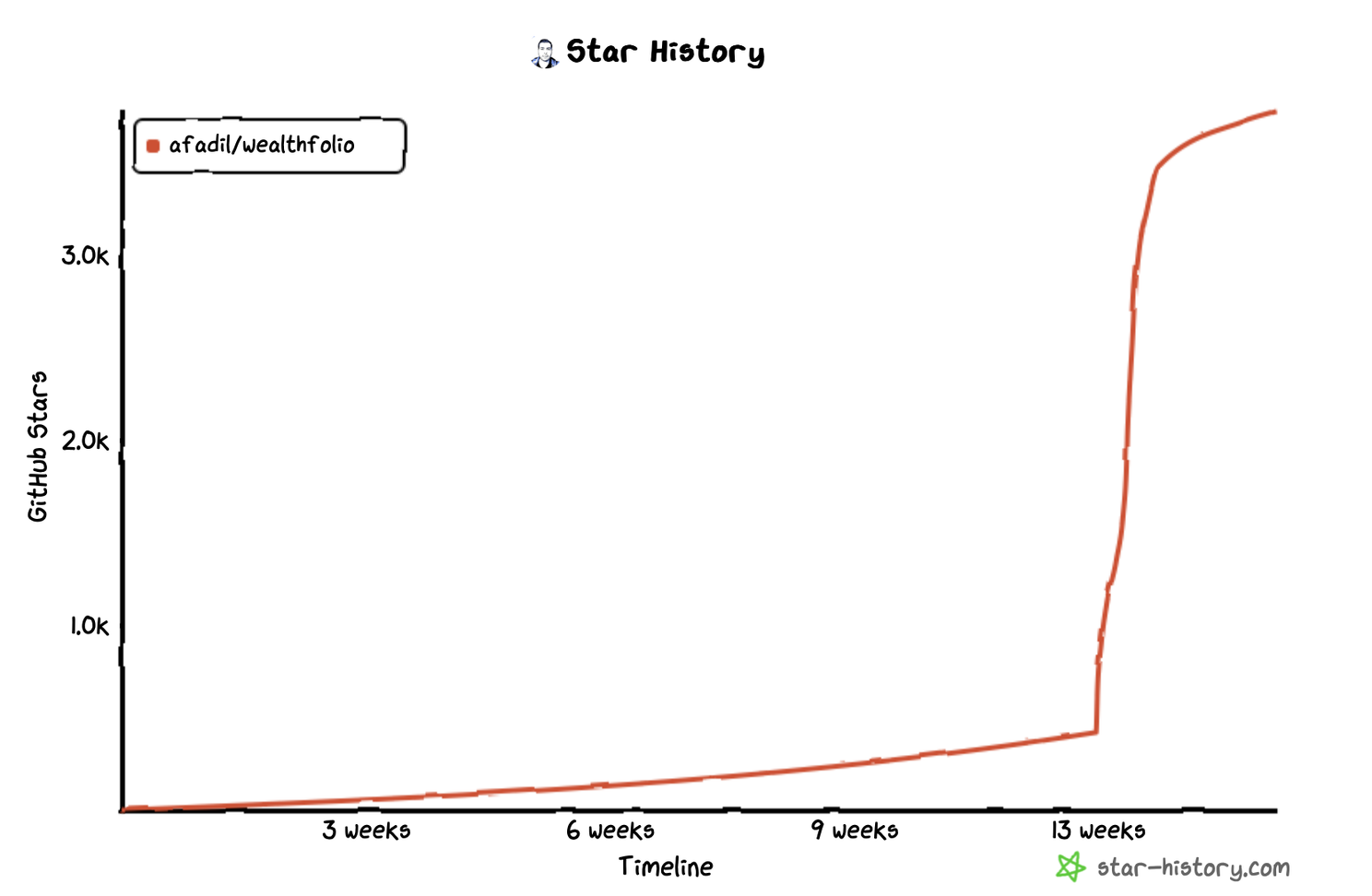
As Wealthfolio's popularity grew, it began attracting traffic from a variety of sources, some expected and others quite surprising like websites known for hosting cracked software :). Notably, it was featured on [Homebrew](https://formulae.brew.sh/cask/wealthfolio#default), which significantly boosted its visibility among macOS users. Google searches also directed a steady stream of new users to the app website.
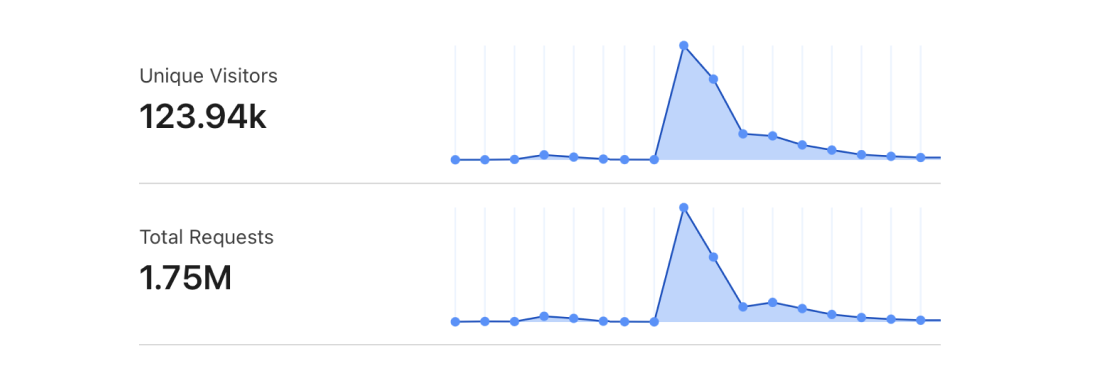
## Why People Liked It
Here's what I think made Wealthfolio catch on so quickly:
**It's Simple**: People don't want to deal with overly complicated tools. Wealthfolio focuses on one thing: tracking your investments. That's it.
**It's Private**: Your data stays on your computer. It doesn't go anywhere else. The code is open source, so there are no hidden trackers. Privacy matters for financial data.
**No Subscription Fees**: Wealthfolio embraces [once.com](http://once.com/) philosophy. There's no pressure, no monthly fees or hidden costs.
## Building It With AI
Part of the reason I built Wealthfolio was to see how fast I could turn an idea into a working product as a solo developer using AI. Both the [Tauri](https://tauri.app/) framework and the [Rust](https://www.rust-lang.org/) programming language were new to me, but AI gave me a serious edge in tackling that learning curve and troubleshooting issues (try to understand and resolve Rust's borrow and ownership issues 😁).
The AI assistant basically acted like team members; I'd like to think of it as my virtual product team. There's no way I could've built Wealthfolio this fast without that help.
We are definitely living through an interesting shift in how we design and build software, and it feels like it's only the beginning.
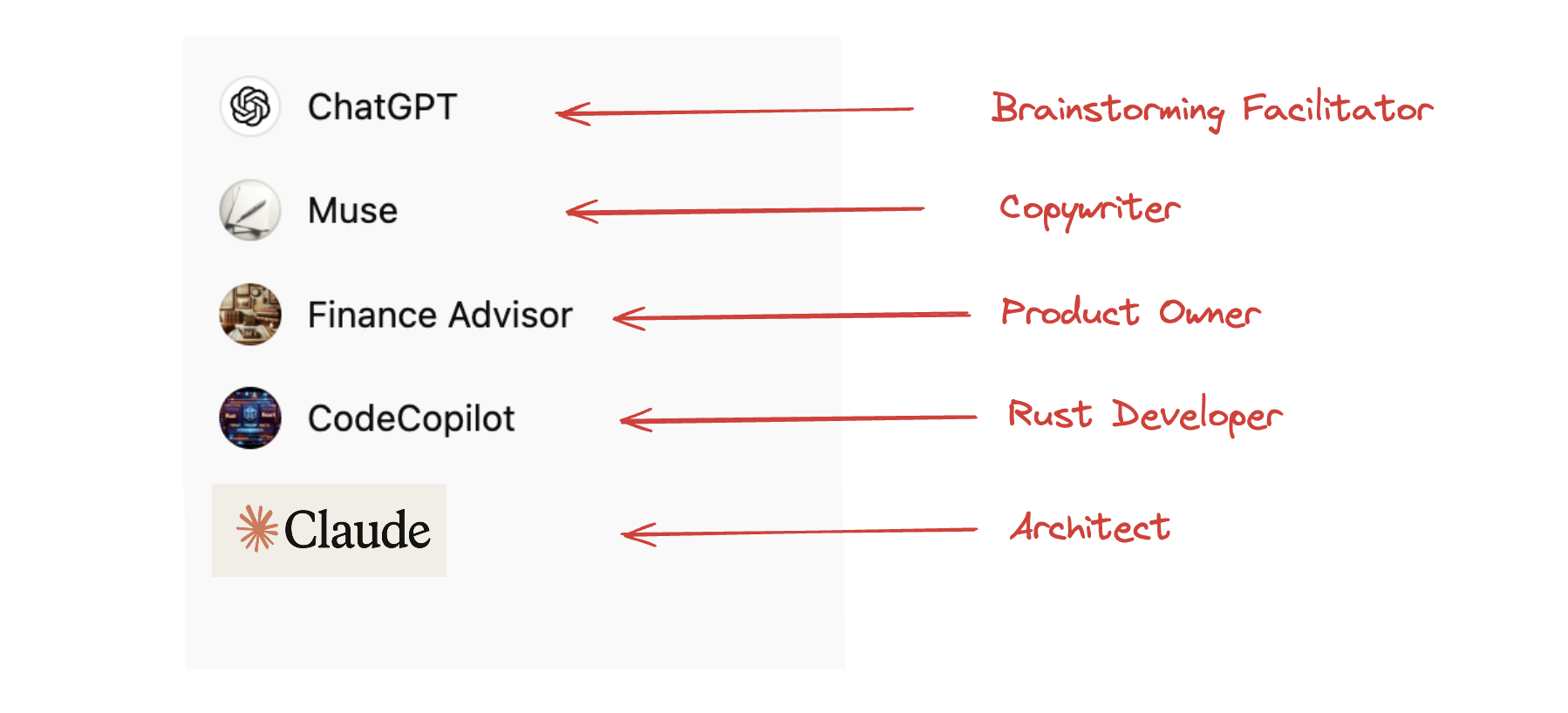
## What's Next for Wealthfolio?
The attention Wealthfolio has received has given the project a significant boost, and things are just getting started. There are some exciting developments on the horizon:
The vision is to make Wealthfolio the ultimate, user-friendly wealth and investment companion app. We aim to keep it simple, private, and free while ensuring its long-term sustainability.
Wealthfolio's journey is just beginning, and we'd love for you to be part of it. Whether you're a potential user, contributor, or simply curious about open-source success stories, I invite you to explore [Wealthfolio Website](http://wealthfolio.app/) and [Github repository](https://github.com/wealthfolio/wealthfolio) Share your thoughts, contribute code, or help spread the word.
Stay tuned for more updates!
---
# Wealthfolio Manifesto
Source: https://wealthfolio.app/blog/wealthfolio-manifesto
Author: Fadil
Published: 2024-09-17
Category: Product & Process
import { Image } from 'astro:assets';
I built Wealthfolio out of necessity because, honestly, I couldn't find a decent desktop investment
tracker that wasn't a total mess. Everything out there was ridiculously complicated, stuffed with
unnecessary features, and required uploading my financial data to someone else's servers, usually for a monthly fee.
I didn't feel comfortable sharing my financial information with third parties, and paying monthly
fees for something my computer could handle locally seemed unnecessary.
Then, Wealthfolio gained some attention, and I quickly realized there were probably others facing the same frustrations.
Many of us wanted an investment tracker that is simple, beautiful, and boring in the best way possible:
an app that did the job and stayed out of the way.
The Vision
I want Wealthfolio to be the tool people reach for when they need to track their wealth and financial goals
without unnecessary complications. Think of it as a beautiful, interactive spreadsheet-like tracker that actually makes sense.
No cloud dependencies, no monthly subscriptions, no handing over personal data. Just a clean app
that runs on your computer and gets the job done. I made it open source because people should see what's going on under the hood.
Transparency matters when it comes to your financial data. The goal is simple: track your money,
understand your progress, and forget the app is even there.
Here are some guiding principles that will drive the development of Wealthfolio:
Privacy Matters
In an age where everything is cloud-based and tied to SaaS platforms, I wanted optionality, the ability to decide where my financial data goes and who can access it.
Most apps decide for you where your data goes and who can access it. I don't believe anyone should have to compromise
their privacy to track their investments.
Wealthfolio stores all your information locally, right on your computer. No third parties. No risk of your data being sold, hacked, or manipulated.
This isn't just about privacy. It's about ownership. When your data stays on your machine, you own the whole process. No one can change the rules on you, raise prices, or suddenly decide your data is worth something to advertisers.
Simplicity Over Complexity
I believe simplicity is what makes products truly memorable. We aim to make Wealthfolio
boring and simple, not overly clever or sophisticated. It will be focused on the
essentials: tracking your investments and seeing how they align with your financial goals.
That's it. No unnecessary bells and whistles. Just clear, simple insights. I know the
everyday challenge will be not losing sight of what truly matters.
No Hidden Costs or Subscriptions
Another thing that frustrated me was the constant push for subscription services. I didn't
want to get trapped in yet another recurring fee for something I only use sporadically.
So, the core Wealthfolio app is free to use. If you like it and want to support its development, you
can pay once, no strings attached, and use it forever. No surprises. No monthly fees.
Note: We later introduced Wealthfolio Connect as an optional subscription for users who want automatic broker sync, device sync, and household sharing. The core app remains local-first and free. Connect is simply a convenience layer for those who want it.
================================================================================
RELEASE NOTES
================================================================================
---
# Wealthfolio 3.4.0 — Release Notes
Source: https://wealthfolio.app/changelog/3_4_0
Version: 3.4.0
Released: 2026-05-15
import Callout from '@/components/callout.astro';
Wealthfolio 3.4.0 is mostly about trust in your data: smarter CSV imports, clearer answers when a price is missing, friendlier database backups, and first-class support for DRIP, dividend-in-kind, and staking rewards. Self-hosting on Linux also gets dramatically faster.
---
#### **Smarter CSV Imports**
A correctness pass on the import wizard, especially for international and cross-listed holdings.
- **Your exchange is respected.** A `.DE` ticker now lands on XETRA in EUR instead of getting flipped to NASDAQ in USD.
- **Cross-listings stay separate.** The same symbol on two exchanges (e.g. `SHOP` on TSX vs NYSE) imports as two distinct positions.
- **ISIN-only rows** resolve through existing assets and provider search.
- **External transfers stay external.** The "External" checkbox on Transfer In / Out rows is no longer dropped on save.
- **Whitespace-padded fund names** map correctly through your saved symbol mappings.
- **Region** is detected from real country data, not guessed from the exchange code.
- **Split rows are validated.** Blank or zero split ratios are caught before they silently fail.
#### **Know Why a Price Is Missing**
When an asset has no quote, the warning tooltip in your asset tables now explains the reason: manual pricing, inactive asset, expired option, matured bond, error cooldown, pending sync, or no data available.
Quote sync also got steadier: holdings-only assets are protected from orphan cleanup, bond pricing now routes by ISIN with stale errors cleared on identity change, and pence-style quote units (GBp/GBX, ILA, USX, ZAc, KWF) are properly recognised.
#### **DRIP, Dividends-in-Kind & Staking Rewards**
Asset-backed income is now a first-class concept. DRIP, dividend-in-kind, and staking rewards each expand into an income leg plus an acquisition leg, show up cleanly on activity grids, and round-trip through CSV import. Stock splits also now recalculate from the earliest matching activity, so historical holdings stay accurate.
#### **Database Backups, Redone**
A managed backup list with streamed downloads and one-click delete. iOS gets a native file-picker export flow, and the previous unsafe arbitrary-path web backup endpoint has been removed.
#### **Goals Planning**
- **Save-up target dates no longer drift** by a day in positive-offset timezones.
- **Sliders unlocked** for target amount, monthly contribution, expected return, and FIRE projection assumptions.
- **Money inputs stop flickering** while you type. They commit on blur or Enter.
#### **Wealthfolio Connect**
- **Correlation IDs** on every Connect, auth refresh, subscription, and device-sync call, so failed-request logs are actually traceable.
- **Broker sync runs at startup on mobile** once the app is ready.
- **OCC option symbols are normalised** during broker sync, so the padded and compact forms stop creating duplicate assets. A migration cleans up safe duplicates in place.
#### **AI Assistant**
- **Anthropic chat works again.** Every call had been getting rejected with a "top_k must be unset when using Claude Models" error. The offending defaults are gone.
- **Claude Opus refreshed to 4.7.**
#### **Self-Hosting**
- **Prebuilt Linux server tarball** ships with every release. No more 20 minute on-device `cargo build` for Proxmox or LXC installs.
- **New self-host docs** for Proxmox (LXC, Docker-in-LXC, Docker-in-VM) and Unraid, plus a Community Apps template.
- **Docker container now runs as non-root** (UID/GID 1000) for safer defaults.
**Heads up for existing self-hosters.** Because the container is now non-root, `chown` your data
directory once before upgrading (see the self-host docs). The Docker image also moved to
`wealthfolio/wealthfolio`, with the old `afadil/wealthfolio` tag still publishing as a legacy
mirror.
#### **UI Polish**
- **Savings input shows your own currency** instead of always defaulting to `$`.
- **Dashboard chart views** no longer show an extra scrollbar.
- Dark-mode money input background fixed.
- Mobile alert dialog layout improvements.
- XNEO renamed to "Cboe Canada".
---
# Wealthfolio 3.3.0 — Release Notes
Source: https://wealthfolio.app/changelog/3_3_0
Version: 3.3.0
Released: 2026-04-30
Wealthfolio 3.3.0 is a big release for planning. Goals get an editorial redesign with cover cards, a save-up projection engine, and a brand-new Retirement Planner backed by a Monte Carlo Risk Lab. The AI assistant gains live access to the Health Center, an inline CSV import review grid, and persistent attachments. Symbol mapping now validates in real time per provider, custom providers can finally point at self-hosted URLs, and dozens of fixes land across activities, holdings, mobile, and device sync.
---
#### **Goals & Retirement Planning**
Goals get an end-to-end redesign and a brand new retirement experience:
- **Editorial dashboard** — cover cards, redesigned widget, and grouped plan sections
- **Save-up projection engine** — backend-driven save-up overview with milestones, projection chart, and tax-aware funding
- **Retirement Planner** — a new goals-first retirement experience with traditional vs FIRE goal types, default ages, and a not-financial-advice disclaimer
- **Risk Lab** — Monte Carlo simulation (5k runs by default), stress tests, sensitivity heatmaps, and a layout-aware loading skeleton so plan inputs render before the heavy projection finishes
- **Plan documentation** — collapsible plan tab sections summarising assumptions and inputs
- **Backend overhaul** — new retirement simulation engine, tax bucket columns, consolidated goal migrations, and a dedicated `RetirementPlan` DTO
#### **AI Assistant Improvements**
- **Inline CSV import** — the assistant now infers column mappings, parse config, and symbol translations, and the app drives the parse → validate → import pipeline inline in chat using the same review grid as the manual wizard, with bulk skip / unskip / force-import actions
- **Health Center tool (`get_health_status`)** — the assistant can read your portfolio's health issues, explain what each one means, and guide you to the fix
- **Cash balances tool (`get_cash_balances`)** — per-account, per-currency cash positions
- **Attachments persisted across the session** — CSV, image, and PDF attachments stay available for the active session in memory, with bounded session caches and redaction of persisted CSV content
- **Polished UI** — attachment chips, continuation loader, activity confirmation, compact tool-card display mode, and a redesigned tool fallback as a collapsible one-liner
- **Better activity workflows** — improved record-activity prompting (account / date), expanded tool access groups, and graceful per-account handling of CSV validation failures
#### **Symbol Mapping Validation**
The Market Data tab now validates each symbol in real time against the selected provider — Yahoo Finance, Börse Frankfurt, and any custom provider — with a debounced spinner → green check or red error icon. `preferred_provider` is threaded through the full stack so the validation hits the exact provider configured per row, and a non-blocking toast warns if you save with invalid mappings.
#### **Custom Market Data Providers**
- **Redesigned editor with click-to-map** — the provider settings editor now shows a **live preview pane** of the fetched response next to your mapping fields; click any value (price, date, OHLCV, etc.) in the preview to instantly bind it to the matching field instead of typing CSS selectors or JSON paths by hand
- **Self-hosted / private-network URLs** — the SSRF-style URL gate has been dropped; you can now point custom providers at `localhost`, LAN IPs, or any internal endpoint
- **OHLCV mapping** — open / high / low / volume paths supported across models, storage, templates, preview, and runtime
- **ISO 8601 + Excel date detection** — automatic detection of ISO datetimes and Excel day serials in scraped responses
- **Preview / runtime parity** — shared browser-like headers, redirect handling, and template expansion (`{FROM}` / `{TO}` / `{currency}`) so providers that test green also work at sync time
#### **Health Center**
- **Negative balance details** — per-account first-negative date, cash balance, investment value, and a likely cause (missing transfer, missing buy, etc.); CASH accounts that go negative now show INFO instead of ERROR
- **FX integrity affected pairs** — the detail drawer now lists each affected currency pair (e.g. EUR → USD) instead of just a count
- **Timezone-aware staleness** — price staleness now uses the asset's exchange MIC for timezone calculations
#### **Activities & Transfers**
- **Link existing transfer activities** — select two existing external transfers (one IN + one OUT) in the activity datagrid and click Link to retroactively pair them, with a confirmation dialog that warns on currency mismatch, amount drift > 1%, or date drift > 7 days
- **Transfer unlink flow** — unlink linked transfer pairs from the activity grid with confirmation
- **Transfer In cost basis edit** — editing an external Transfer In with securities now pre-populates the cost basis field instead of failing validation
- **Securities transfers display** — activity grid amounts for transfers now show qty × price instead of stale stored amounts
- **DRIP amount inference** — DRIP rows without an amount now compute it from price × quantity
#### **Holdings & Dashboard**
- **Hide expired options toggle** — global Holdings filter (and mobile filter sheet) to hide expired option holdings; expired options are also filtered out at the holdings service layer and from the assets settings view
- **Top holdings widget** — now shows the top 7 holdings (up from 5), with a persisted Symbol vs Name display choice and truncation for long names
- **Account snapshot history** — new history tab for account snapshots
- **ISIN on asset profile** — ISIN is now shown in the About tab and editable in the General tab of the edit sheet, persisted under `metadata.identifiers.isin` without clobbering other metadata
- **Dashboard performance %** — dashboard percentage now matches the account page
---
#### **Bug Fixes**
- **Symbol quote currency** — fixed crypto/FX resolution for assets like BTC quoted in EUR; the resolver now respects explicit quote-currency context and recognises `CRYPTOCURRENCY` instrument labels (#814)
- **Sell edit holdings** — fixed incorrect holdings warning when editing a sell (#861)
- **Avg cost overwriting today's price** — manual holdings no longer have today's quote overwritten by avg cost (#846)
- **Holding weights for expired options** — corrected weight calculation when expired options are present
- **FX rate direction hint** — clarified FX rate direction in the activity form
- **History chart Y-axis** — material portfolio moves keep zero-context while low-volatility ranges stay readable
- **Manual activity duplicate saves** — fixed
- **Mobile activity update validation** — tightened
- **Mobile activity asset link guard** — fixed `hasAsset` guard on the mobile activity table
- **Mobile chart drag** — chart scrubbing on asset profile, performance, and income history charts no longer triggers page swipes
- **Mobile device sync pairing** — pairing dialog width fixed on mobile
- **Activity asset identity edge cases** — fixed
- **CSV import asset review timeout** — `preview_import_assets` and `check_activities_import` now allow up to 10 minutes for large Options imports instead of hitting the global 2-minute / 5-minute timeout
- **Asset (de)activation on close/reopen** — assets are now deactivated when positions close and reactivated when they reopen, with errors propagated correctly
- **Metal symbols with weight suffix** — Metal Price API now supports weight-suffixed metal symbols using the exact troy ounce constant
- **AI health tool friendliness** — `get_health_status` payload simplified for LLM consumption
- **Sync replay** — legacy goal and allocation payloads are migrated on sync replay; sync table rebase fixed
- **FX valuation parsing** — hardened
- **Connect excluded sync copy** — clarified copy for excluded Connect accounts
- **Docker Compose** — fixed auth hash escaping in compose env (#865)
- **AI CSV review** — hardened review grid against stale state, account validation failures, and stale import summaries; live import session caches are bounded so old tool calls cannot grow memory unbounded
---
#### **Infrastructure & Performance**
- `rust-toolchain.toml` added to lock the Rust version across contributors and CI
- Claude Code hooks added to run CI checks before commit / push
- Decoupled retirement dashboard loading states for faster perceived responsiveness
- Lighter risk-lab outcome calculations and delayed sensitivity maps
- Foreground sync paused on desktop while the window is unfocused
- Improved device sync liveness and pairing safety across desktop and web
- Bumped to version 3.3.0
---
# Wealthfolio 3.2.0 — Release Notes
Source: https://wealthfolio.app/changelog/3_2_0
Version: 3.2.0
Released: 2026-04-02
Wealthfolio 3.2.0 lets you fetch price data from any website with custom scraper-based providers and ships a substantially rebuilt CSV import wizard with ISIN support, encoding detection, and many new mapping features. This release also adds income filtering by account, AI file attachments, and a long list of market data, valuation, and UI fixes.
---
#### **Custom Market Data Providers (Scrapers)**
Fetch price data from any website or JSON API. Define custom scraper-based providers with CSS selectors or JSON paths to pull quotes from sources not covered by built-in providers. Assign custom providers to individual assets or use them as exchange rate sources. Full CRUD management UI in Market Data settings. Includes SSRF protection, redirect blocking, and provider priority ordering. [Learn more →](/docs/guide/custom-providers)
#### **Revamped CSV Import**
The CSV import wizard has been substantially rebuilt:
- **ISIN support** — resolve assets by ISIN, not just ticker symbols
- **Non-UTF-8 encoding detection** — automatically transcodes files in other encodings
- **Fallback columns** — map multiple CSV columns to a single field with priority
- **Sign inference** — automatically detect buy/sell from signed amounts
- **Skip rows** — mark individual rows to skip before importing
- **Per-row force import** — bypass duplicate detection for specific rows
- **Subtype display** — see activity subtypes (DRIP, etc.) during review
- **Grouped template selector** — templates organized by broker
- **Wealthsimple template** — built-in support for Wealthsimple exports
- **Smart defaults** — auto-switch template when changing accounts
- **Concurrent symbol resolution** — significantly faster asset lookups
- **Currency-aware resolution** — correctly resolves exchange suffixes for non-USD assets
- **Event-driven validation** — real-time feedback as you map columns
- **Mark Custom assets** — mark individual or all unresolved symbols as custom assets during import
- **Asset review step for holdings import** — review and resolve unrecognized assets before importing holdings CSV data
#### **Income Page Improvements**
- **Account filter** — filter income history by account, with mobile-friendly drawer
- **"By Account" stacked chart** — new chart view showing income broken down by account
- Improved stacked bar chart rendering and Y-axis scaling
#### **AI Assistant Enhancements**
- **File attachments** — attach CSV, images, and PDF files to your AI conversations
- **History windowing** — prevents context overflow in long conversations
- Vision capability gating for image analysis
---
#### **Market Data Improvements**
- **Boerse Frankfurt provider rewrite** — rebuilt using TradingView UDF API for more reliable German market data
- **Metal Price API historical quotes** — precious metals now have full price history, not just spot prices
- **Aquis Exchange (XAQE)** added to the exchange registry
- **MarketData.app real-time supplement** — current-day candles now include the latest real-time price
- **BF fallback for ISIN-only equities** — assets with only an ISIN and no exchange MIC can now resolve via Boerse Frankfurt
- **Periodic market data sync scheduler** — quotes refresh automatically on a schedule
- **Relaxed Yahoo rate limits** — burst of 10 requests, up to 2,000/min for faster syncs
- Renamed "Refetch quotes" to "Refetch price history" in asset tables for clarity
---
#### **Bug Fixes**
- **Expired options handling** — expired options now show zero valuation with a UI badge; added a confirm action for expiry
- **OCC options** — fixed duplicate asset creation when selling OCC options; corrected fallback key format and match priority
- **Valuation accuracy** — fixed days being skipped when an asset has partial quote coverage; restored full-gap skip while allowing partial gaps
- **Dashboard** — correct performance display for accounts with negative start value; exclude null-return accounts from group weighted-average; fixed nested account rows always showing a secondary metric line
- **Contribution limits** — internal transfers from outside a limit's scope now correctly count as contributions; page is now responsive on mobile
- **DRIP dividends** — added price and quantity fields to dividend form for DRIP subtype
- **Broker-synced accounts** — fixed chart marker clicks and holdings editing
- **Net worth** — fall back to display code when asset name is empty
- **Fallback quotes** — fixed income amounts being incorrectly used as asset prices
- **Precious metals** — restored proper domain split between market metals and physical precious metals
- **Future activities** — allow future manual activity dates on web
- **Duplicate menu item** — removed duplicate "Check for update" menu entry
- **Activity notes** — fixed missing serde alias for notes field on activity updates
- **CSV import price reconciliation** — correctly reconcile unit price when CSV amount disagrees with qty × price
- **Migration cleanup** — added safeguards to prevent incorrect deletion of broker quotes during income quote cleanup
- **Custom scraper errors** — custom scraper failures no longer mask real provider errors
- **Activity grid amounts** — correctly compute amount as qty × price for DRIP and asset-backed activity subtypes; rounded auto-computed amounts
- **DataGrid column visibility** — column visibility toggle now applies without requiring a page reload
- **Import asset resolutions** — new-asset resolutions now carry forward correctly; fixed stale mapping overwrites
- **Duplicate badge styling** — duplicates now show a warning badge instead of error; removed placeholder TICKER text
- **Mobile charts** — fixed chart scrubbing interactions and interval selector sizing on mobile
---
#### **Infrastructure & Performance**
- Node.js upgraded from 20 to 24 LTS
- Concurrent symbol resolution during import (up to 10 parallel lookups)
- Deduplicated provider quote-currency lookups during validation and sync
- Improved Docker deployment auth setup documentation
- Addon archive path traversal security fix
- DataGrid re-rendering fix when columns change dynamically
---
# Wealthfolio 3.1.0 — Release Notes
Source: https://wealthfolio.app/changelog/3_1_0
Version: 3.1.0
Released: 2026-03-14
Wealthfolio 3.1.0 expands the app beyond stocks, ETFs, crypto, and funds — you can now track options contracts, bonds (including US Treasuries), precious metals, futures, and money market instruments. This release also introduces device sync via Wealthfolio Connect and a wave of AI assistant, charting, and UI improvements.
---
#### **New Asset Types: Options, Bonds & Precious Metals**
- **Options** — Track option positions with proper contract multiplier handling, OCC symbol resolution, and automatic expiry detection. Options are visually tagged in your securities list.
- **Bonds** — Full bond support with dedicated market data providers (US Treasury Direct, Börse Frankfurt, OpenFIGI). Bond metadata is displayed on asset detail cards. CUSIP-to-ISIN auto-conversion is built in.
- **Precious Metals** — Add and track physical metal holdings.
- All new asset types work with CSV import — just include the instrument type column.
#### **AI Assistant Improvements**
- **Bulk record activities** — The AI assistant can now add multiple transactions at once.
- **Edit messages** — You can now edit previous messages in the AI chat thread.
#### **Device Sync (Wealthfolio Connect)**
Sync your portfolio data across devices with the new pairing flow. Scan a QR code to link devices and keep your data in sync.
#### **New Features**
- **Create Security dialog** — Manually add custom securities directly from the app.
- **1-Day chart interval** — New "1D" option in time period selectors for intraday views.
- **Split price actions** — "Update Price" (latest only) and "Refresh History" (full history) are now separate actions, giving you more control.
- **Auto-classify assets** — Instrument type and asset class are automatically set when you create or import an asset.
- **Download progress** — App updates now show a progress bar.
- **PWA support** — Add Wealthfolio to your home screen on iOS and Android with proper app icons.
- **Bond & option detail cards** — Asset detail pages now show relevant metadata for bonds and options.
#### **Fixes & Improvements**
- Performance chart now respects your selected date range correctly.
- Manual quotes are properly carried forward during incremental portfolio valuation.
- **Dark mode** — Login screen, OTP input, and popover styling all render correctly in dark mode.
- **iPad** — Links and touch interactions now work properly.
- Window state is remembered between app launches.
- **Chart styling** — Smoother gradient transitions with red/green zero-crossing coloring.
- **Date handling** — Fixed off-by-one day errors when parsing date-only strings.
- **Health Center** — Better detection of missing exchange rates (checks holdings too), and sync errors are now surfaced clearly.
- **Responsive tables** — Account holdings table adapts to smaller screens.
- Expired options are automatically skipped during price sync.
- **Addon loading** — Fixed manifest parsing for addon plugins.
- **Deep link auth** — Fixed on Windows and Linux via single-instance plugin.
- **Session handling** — Sliding refresh prevents session expiry during active use.
- **Crash fix** — Invalid currency codes no longer crash the number formatter.
- **Toast notifications** — Fixed close button overlap and description color.
- **Broker cards** — Renamed "Synced X ago" to "Data as of" for clarity.
- Various performance and stability improvements under the hood.
---
# Wealthfolio 3.0.5 — Release Notes
Source: https://wealthfolio.app/changelog/3_0_5
Version: 3.0.5
Released: 2026-03-06
v3.0.5 preserves cost basis on internal securities transfers, cleans up stale snapshots, and delivers a more polished mobile experience across the app.
### Highlights
- **Cost basis preservation on transfers** — Internal transfers between accounts now carry over tax lots, so your original cost basis is preserved instead of being reset.
- **Stale snapshot cleanup** — Deleting the last activity for an account now correctly removes orphaned snapshots.
- **Improved mobile experience** — Numerous UI refinements across sheets, search inputs, ticker selection, quote history, and asset lots for a more polished mobile app.
### Bug Fixes
- **Cost basis / transfers** — Internal securities transfers now carry over lot-level cost basis, preserving your original purchase price across accounts.
- **Snapshots** — Stale snapshots are now cleaned up when the last activity in an account is deleted.
- **Activity form** — Fixed error handling in form submission and corrected asset ID logic.
- **Custom asset dialog** — Fixed manual asset creation from the activity data grid.
- **Alternative assets** — Name and notes are now included when updating alternative asset metadata. (#675)
- **Wealthfolio Connect** — Disabled auto-refresh token and streamlined session restoration logic from the backend.
- **Wealthfolio Connect** — Added default environment variables for the Connect provider.
### Features
- **Interest activities** — Symbol is now optional on interest activities, allowing you to track interest earned on specific securities.
### Mobile / UI
- **Ticker search** — Redesigned selected state and made the activity sheet full-width on mobile.
- **Search input** — Unified search input style across the holdings and securities pages.
- **Sheet component** — Improved safe area handling, padding, and close button positioning.
- **Quote history** — Enhanced mobile layout with pagination and inline editing.
- **Asset lots** — Added a mobile-responsive card layout for the lots list.
---
# Wealthfolio 3.0.4 — Release Notes
Source: https://wealthfolio.app/changelog/3_0_4
Version: 3.0.4
Released: 2026-03-05
v3.0.4 brings portfolio filters, persistent table sorting, better crypto precision, stronger security, and important updates for self-hosters.
### What's New
- **Securities portfolio filter** — The securities list now defaults to showing only your currently held assets. Switch between "Current" and "Past" holdings to find what you need faster.
- **Persistent table sorting** — Your sorting preferences on data tables are now remembered across sessions. (#671)
- **Better crypto precision** — Increased decimal precision from 6 to 8 digits, so fractional crypto holdings (e.g. 0.00012345 BTC) are tracked accurately.
- **Search activities by notes** — You can now search your activities using text from the notes field. (#662)
- **AI provider feedback** — Adding or removing AI API keys now shows clear success/error notifications.
- **Smarter update checks** — Update checks are cached to avoid redundant network calls, with a manual "force refresh" option. (#663)
### Security Improvements
- **Stronger session security** — Login sessions now use secure, HttpOnly cookies instead of browser-stored tokens, protecting against common web attacks like XSS.
- **Login rate limiting** — Login attempts are limited to 5 per minute per IP address to prevent brute-force attacks.
- **Stricter CORS policy** — Wildcard origins (`*`) are no longer allowed when authentication is enabled. You must specify your exact allowed origin.
- **Improved secret key handling** — Encryption keys are now derived using industry-standard HKDF-SHA256. Existing secrets are migrated automatically on startup — no action needed.
### Bug Fixes
- **AI assistant** — Fixed Ollama model selection so the chosen model always matches what's available. Also fixed `/v1` URL handling that caused 405 errors. (#665)
- **Keyboard shortcuts** — The search shortcut in the sidebar now shows the correct key for your platform (Cmd+K on Mac, Ctrl+K on Windows/Linux). (#670)
- **Performance chart** — Improved chart width and disabled animation on mobile for smoother rendering.
- **Sheet layout** — Fixed padding on sheet overlays for better visual spacing.
- **Timezone settings** — Simplified timezone detection by removing the confusing auto-detected field.
- **Device sync pairing** — Improved snapshot handling and UI updates during the device pairing flow.
- **Cloud sync sessions** — Sessions are now automatically restored on page reload, so you don't need to re-authenticate as often.
### For Self-Hosters (Docker / Web Mode)
#### Breaking Changes
1. **CORS wildcard no longer allowed with auth** — If `WF_AUTH_PASSWORD_HASH` is set, you must set `WF_CORS_ALLOW_ORIGINS` to an explicit origin (e.g. `https://wealthfolio.example.com`).
2. **Auth required on non-loopback addresses** — Binding to `0.0.0.0` now requires either `WF_AUTH_PASSWORD_HASH` to be set, or `WF_AUTH_REQUIRED=false` to explicitly opt out (e.g. when a reverse proxy handles auth).
3. **OpenAPI schema moved** — Now served at `/api/v1/openapi.json` (requires authentication when auth is enabled).
#### New Environment Variable
| Variable | Default | Description |
| ------------------ | ------- | ---------------------------------------------------------------------------------------------------- |
| `WF_AUTH_REQUIRED` | `true` | Set to `false` to run without authentication on non-loopback addresses (e.g. behind a reverse proxy) |
#### What to Do
- **Docker Compose users**: Set `WF_CORS_ALLOW_ORIGINS` to your actual domain in your `.env.docker` or `compose.yml`. If you run without auth behind a reverse proxy, add `WF_AUTH_REQUIRED=false`. Review the updated `compose.yml` and `README.md`.
- **Reverse proxy users**: Ensure your proxy preserves `Cookie` and `Set-Cookie` headers for `/api` paths. The session cookie uses `SameSite=Strict` and `Path=/api`.
- **SSE / frontend clients**: EventSource connections now authenticate via cookie (`withCredentials: true`). Query-param token passing has been removed.
---
# Wealthfolio 3.0.3 — Release Notes
Source: https://wealthfolio.app/changelog/3_0_3
Version: 3.0.3
Released: 2026-03-03
v3.0.3 brings several bug fixes improving quote synchronization reliability, asset validation, timezone handling, activity search, and mobile usability.
### Bug Fixes
- **Quote sync:** Disabled the split syncing step in quote synchronization due to unreliable data from Yahoo
- **Asset validation:** Skip validation for existing assets in ensure_assets by @kwaich in #658
- **Timezone:** Fix warning thrown if time zone differs from browser despite them being the same (#655)
- **Activity search:** Fix search in Activities page not recognizing ticker symbols (#629)
- **Activity Sheet:** Add close button on mobile
---
# Wealthfolio 3.0.1 — Release Notes
Source: https://wealthfolio.app/changelog/3_0_1
Version: 3.0.1
Released: 2026-03-02
v3.0.1 brings enhanced asset management with FX settings, timezone support, improved broker connections, and several bug fixes.
### Enhanced Asset Management
- New FX settings tab for managing foreign exchange assets
- Better symbol handling for complex stock symbols with unknown suffixes
- Improved custom asset creation with keyboard support
- Optimize portfolio updates by @geordie
### Activity Management
- Optimize portfolio updates by @geordie
- On the activities page, persist filter, sort and search state across navigation by @geordie
- Duplicate activity detection now prevents accidental duplicates with clear error messages
- Idempotency keys ensure imported activities don't get duplicated
- Add splits on price syncs for accurate portfolio performance history by @geordie
- Fix reverse split ratio display by @geordie
### Timezone Support
- New timezone settings page in General settings
- Timezone sent with health checks for accurate date handling
- Health warnings for invalid timezone configuration
### Bulk Holdings
- Enhanced bulk holdings form with asset metadata suggestions
### Wealthfolio Connect: Device Syncing
- Improved device connection interface with clearer pairing instructions
- Unpaired devices now see helpful prompts to complete setup
### Wealthfolio Connect: Improved Broker Connections
- Support for different tracking modes (holdings-only vs full sync)
- Better error messages when sync fails (now shows which broker had issues)
- Token lifecycle management — tokens automatically refresh before expiring
### Bug Fixes
- **Cross-currency trades:** Fixed cash balance issues when trading foreign currencies with a known exchange rate
- **CSV imports:** Fixed withdrawals being incorrectly recorded (negative amounts were double-negated)
- **Activity forms:** Currency now auto-selects properly when choosing an account
- **Symbol search:** Better handling of complex stock symbols and quote currency detection
- **Account switch:** Added confirmation dialog when switching between account modes
### Developer
- New addon migration guide (v2 to v3) (https://github.com/wealthfolio/wealthfolio/blob/main/docs/addons/addon-migration-guide-v2-to-v3.md)
- feat(sdk): Add toast API and Yahoo dividends endpoint for addons by @kwaich
---
# Wealthfolio 3.0.2 — Release Notes
Source: https://wealthfolio.app/changelog/3_0_2
Version: 3.0.2
Released: 2026-03-02
v3.0.2 fixes device sync after pairing and improves date/time handling robustness.
### Bug Fixes
- **Device sync:** Fix device sync after pairing — improvements to sync logic and date/time handling robustness
---
# Wealthfolio 3.0.0 — Release Notes
Source: https://wealthfolio.app/changelog/3_0_0
Version: 3.0.0
Released: 2026-02-24
Wealthfolio 3.0 is a major update that transforms the app from a pure investment tracker into a
complete personal wealth manager with a built-in AI assistant.
---
#### **Net Worth Tracking**
Go beyond investments. Track properties, vehicles, collectibles, precious metals, cash, and
liabilities to see your full financial picture. A dedicated Net Worth page shows your total wealth
over time with an interactive chart, a balance sheet breakdown by category, and alerts when any
asset's valuation is getting stale.
#### **AI Assistant**
Ask questions about your portfolio in plain English. The built-in AI assistant can look up your
holdings, performance, income, goals, and allocation — and answer follow-up questions in context.
You can also tell it to record transactions ("Buy 20 AAPL at 240 yesterday") or paste CSV data
directly into the chat to import. Bring your own API key from OpenAI, Anthropic, Google AI, Groq,
OpenRouter, or run models locally with Ollama.
**You stay in control.** Your data never leaves your device unless you explicitly choose a
cloud-based AI provider — and even then, only the data you allow. You decide which tools the
assistant can access (accounts, holdings, activities, performance, etc.), so it only sees what you
want it to see. No data is stored on any external server; the AI has no memory between sessions
beyond your conversation threads.
#### **Wealthfolio Connect Integration**
Wealthfolio 3.0 integrates with Wealthfolio Connect, a separate service for syncing brokerage data
and keeping your devices in sync. You can connect supported brokers through Connect and sync data
across your setup with less manual importing. Learn more at https://wealthfolio.app/connect/.
#### **Smarter Portfolio Breakdowns**
Portfolio allocation is now powered by a rich classification system. Assets are automatically tagged
by asset class, industry sector (GICS), geographic region, instrument type, and risk category —
with full drill-down support. Interactive donut charts let you click into any segment to explore
what's inside. If you had sector or country data in v2, a one-click migration brings it forward.
#### **Redesigned CSV Import**
Importing transactions is now a guided step-by-step wizard. The app auto-detects column mappings,
lets you remap activity types and ticker symbols, and shows a side-by-side preview of your CSV
alongside the mapping. Save your mapping profiles per account so repeat imports are instant. A
separate import flow is available for holding snapshots.
#### **New Activity Forms**
Manual entry is now faster and easier with redesigned activity forms. Create buys, sells, dividends,
fees, transfers, and other activity types with cleaner inputs, smarter defaults, and inline
validation to catch errors before saving. The forms are optimized for quick keyboard-driven entry
while still giving you full control over account, asset, price, quantity, and date details.
#### **Spreadsheet Activity Editor**
Edit your activities like a spreadsheet. Navigate with arrow keys and Tab, copy and paste cells or
entire rows, search inline with Ctrl+F, and bulk-save all your changes at once. The toolbar shows
a live summary of new, updated, and deleted rows before you commit.
#### **Two Ways to Track Accounts**
Not every account has a full transaction history. Wealthfolio now supports two tracking modes:
- **Complete Transactions** — the classic approach where holdings are calculated from your buy/sell
activity ledger.
- **Holding Snapshots** — enter or import your current positions directly, ideal for accounts like
employer 401(k)s, pensions, or external platforms where you only know your balances.
The entire app — charts, imports, editing — adapts to whichever mode you choose.
#### **Health Center**
A new diagnostics page that automatically checks your data for issues: stale prices, missing
exchange rates, unclassified holdings, data inconsistencies, and unconfigured accounts. Each issue
is ranked by severity and shows how much of your portfolio it affects. Most problems can be fixed
with a single click.
#### **More Reliable Market Data**
The market data engine has been rebuilt with support for multiple providers — Yahoo Finance, Finnhub,
Alpha Vantage, MarketData.app, and Metal Price API. If one provider fails or is rate-limited,
Wealthfolio automatically falls back to the next. You can configure provider priority, manage API
keys, enable or disable providers in settings, and set a preferred provider for individual assets
when the default choice isn't giving you the best results.
#### **Interactive Chart Markers**
Account history charts now show clickable markers on dates where you recorded transactions or
snapshots. Click a marker to see exactly what happened that day in a sidebar.
#### **Asset Page**
Each asset now has a full profile page showing your holdings across all accounts, tax lots, price
history, and classification tags. For alternative assets like property or vehicles, you can maintain
a manual valuation history and link related liabilities (e.g., a mortgage tied to a property).
#### **Under the Hood**
- Cleaner codebase architecture with a monorepo structure and modular Rust crates.
- Many bug fixes, performance improvements, and stability enhancements throughout the app.
---
# Wealthfolio 2.1.0 — Release Notes
Source: https://wealthfolio.app/changelog/2_1_0
Version: 2.1.0
Released: 2025-12-01
v2.1 brings flexible navigation options, a top holdings widget for the dashboard, and updates to the addon development workflow. This release also improves currency handling for stocks priced in minor units and addresses several bugs regarding imports and mobile scrolling.
### Major Features
#### Navigation Layouts
You can now choose between a Sidebar or a Floating Bottom Navigation Bar. A new **"Focus Mode"** allows you to hide the navigation bar entirely. Use Command+K or the Search Icon to trigger the switch.
#### Dashboard Updatess
Added a **Top Holdings widget** and improved navigation within the holdings table. Fixed the page flicker when we toggle show or hide monetary amounts.
#### Ticker Searchh
Support added for custom symbols with manual data sources. The ticker search now handles truncation and empty results more effectively.
#### Exchange Rate Managementt
Users can now delete and edit exchange rates directly. We also added normalization between minor and major currencies (e.g., GBp to GBP) to correctly handle stocks listed in minor units (pence).
#### Mobile Adjustmentss
Fixed scrolling issues on swipeable pages and adapted the App Launcher layout for mobile screens.
#### Quick Actions
- Quick actions for Buy and Sell are now available directly within the Asset and Holding views.
- Add transaction button is now available in the account page
### UI/UX Enhancements
- **Splash Screen:** Added a splash screen to replace the blank page during application startup.
- **Fix Scroll:** Fixes a bug where the scroll position was maintained between different pages by resetting the scroll when navigating.
- **App Launcher:** Added "Recents" to the command palette for quicker access to previous items.
- **Account Summary:** The summary now displays the total value in the account's specific currency.
- **Empty States:** Added a direct "Add Holding" button when the holdings table is empty.
### Platform + Codebase Upgrades
- **Addon Workflow:** Updated documentation for addon development (Tauri and browser-only) and APIs.
- **Build System:** Switched from `npm` to `pnpm` for addons development scripts.
- **Testing:** Refactored E2E tests to better cover multi-currency onboarding (CAD, USD, EUR, GBP).
### Technical Fixes & Improvements
- **Bulk Import:** Fixed an issue where bulk imports would default to USD instead of the asset's native currency.
- **Securities Filters:** Fixed a bug where deleting a security would reset active list filters.
- **Addon Display:** Fixed a bug where refreshing an addon URL would show the source code instead of the UI.
- **Database Restore:** Fixed a visual glitch where the success message appeared multiple times.
- **Search API:** Added documentation for `activities.search` filters and pagination.code instead of the UI.
* **Database Restore:** Fixed a visual glitch where the success message appeared multiple times.
* **Search API:** Added documentation for `activities.search` filters and pagination.
---
# Wealthfolio 2.0.0 — Release Notes
Source: https://wealthfolio.app/changelog/2_0_0
Version: 2.0.0
Released: 2025-11-21
Big milestone. v2 ships a full-stack revamp, new platform targets, and a workflow upgrade across the board.
## Major Features
#### Mobile App (iOS/Android) + Desktop Appp
Wealthfolio now runs everywhere—desktop, web, and mobile—with a shared codebase and platform-specific optimizations.
#### Self-Hosted Docker Imagee
First-class Docker support with a simplified configuration flow. The app is now fully self-hostable with minimal setup.
#### Spreadsheet-Style Activity Editorr
A fast grid-based editor for activity management. Supports bulk edits and deletes.
#### Command+K App Launcherr
A global command palette (⌘K / Ctrl+K) for instant navigation and quick actions. Much faster than hunting through menus.
#### Improved Onboardingg
Cleaner, shorter onboarding with better defaults and more intuitive guidance for new users.
#### Switch Accounts From Account Sectionn
Quick account switching directly inside the account pages. No more backing out to the dashboard.
#### System Theme Supportt
Automatic light/dark theme selection based on OS settings, with manual override.
#### CSV Quote Importt
Import prices and historical quotes directly from CSV files. Useful for custom or unsupported tickers.
## UI/UX Enhancements
- Full UI and styling refresh across the application
- Better spacing, sizing, typography, and component consistency
- Updated layout patterns to align with modern app UX
## Platform + Codebase Upgrades
- Updated to latest versions of all major frameworks and libraries
- Internal refactors to improve maintainability and consistency
- Many code cleanups, improvements, and reliability fixes
## Technical Fixes & Improvements
- Encode Yahoo API queries to handle special characters ([#391](https://github.com/wealthfolio/wealthfolio/pull/391))
- Use nonnegative() for quantity validation across asset types ([#404](https://github.com/wealthfolio/wealthfolio/pull/404))
- Quotes import functionality added ([#378](https://github.com/wealthfolio/wealthfolio/pull/378))
- Docker docs and config improvements ([#422](https://github.com/wealthfolio/wealthfolio/pull/422))
- Web server enhancements ([#419](https://github.com/wealthfolio/wealthfolio/pull/419), [#421](https://github.com/wealthfolio/wealthfolio/pull/421))
- Sonner notification system customization ([#420](https://github.com/wealthfolio/wealthfolio/pull/420))
- Minor bug fixes ([#426](https://github.com/wealthfolio/wealthfolio/pull/426))
---
# Wealthfolio 1.2.0 — Release Notes
Source: https://wealthfolio.app/changelog/1_2_0
Version: 1.2.0
Released: 2025-08-22
## What's Changed
### Add-ons System
- New add-ons system for extending Wealthfolio functionality
- Add-ons store for browsing, installing, and managing add-ons within the app
- Two launch add-ons included:
- Goal Progress Tracker for tracking financial goals
- Investment Fees Tracker for monitoring investment fees
### Developer Resources
- [@wealthfolio/addon-sdk](https://www.npmjs.com/package/@wealthfolio/addon-sdk) - SDK for developing Wealthfolio add-ons
- [@wealthfolio/ui](https://www.npmjs.com/package/@wealthfolio/ui) - Shared UI component library built on shadcn/ui and Tailwind CSS
- [@wealthfolio/addon-dev-tools](https://www.npmjs.com/package/@wealthfolio/addon-dev-tools) - Development tools with hot reload server and CLI
- [Developer Documentation](https://wealthfolio.app/docs/addons/) for building add-ons
### Interface Updates
- Added company logo icons for tickers
- Improved activity and holdings table layouts
- New bulk import form for adding multiple holdings at once
### New Features
- Edit asset names directly from the asset page
- Toggle between asset names and symbols in holdings composition view
- Dedicated backup and restore page for database management
- Comment field added to activity forms
- Settings menu item in the main app menu
### Improvements and Bug Fixes
- CSV import now supports negative amounts
- Cash balance validation warns before BUY activities that would overdraw accounts
- Various improvements and bug fixes
---
# Wealthfolio 1.1.6 — Release Notes
Source: https://wealthfolio.app/changelog/1_1_6
Version: 1.1.6
Released: 2025-07-24
## What's Changed
### Market Data Providers
- Support for alternative market data providers beyond Yahoo Finance
- Enhanced flexibility for market data sources and improved data reliability
### Account Management
- Manual cash balance updates for individual accounts
- Streamlined account management with direct cash balance adjustments
- Improved account overview and balance tracking
### Bug Fixes and Improvements
- Fixed typos in goals page for improved user interface clarity
- Preserved original activity timestamps when updating instead of resetting to 4 PM
- Resolved manual activity overflow display issues with long activity entries
- Fixed app version display in the about menu
- Implemented secure API key management using platform-specific storage:
- macOS: Keychain integration
- Windows: Credential Manager support
- Linux: DBus-based Secret Service and kernel keyutils
### Technical Enhancements
- Enhanced security architecture with proper API key management
- Improved activity timestamp handling and preservation
- Better user interface stability and error handling
- Strengthened data security and storage mechanisms
**Full Changelog**: [v1.1.5...v1.1.6](https://github.com/wealthfolio/wealthfolio/compare/v1.1.5...v1.1.6)
---
# Wealthfolio 1.1.5 — Release Notes
Source: https://wealthfolio.app/changelog/1_1_5
Version: 1.1.5
Released: 2025-06-28
## What's Changed
### Import and Transaction Management
- Bulk transaction imports across multiple accounts for streamlined data entry
- Enhanced CSV import process with improved validation and error handling
- Clearer activity form requirements with better field guidance
- Simplified workflow for managing transactions across different account types
### Currency and Formatting
- Specialized handling for British Pence (GBp) currency with proper formatting
- Improved currency display consistency throughout the application
- Better international currency support and formatting standards
### Symbol and Data Handling
- Fixed symbol routing issues for symbols containing forward slashes
- Improved quote creation process for manually entered symbols
- Enhanced symbol parsing and validation mechanisms
- Better handling of complex symbol names and identifiers
### User Interface Improvements
- Fixed fullscreen toggle behavior for smoother window transitions
- Enhanced window management with more reliable state transitions
- Improved overall user experience with better visual feedback
### Technical Enhancements
- Strengthened CSV import validation with comprehensive error reporting
- Enhanced form validation for activity creation and editing
- Improved symbol management and quote handling systems
- Better data integrity checks and validation processes
**Full Changelog**: [v1.1.4...v1.1.5](https://github.com/wealthfolio/wealthfolio/compare/v1.1.4...v1.1.5)
---
# Wealthfolio 1.1.4 — Release Notes
Source: https://wealthfolio.app/changelog/1_1_4
Version: 1.1.4
Released: 2025-06-16
## What's Changed
### Date and Time Management
- Fixed date picker input calendar functionality for improved date selection
- Added new date range options: 6 months, year-to-date, and 5 years
- Enhanced time period analysis capabilities with more flexible date ranges
- Better date handling and validation throughout the application
### User Interface Enhancements
- Account scrolling support in manual activity forms for easier navigation
- Multi-line display for sector and country allocation in asset profile pages
- Improved readability with better space utilization for allocation data
- Privacy mode now properly hides total return calculations when amounts are hidden
### Account and Portfolio Management
- Added proper currency handling for accounts without valuations
- Fixed portfolio total calculations after activity deletions
- Corrected portfolio totals when accounts are removed
- Enhanced data consistency across account management operations
### Calculations and Data Accuracy
- Implemented fallback to last known quotes when daily quotes are unavailable
- Fixed percentage calculation accuracy throughout the application
- Resolved issues with manual quote editing functionality
- Improved data reliability and calculation precision
### Technical Improvements
- Enhanced error handling for edge cases and exceptional scenarios
- Better data consistency validation and maintenance
- Improved calculation accuracy for financial metrics
- Strengthened data integrity checks across the application
**Full Changelog**: [v1.1.3...v1.1.4](https://github.com/wealthfolio/wealthfolio/compare/v1.1.3...v1.1.4)
---
# Wealthfolio 1.1.3 — Release Notes
Source: https://wealthfolio.app/changelog/1_1_3
Version: 1.1.3
Released: 2025-05-24
## What's Changed
### Currency and Display Improvements
- Fixed currency breakdown charts to properly utilize base currency settings
- Improved holdings chart displays with cleaner and more accurate value representation
- Corrected total cash balance calculations and display by currency
- Enhanced multi-currency portfolio support and visualization
### Goals and Progress Tracking
- Fixed goal progress display to show correct decimal precision
- Improved goal tracking accuracy and visual representation
- Enhanced progress calculation reliability
- Better goal achievement monitoring and reporting
### Database and Performance Optimizations
- Implemented write actor pattern to prevent database lock issues
- Enhanced database reliability under concurrent operations
- Improved performance for multi-user scenarios
- Better error handling for database operations
### Holdings and Portfolio Management
- Fixed dividend income calculation errors affecting monthly summaries
- Resolved holdings list limitations that prevented proper sorting after updates
- Corrected date label issues in dividend income reports
- Enhanced portfolio data accuracy and consistency
### Technical Enhancements
- Strengthened database operation reliability and performance
- Improved calculation accuracy for financial metrics
- Enhanced data consistency validation across the application
- Better error handling and recovery mechanisms
**Full Changelog**: [v1.1.2...v1.1.3](https://github.com/wealthfolio/wealthfolio/compare/v1.1.2...v1.1.3)
---
# Wealthfolio 1.1.2 — Release Notes
Source: https://wealthfolio.app/changelog/1_1_2
Version: 1.1.2
Released: 2025-05-20
## What's Changed
This update focuses on stability improvements, enhanced currency handling, and better user guidance for data imports.
### Stability and Crash Fixes
- Fixed critical startup crash when database or its folder was missing
- Improved application robustness during initialization
- Enhanced error handling for missing or corrupted data files
- Better startup reliability across different system configurations
### Currency Handling Improvements
- Charts now include comprehensive currency information for accurate data representation
- Enhanced multi-currency portfolio support with better currency indicators
- Improved currency display consistency across all chart types and views
- Better handling of currency conversions and exchange rate data
### Import Documentation and Guidance
- Clarified requirements for amount fields during the import process
- Added comprehensive documentation for new activity types: ADD_HOLDING and REMOVE_HOLDING
- Provided direct links to detailed import documentation and guides
- Enhanced user experience with clearer error messages and guidance
### Performance and Reliability
- Optimized Yahoo Finance data batch size to prevent rate limiting issues
- Reordered window plugin initialization for smoother application startup
- Enhanced data fetching reliability and error recovery
- Improved overall application performance and responsiveness
### Technical Enhancements
- Better error handling for missing database scenarios
- Improved startup sequence and initialization processes
- Enhanced documentation system with better user guidance
- Strengthened data validation and integrity checks
**Full Changelog**: [v1.1.1...v1.1.2](https://github.com/wealthfolio/wealthfolio/compare/v1.1.1...v1.1.2)
---
# Wealthfolio 1.1.1 — Release Notes
Source: https://wealthfolio.app/changelog/1_1_1
Version: 1.1.1
Released: 2025-05-19
## What's Changed
### Market Data and API Improvements
- Upgraded Yahoo Finance API to version 4.0 for enhanced data reliability and stability
- Reduced market data fetching batch size to 3 to prevent rate limiting issues
- Improved data retrieval consistency and error handling
- Enhanced overall data fetching performance and reliability
### Window Management and User Experience
- Added support for remembering window size and position between application sessions
- Improved user experience with persistent window preferences and settings
- Better window state management across different screen configurations
- Enhanced application behavior when switching between multiple monitors
### Data Processing Enhancements
- Improved decimal parsing with better handling of scientific notation formats
- Enhanced numerical data accuracy throughout the application
- Better data validation and processing for financial calculations
- Improved handling of edge cases in numerical data parsing
### Code Quality and Performance
- Comprehensive code improvements focused on performance and maintainability
- Enhanced overall application stability and error handling
- Improved memory management and resource utilization
- Better error recovery and graceful degradation mechanisms
### Technical Improvements
- Strengthened API integration with Yahoo Finance for better reliability
- Enhanced data validation and processing throughout the application
- Improved error handling for network and data processing operations
- Better performance optimization and resource management
**Full Changelog**: [v1.1.0...v1.1.1](https://github.com/wealthfolio/wealthfolio/compare/v1.1.0...v1.1.1)
---
# Wealthfolio 1.1.0 — Release Notes
Source: https://wealthfolio.app/changelog/1_1
Version: 1.1.0
Released: 2025-05-15
## Highlights
| Area | What's New |
| ----------------------- | ---------------------------------------------------------------------------------------------------------------------------------------------------------------------- |
| **Onboarding** | Streamlined first-run flow for quicker setup. |
| **Activity Management** | • **Import Wizard** for CSV • Spreadsheet-style editable grid • Expanded activity types & forms • **Duplicate** action for rapid entry |
| **Dashboard** | • Period **Gain/Loss & Return** auto-update • Hover for contribution chart • Historical valuations now use daily FX rates |
| **Accounts** | • Period Gain/Loss & Return • New metrics: **TWR, MWR, Volatility, Max Drawdown** |
| **Holdings** | • Cleaner charts • "Value by Currency" & "Holdings by Account" views • Click a chart slice to filter the list • Account-level or portfolio-wide filters |
| **Symbols** | Calculates lots and shows quote-history table |
| **Performance** | Fixed TWR/MWR; now also shows Volatility & Max Drawdown |
| **Contribution Limits** | Optional start/end dates for contribution room |
| **Settings** | Manual market-data refresh and full re-fetch |
---
## IMPORTANT
This is a major version that includes significant refactoring and improvements to the calculations service and backend logic. Please back up your database (Settings -> Export) before updating.
---
# Wealthfolio 1.0.24 — Release Notes
Source: https://wealthfolio.app/changelog/1_0_24
Version: 1.0.24
Released: 2025-01-22
## What's New
### Manual Price Entry for Unsupported Assets
- Manual price entry capability for assets not supported by automated data feeds
- New History tab on symbol pages for viewing price history and enabling manual price updates
- Enhanced support for custom assets and securities without market data
- Comprehensive price management for manual portfolio tracking
### Holdings List Enhancements
- Cash amount display showing available balances by currency for better portfolio overview
- Customizable column selection allowing users to show or hide specific data fields
- Currency toggle functionality to switch between asset currency and base currency displays
- Improved portfolio visualization with flexible viewing options
### User Interface Improvements
- Enhanced responsiveness and performance across holdings management interfaces
- Better data organization with customizable display options
- Improved navigation and accessibility for portfolio management features
- Streamlined user experience for complex portfolio operations
### Technical Enhancements
- Improved manual data entry workflows with better validation and error handling
- Enhanced currency handling and conversion display systems
- Better customization capabilities for portfolio views and data presentation
- Strengthened data integrity for manually entered price information
**Full Changelog**: [v1.0.23...v1.0.24](https://github.com/wealthfolio/wealthfolio/compare/v1.0.23...v1.0.24)
---
# Wealthfolio 1.0.23 — Release Notes
Source: https://wealthfolio.app/changelog/1_0_23
Version: 1.0.23
Released: 2025-01-12
## New Features and Improvements
### Visual Design Overhaul
- Introduced the new Flexoki color palette creating a warmer, more inviting visual experience
- Enhanced overall user interface design with improved color harmony and accessibility
- Better visual cohesion throughout the application with carefully selected color schemes
- Improved readability and visual appeal across all interface elements
### Custom Asset Classification
- Users can now update and customize asset classes for better investment organization
- Enhanced flexibility in classifying custom stocks and investment types according to personal preferences
- Improved portfolio organization capabilities with user-defined categorization systems
- Better tracking and analysis of investments based on custom classification schemes
### Interest Activities Enhancement
- Added fee input support for interest activities enabling comprehensive cost tracking
- Better recording of all costs associated with interest-bearing investments and activities
- Enhanced financial tracking accuracy with detailed fee and expense management
- Improved overall activity recording with more granular financial data
### Composition Chart Enhancements
- Toggle functionality between daily return and total return views for deeper portfolio insights
- Enhanced analytical capabilities allowing users to switch perspectives on portfolio performance
- Better visualization tools for understanding portfolio behavior over different time periods
- Improved decision-making support with multiple view options for performance analysis
### Stock Symbol Information
- Expanded stock quote data including Open, Close, High, Low, Adjusted Close, and Volume
- More comprehensive stock information available directly within the application
- Enhanced research capabilities with detailed market data at your fingertips
- Better investment analysis support with complete price and volume information
### Portfolio History Management
- Automatic historical data recalculation when portfolio updates are made
- Enhanced accuracy and consistency in portfolio tracking across all time periods
- Better data integrity maintenance with automatic recalculation processes
- Improved reliability of historical performance analysis and reporting
**Full Changelog**: [v1.0.22...v1.0.23](https://github.com/wealthfolio/wealthfolio/compare/v1.0.22...v1.0.23)