
Contribution Limits
Track tax-advantaged contribution caps and remaining room across accounts.
Last updated
Most tax-advantaged accounts – RRSPs, TFSAs, IRAs, 401(k)s, ISAs, PEAs – have a yearly cap on how much you can contribute. Wealthfolio tracks those caps for you, sums up what counts as a contribution, and tells you how much room you have left.
Setting up a Limit
- Go to Settings → Contribution limits.
- Click Add limit.
- Fill in:
- Group name – an identifiable label (e.g.
TFSA,RRSP,Roth IRA). The year has its own field, so you can leave it out of the name. - Limit amount – the cap, in your base currency.
- Year – the contribution year the cap applies to. Changing it moves the dates to that year.
- Start date and End date – January 1 to December 31 of the year by default. If your limit doesn’t follow the calendar year (e.g. UK ISA tax year), set your own dates. Days count in the timezone set in Settings → General → Timezone.
- Repeats every year (optional) – shows the limit again in later years with the same amount. See Repeating limits.
- Accounts that count – tick every account whose contributions count toward this cap. A single limit can cover several accounts – for example a personal RRSP plus a spousal RRSP under the same room. Securities, cash, and crypto accounts are listed, hidden ones included with a Hidden badge.
- Group name – an identifiable label (e.g.
- Click Save.
You can now follow the limit and its remaining room in the list, on its details page, and on its accounts’ pages. See Where to Watch It.
Editing or deleting a limit
One dialog edits everything about a limit, its accounts included. Open it from the ⋮ menu on a limit’s card → Edit, or with Edit on the limit’s details page, then click Update. A card with no accounts shows Choose accounts, which opens the same dialog. To remove a limit, choose ⋮ → Delete on its card.
The Limit Details Page
Click a limit’s card to open its details page. At the top it shows:
- Counted contributions – the total counted toward the limit, and how much of the limit that uses.
- Remaining room – what’s left. Past the cap, this reads Over limit, with the amount over.
- Limit amount and Period ends, with the days left.
Below, Accounts that count shows what each account contributed, and Contribution activity lists the deposits, incoming transfers, and credits on those accounts within the limit’s dates.
Leaving a contribution out
Under Contributions, each activity that counts has a switch. Turn it off to leave that activity out of this limit only: it shows Excluded by you and stops using room. The activity itself doesn’t change, and other limits still count it. Turn the switch back on to count it again.
Not counted automatically
Activities that don’t count on their own are listed under Not counted automatically, with the reason:
- Internal transfer – a linked transfer from another account in the same limit.
- Not marked external – an unlinked incoming transfer, or a credit, that isn’t marked as external. If the money came from outside your accounts, click Edit activity on the transfer and mark it as external. It then counts.
These rows have no switch. To change how one counts, change the activity.
How Room Is Calculated
Used room for a limit is the sum of the contributions it counts on the linked accounts, recorded inside the limit’s dates, converted to your base currency at the exchange rate on the activity date. Contributions you leave out on the details page aren’t counted.
Available room is simply limit_amount − used_room.
The trickier question is which activities count. Wealthfolio uses these rules, and the details page shows the result for each activity:
Deposits count
A DEPOSIT activity on a linked account is counted, unless you leave it out on the details page. Deposits represent new money entering the portfolio from outside.
Transfers – only new money counts
The most common source of confusion with contribution rooms is internal transfers. Wealthfolio treats them as follows:
- Linked transfer pair (
TRANSFER_OUT+TRANSFER_INbetween two of your accounts):- If both the sending and receiving accounts are in the same limit, the transfer is internal – neither leg counts. Moving money between two of your TFSAs, for example, doesn’t use any room. This works for hidden accounts too: add a hidden account, such as an old employer plan, to the limit, and a rollover from it counts as internal instead of using room.
- If only the receiving account is in the limit, the
TRANSFER_INcounts as a contribution. New money is entering the limit from outside it. - If only the sending account is in the limit, nothing is counted. (See “Withdrawals” below for what doesn’t happen.)
- Unlinked transfers (a standalone
TRANSFER_INwith no matchingTRANSFER_OUT): counted only if you explicitly mark the transfer as external (itsflow.is_externalmetadata flag istrue). This is how you should record money coming in from a payroll bonus, an inheritance, or any source outside the portfolio. On the details page, an unmarked one shows Not marked external, with Edit activity.
Other activity types
CREDITactivities count only when explicitly flagged as external – same rule as unlinked transfers.TRANSFER_OUT,WITHDRAWAL, dividends, fees, buys, sells, and any other activity type never consume room.
Which amount is counted
For eligible cash contributions, limit usage uses the saved final amount, converted to base currency. It does not add fee or tax fields back to that amount. This can differ from the pre-charge contribution used in performance reporting. Check your recorded contributions against your account statements after correcting older amounts.
Multi-currency handling
If a contribution is recorded in a currency other than your base currency, it is converted using the FX rate on the activity date, not today’s rate. This keeps historical room usage stable – re-importing a year-old deposit doesn’t shift your remaining room because the dollar moved last week.
Withdrawals Don’t Restore Current-Year Room
Wealthfolio mirrors the rule used by most tax authorities: withdrawing money from a registered account does not add room back to the current year’s limit.
WITHDRAWALandTRANSFER_OUTactivities are ignored by the limit calculation.- A withdrawal made today doesn’t reduce this year’s used room and doesn’t reduce this year’s available room.
- For accounts where withdrawals do create future room (Canadian TFSA, for instance, where withdrawals reinstate room on January 1 of the following year), record the recovered room by increasing next year’s
Limit amountwhen you add that year’s limit (for a repeating limit, when you click Add this year). Wealthfolio doesn’t auto-roll withdrawn amounts into a new year. - For accounts where withdrawals never create new room (RRSP, IRA, 401(k)), the cap simply continues unchanged.
If you re-deposit money you previously withdrew, the new DEPOSIT (or external TRANSFER_IN) is counted like any other contribution – including against the current year’s room.
Multiple Limits, Multiple Years
- Each limit covers one year and one cap. Past years stay around as a permanent record of how much room you used.
- The list groups limits by the current year, Upcoming years, and Previous years. Click Show Previous years to see past ones.
- A single account can be attached to several different limits (for example a USD brokerage that holds both Roth IRA and Traditional IRA sleeves) – Wealthfolio sums each limit independently using only the activities that fall within its window.
- Carry-forward room from prior years is not auto-detected. If your jurisdiction grants unused room from previous years, add it manually to the current year’s
Limit amount.
Repeating limits
Turn on Repeats every year so you don’t have to set up the limit again each year. The list then shows a Projected card for this year and each of the next three that doesn’t have the limit yet, with the same name, accounts, and amount, and dates moved forward. A projected card isn’t saved and doesn’t track contributions.
To start tracking a projected year, click Add this year. The dialog opens already filled in, so you can change the amount (for example when the annual cap goes up) before you save. Repeats every year stays on for the new limit, and later projections use its amount.
Repeating limits and leaving contributions out are new in Wealthfolio 3.13. If you use device sync, update every device before you use either.
Where to Watch It
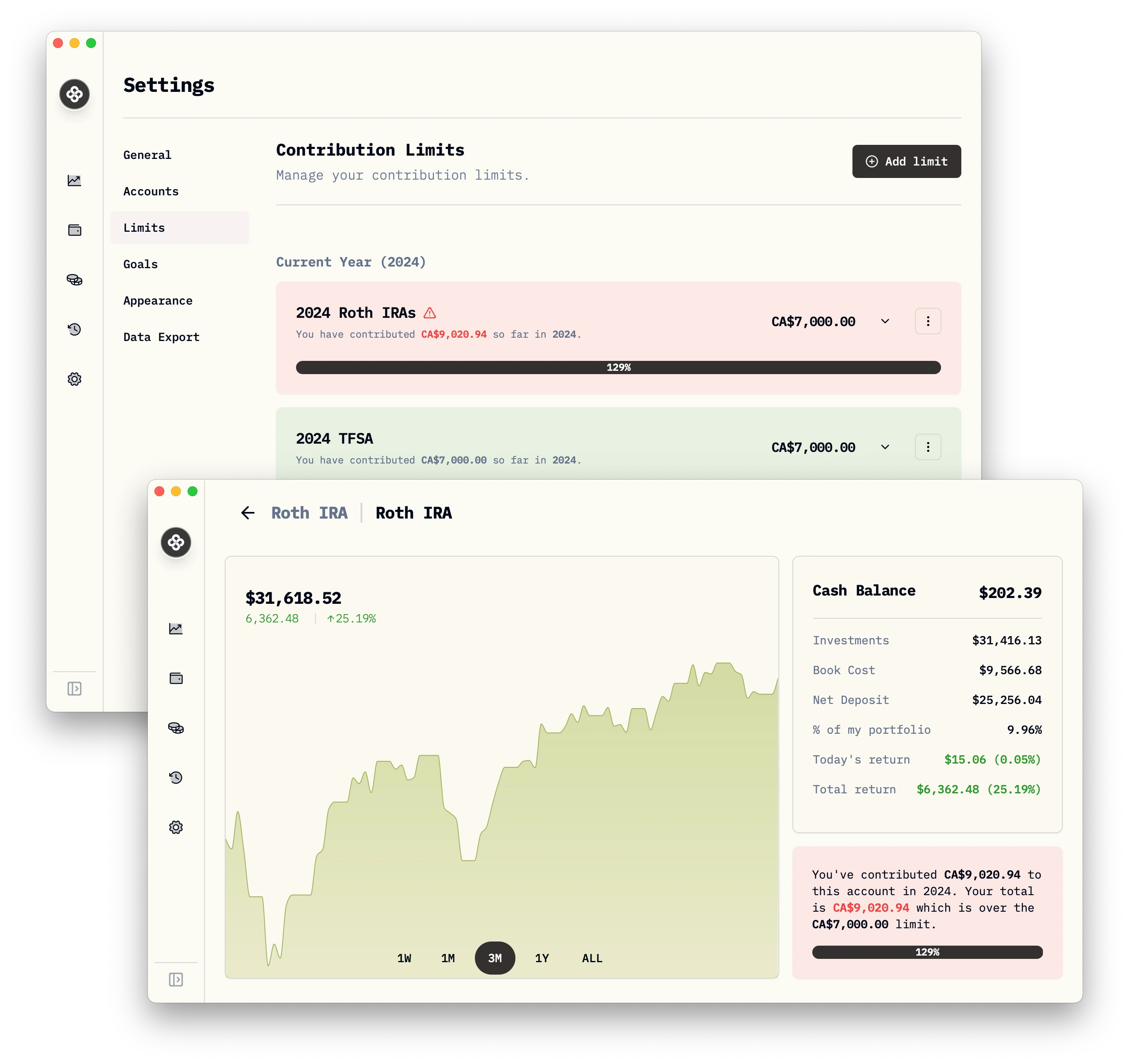
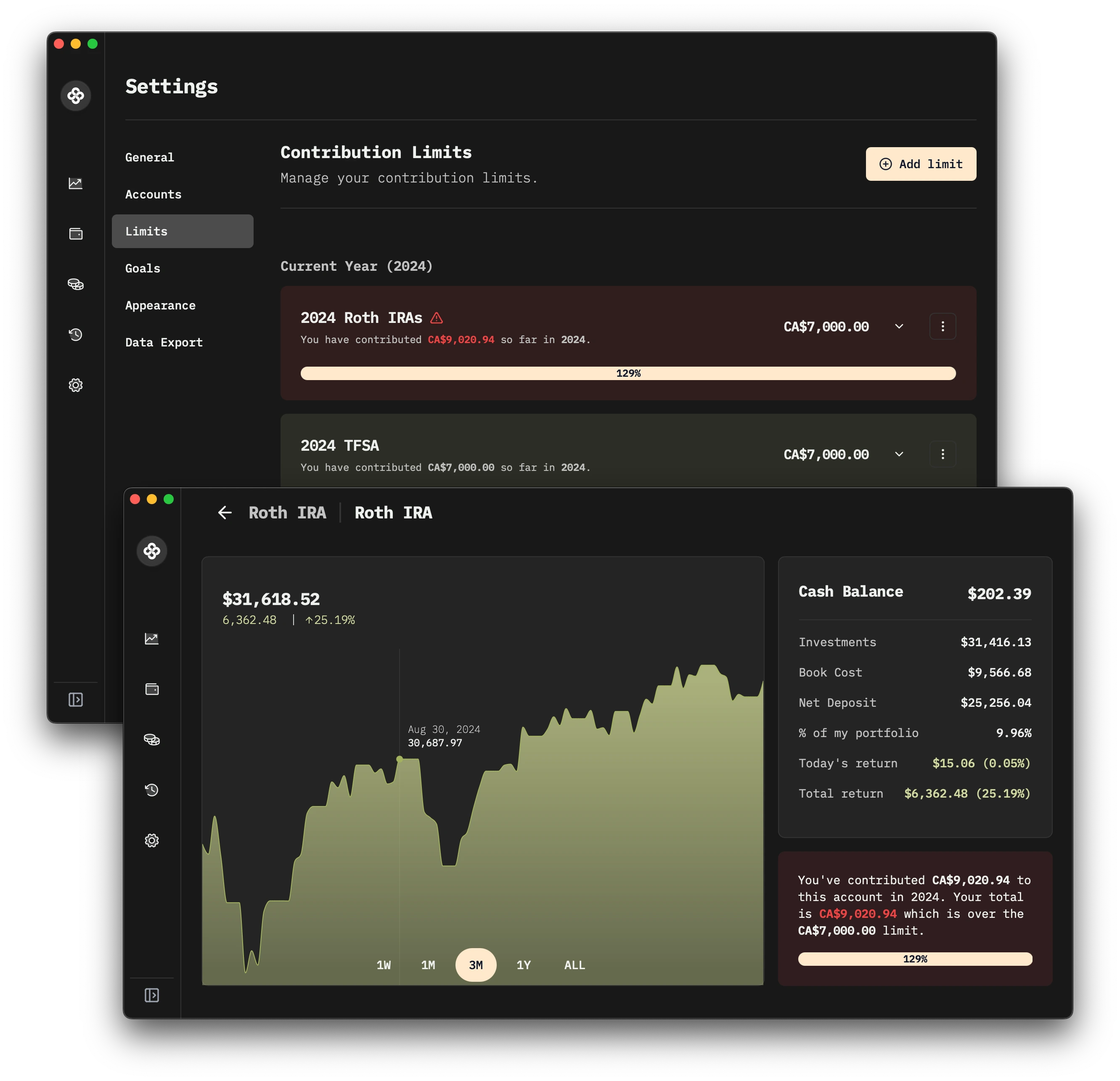
- Settings → Contribution limits – every limit with its progress bar and the accounts that count. Click a card to open its details page.
- Limit details page – the total counted, the remaining room, each account’s share, and each contribution.
- Account detail page – the account’s limit whose dates cover today, with how much is used and what’s left. A limit from April to March still shows from January to March, and next tax year’s limit shows once it starts.