
Export & Backup
Export data to CSV or JSON, create profile backups, and restore a portable backup on another device.
Last updated
Open Settings → Backup & Export in the profile you want to back up. The Backup tab manages saved snapshots, portable exports, and restores; the Export tab exports data for use elsewhere.
1 · Run an export
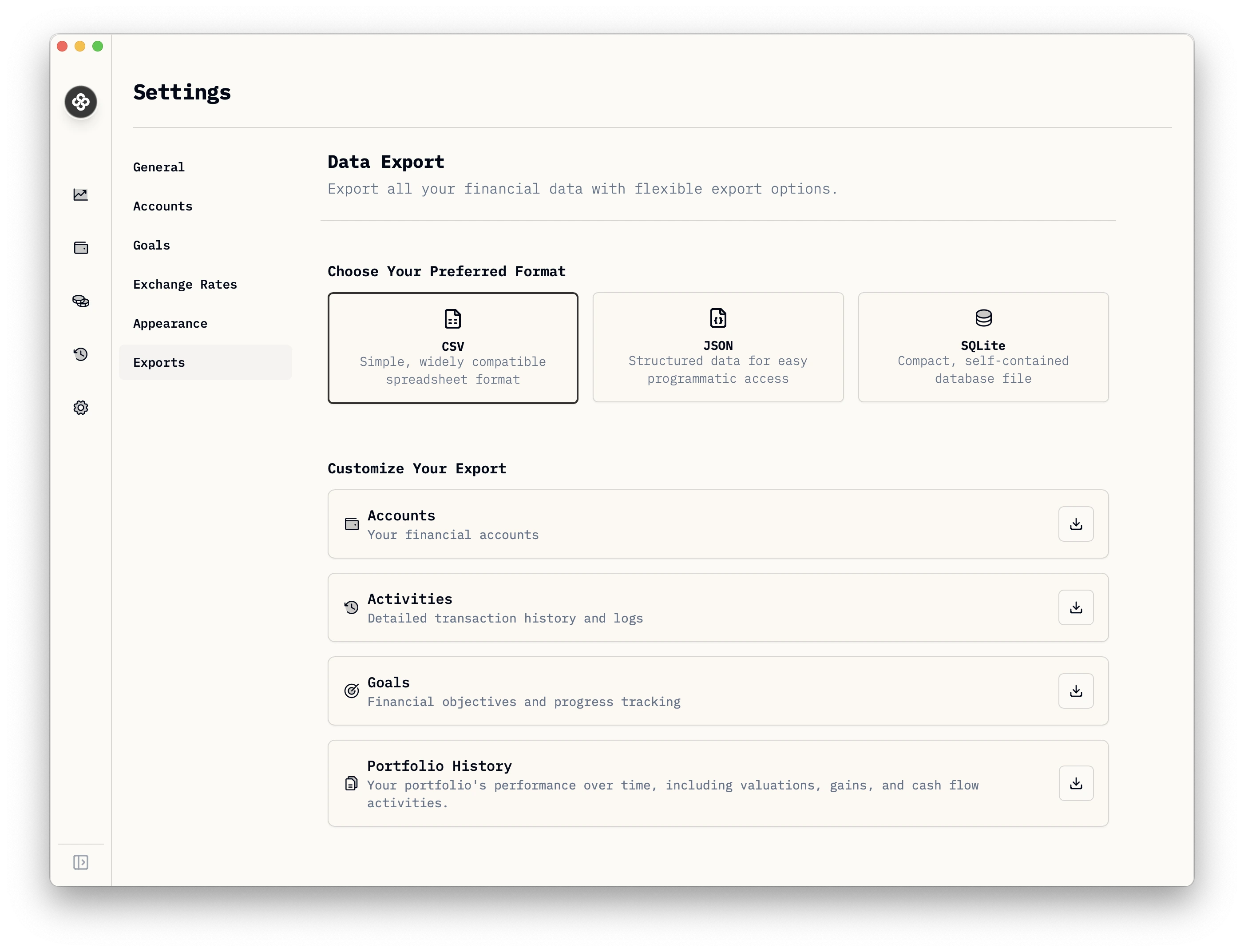
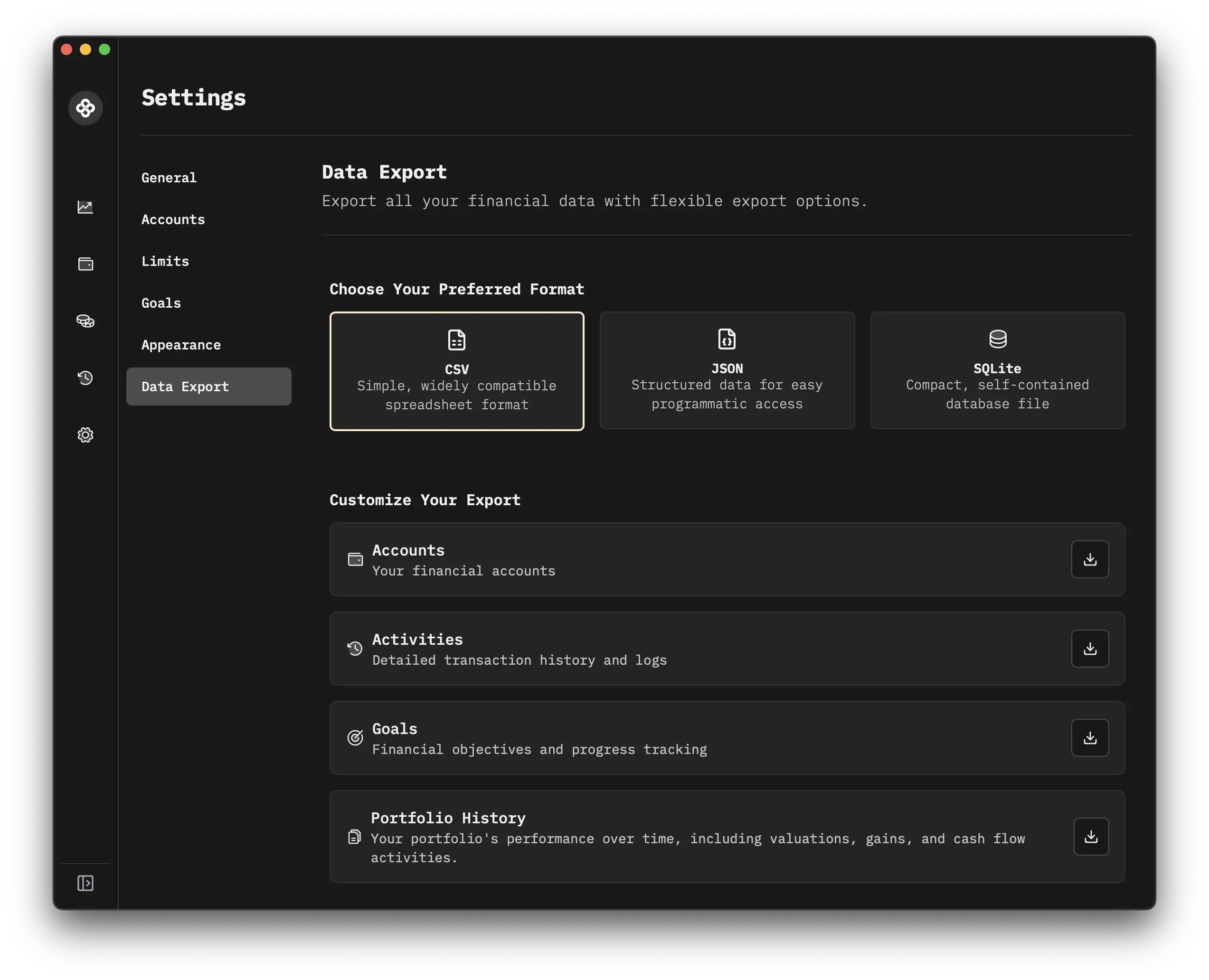
- Open Settings → Backup & Export → Export.
- Choose CSV or JSON, then select Accounts, Activities, Holdings, Goals, or Portfolio History.
- Save the file offered by your platform. For a restorable copy of the whole profile, use the Backup tab instead.
2 · Pick the right format
| Format | When to use |
|---|---|
| CSV | Loading one table into a spreadsheet or another tool. |
| JSON | Programmatic processing; preserves nested structures that CSV flattens out. |
Password-protected .wfbackup | Keeping a restorable profile copy outside the installation or moving it to another one. |
Encrypted .wfrec | A downloaded cloud restore point, opened with your recovery code or a linked device. |
Unencrypted .db | An advanced, unprotected database export. Anyone with the file can read its contents. |
For a backup before a big change, create a snapshot on the Backup tab,
then export it as a password-protected .wfbackup and save it outside the
installation. CSV and JSON exports cannot restore a complete profile.
Exported activity amounts use the saved final total, including fees and taxes. Do not subtract those charges again in a spreadsheet. Splits and security transfers have special meanings; see Activity Fields.
3 · Round-trip restore
Create a backup
Open Settings → Backup & Export → Backup and select Back up now. The
snapshot appears in the list for the current profile. Select Export on that
snapshot to save a portable copy. Choose a backup password and keep it with your
recovery information; Wealthfolio cannot reset it. You can also export an
unencrypted .db if you need one.
The initial snapshot stays in the current installation. Desktop and iOS use native file handling for the exported copy; web downloads it through the browser. Check that the export was saved somewhere independent of the device or server. In web mode, Save original snapshot is an advanced option: it downloads the original database with its existing encryption, which may require the original server master key to read.
Desktop and iOS support restore in the app. Web restore uses an offline server command. Each profile has its own database; repeat the backup for every profile you need to protect.
Back up multiple profiles
Profiles keep their portfolio data separate. Switch to each profile and create and export its own backup. Restoring a backup replaces only the selected destination profile; it does not recreate every profile in the installation. Keep the backup password for each protected export. If you also back up the installation files, include the profile registry and every profile directory, as described below.
Database encryption and backup passwords
In Settings → General, native apps can optionally encrypt the current profile’s local database using a key stored on the device. App lock and database encryption are separate settings. Saved snapshots retain the database’s encryption state when they were created, so an older snapshot may still be unencrypted after you enable encryption.
A password-protected .wfbackup uses the password chosen during Export,
separate from the profile password and installation key. Keep that password:
Wealthfolio cannot reset it. An unencrypted .db export can be read by anyone
with the file, even if the live database is encrypted. For self-hosted servers,
database encryption is configured offline.
Restore in the app
On desktop or iOS, open the Backup tab in the destination profile. Select
Restore from file for a .wfbackup or unencrypted .db, or Restore on a
saved snapshot. Enter the export password if prompted, review the backup
preview, then confirm the replacement.
Restoring replaces your current database with the backup; it does not merge the two. Save a current backup before proceeding. CSV and JSON exports cannot be used for a full restore.
Wealthfolio saves a snapshot before replacing the destination profile and reopens the app after restoration. Check your accounts and latest activities, then reconnect external services as needed.
Restore a self-hosted instance
Web mode has no restore upload action. Stop Wealthfolio (or its container) and
run wealthfolio-server db restore <file> with the same storage settings,
master key, and encryption policy used by the server. Without --yes, the
command validates the backup and shows a summary without replacing data. Add
--yes after reviewing it; use --profile <UUID> to select a profile other
than the default. A protected .wfbackup requires --password-stdin with the
password supplied through a pipe or redirected file. The command saves a
pre-restore snapshot. Preserve the complete installation directory and master
key, then verify the restored profile after restarting. See
Storage configuration.
4 · Where the database files live
Use the Backup tab for restores on desktop or iOS. If you are recovering
installation files manually, close Wealthfolio first and preserve the whole
data directory, including profiles.json, profiles/, and any legacy
app.db. Include profiles.json.bak if present. New profiles store their
database at profiles/<uuid>/app.db. The Personal profile migrated from an
earlier version may still use the original root-level app.db. Replacing that
root file will not restore a newer profile.
Default desktop data directories are:
- macOS:
~/Library/Application Support/com.teymz.wealthfolio/ - Windows:
%APPDATA%\com.teymz.wealthfolio\ - Linux:
~/.local/share/com.teymz.wealthfolio/
Keep the existing installation files until you have verified the recovery.
Encrypted database files also need their original installation key. For moving
data to another installation, export a password-protected .wfbackup and use
Restore from file instead of copying the live database.
5 · Automatic backups without Connect
CSV/JSON exports and local snapshots are manual. Connect provides automatic encrypted cloud backups, described below. For an automatic copy managed by your own backup tools instead:
- Self-hosted: snapshot the data volume with your container/host’s backup tool (e.g.
restic,borg, Proxmox snapshots, Unraid backup plugins). - Desktop: include the Wealthfolio data directory in your normal backup tool (Time Machine, Windows File History, Restic).
Both approaches give you point-in-time recovery without trusting any cloud, and they keep working even if Wealthfolio’s export UI changes.
6 · Encrypted cloud backup
Cloud backup is in Settings → Backup & Export → Backups in Wealthfolio 3.10 and later. It is included in Connect Basic and higher and is off until you enable it. Local snapshots and manual exports remain available without Connect.
- On the device or server that should run backups, sign in to Connect in the profile you want to protect.
- Choose Set up cloud backups and save the recovery code outside this installation.
- Confirm that you saved the code, then choose Turn on backups. This installation and profile become your backup source, and the first upload starts right away.
- For automatic daily backups, keep Wealthfolio open and online with that profile unlocked; a self-hosted server only needs to be running. Wealthfolio saves a complete encrypted cloud copy when a backup is due. After downtime, the next backup runs when the source becomes available. On mobile, open or return to Wealthfolio and keep it open while the backup uploads.
Each Connect account has one backup source: one profile on one installation (desktop, mobile or self-hosted server). Backups are not kept per device. If you turn on backups from another installation, it becomes the source; the previous one stops backing up, and its earlier restore points stay in the same list. Without device sync, data that exists only on other devices is not backed up. To back up another profile, sign it in to its own Connect account; within one installation, a Connect account can be signed in to only one profile. Your household members cannot see your backups. Cloud backup covers the selected profile’s complete database, including settings and configuration. Device credentials, API keys from the secret store, other profiles, and the profile registry are excluded.
Up to 30 restore points are retained over 30 days. The latest successful point is kept while your paid access continues, even if the source has been offline longer. An encrypted point may be at most 256 MiB, and its decoded database at most 512 MiB. The Cloud backups card shows the Last backup and, when one is scheduled, the Next backup. Each restore point contains a complete copy, including prices and settings. An offline or locked source cannot upload; mobile backups run while the app is open.
After the first backup, the source can also back up on demand: choose Back up now in the cloud backup menu. You can make up to 3 manual backups a day, and each one counts toward the 30 restore points.
Recovery and restore
The backup key is independent of device sync and the installation’s database key.
Linked trusted devices can obtain it using an encrypted key envelope. If access is
not available yet, open a linked device that already has backup access and retry.
You need your recovery code whenever no accessible device can provide backup access,
including when you choose not to link a replacement device.
Wealthfolio cannot recover the key for you if both the code and all unlocked devices
are lost. Reissuing a recovery code preserves existing cloud points, but older
downloaded .wfrec packages still need the code embedded in their original
recovery envelope. New downloads use the new code. Replacing the code does not
revoke previously obtained backup keys or copied recovery envelopes.
Download a point as one encrypted .wfrec file for storage outside Connect.
On desktop, cloud restore uses the same preview, confirmation, safety backup, and
rollback flow as a local portable restore. Only the selected destination profile
is replaced. After restoring, reconnect Connect rather than replaying historical
sync state. If another trusted device exists, link to it and review the
replacement confirmation. If this was your only sync device, use the confirmed
sync reset flow to start a new baseline. Restore does not automatically replace
data on other devices.
Mobile supports backup capture while open, setup, recovery-code entry and encrypted package download. Cloud portfolio restoration is currently available in the desktop app; mobile users should restore on a computer. No backups run while mobile is suspended.
For a self-hosted server, download the package and stop the server before running the existing offline restore command against a healthy, initialized destination:
wealthfolio-server db restore /safe/path/wealthfolio-backup.wfrec --profile <PROFILE_ID> --recovery-code-stdinSelect the destination profile explicitly. Review the command’s validation output,
then repeat with --yes only when you are ready to replace that profile.
Pipe the code from a protected source on standard input; the command rejects terminal input. Do not put it in
command arguments or shell history. The server retains its own database encryption
key. Online database replacement is unavailable in the web app.
Choose Pause backups to stop new backups for your Connect account. Saved copies
still follow the retention policy; your latest backup is kept while your
subscription is active. To resume, turn backups on again from the device you want
as the source. Canceling renewal keeps
paid features available until the subscription ends. When paid access ends,
uploads stop and existing points remain downloadable for 30 days before scheduled
deletion. Download any .wfrec copies you want to keep before that period ends;
local data and downloaded packages remain yours. If backups were on when paid
access ended, renewing resumes them from the same source. Renewing cannot bring
back deleted cloud copies.
The encrypted recovery key record remains until account deletion. Deleting
points requires a valid Connect session and explicit confirmation, and removes
their listing before storage cleanup. Replacing a recovery code requires a recent sign-in.