

Add Activities
Manual entry, CSV import, editing, subtypes, short trades, transfers, and the full activity lifecycle.
Activities are the atomic events that drive your portfolio: every trade, dividend, deposit, fee, and adjustment. This guide covers how to add them, edit them, and use the subtypes and trade intents that handle DRIP, staking, short positions, options, transfers, and option expiry cleanly.
For the conceptual model (what each type does to cash and holdings), see Activity Types.
1 · Add an activity manually
- Activities in the sidebar → + Add Manually in the top right.
- Pick the category (Trade, Cash, Income, Transfer, Adjustment).
- Pick the type (BUY, SELL, DIVIDEND, etc.) and, where available, the subtype or trade intent.
- Fill the form. Required fields are marked.
- Add Activity.
The form adapts to the activity type. You only see the fields that matter (no unitPrice
on a DEPOSIT, no amount on a plain BUY).
Inline edit on the activities list
For quick fixes, toggle the grid icon in the top-right of the activities list. Click any cell to edit; ✓ to save, ✗ to cancel. Useful for backfilling a missing fee or correcting a quantity without opening the full edit sheet.
2 · Subtypes and trade intents
Most activity types are direct: choose the type, fill the amount or quantity/price, and save. A few real-world events need a subtype or trade intent so Wealthfolio can apply the right accounting.
| If you need to log… | Use this in Wealthfolio | Key fields / gotchas |
|---|---|---|
| Normal stock/ETF/crypto buy | BUY | Symbol, quantity, unit price, currency, optional fee. Opens a long lot. |
| Normal sell from an existing long | SELL | Closes long lots FIFO. A plain sell does not open a short if you oversell. |
| Sell short stock/ETF | SELL → Sell Short | Opens a signed short lot. If you are currently long, split the trade first. |
| Buy to cover stock/ETF short | BUY → Buy to Cover | Reduces the oldest short lot first. Do not include excess quantity as cover. |
| Buy to open an option | BUY + asset Option + Open | Flip the asset toggle to Option, then fill Call/Put, strike, expiration. Multiplier auto-applied. |
| Sell / write a call or put to open | SELL + asset Option + Open | The step people miss: switch the asset toggle to Option. Covered calls, cash-secured puts, naked shorts. |
| Close an option | BUY or SELL + asset Option + Close | Buy to Close for short options, Sell to Close for long options. |
| Dividend reinvestment | DIVIDEND → DRIP | Fill dividend amount, reinvested quantity, and reinvestment price. |
| Staking reward | INTEREST → Staking Reward | Fill token quantity and fair market value at receipt. |
| Bond coupon | INTEREST on the bond symbol | Select the bond in the optional Symbol field; income is attributed to the bond and included in total return. |
| Stock dividend in the same asset | DIVIDEND → Dividend in Kind | Use for additional units of the same asset; true spin-offs need a separate activity. |
| Option expired worthless | ADJUSTMENT → Option Expiry | Removes the option lot with no cash movement. |
| Bonus, rebate, refund, reimbursement | CREDIT with the matching credit subtype | Bonus counts as new capital; rebate/refund/reimbursement reduce costs instead. |
DRIP (Dividend Reinvestment)
Use DIVIDEND → subtype DRIP. Fill the dividend amount, reinvested share quantity, and reinvestment price. Wealthfolio records:
- The dividend income (cash in, then cash out for the purchase; net zero on cash).
- A new lot opened at the DRIP price for the reinvested shares.
Staking Reward
Use INTEREST → subtype Staking Reward. Fill the token quantity and fair market value at receipt. Wealthfolio records:
- The interest income at the token’s value on that date.
- The token acquisition (new lot opened) for the reward amount.
Dividend in Kind
Use DIVIDEND → subtype Dividend in Kind for stock dividends paid as additional units of the same asset. Wealthfolio records the dividend income and opens a lot at the cost basis you provide from the broker notice.
For a true spin-off into a different ticker, record the received security as an External
TRANSFER_IN using the broker-reported cost basis.
Stock/ETF Short Positions
Use SELL → Sell Short to open or increase a short. Use BUY → Buy to Cover to reduce or close it.
Plain SELL is intentionally conservative: if you sell more than you hold, Wealthfolio does not automatically open a short. If a single broker trade flips from long to short, split it into two activities: a normal SELL for the long quantity, then Sell Short for the remainder.
Options (calls & puts)
Options have first-class support in the Add Activity form. The step people miss is that you first choose Buy or Sell, then flip the asset toggle from Stock to Option — that’s what swaps the stock fields for the option contract fields (Call/Put, strike, expiration) and a Position toggle. If you never flip that toggle, you only ever see the stock form, which is why it can look like options aren’t supported.
The mental model: Buy vs Sell = the direction of your order. Open vs Close = whether you’re entering a new contract or exiting one you already hold. Wealthfolio combines the two into the intent shown on the submit button.
| What you did (broker language) | In Wealthfolio | Submit button reads |
|---|---|---|
| Buy to Open a call or put (BTO) | Buy + asset Option + Open | Buy to Open |
| Sell to Open / write a call or put (STO) | Sell + asset Option + Open | Sell to Open |
| Buy to Close a written option (BTC) | Buy + asset Option + Close | Buy to Close |
| Sell to Close a long option (STC) | Sell + asset Option + Close | Sell to Close |
Selling a call or put to open (writing options) is Sell + asset Option + position
Open. That single combination covers covered calls, cash-secured puts, and any naked
short option — you collect the premium as a credit and open a short option lot.
Step by step: write (sell to open) a call or put
- Activities → + Add Manually → Add Transaction.
- Pick the Sell activity type.
- Under Asset & Account, switch the asset toggle from Stock to Option.
- In Option Contract, search the symbol (type a ticker, an option contract, or paste
an OCC symbol), pick Call or Put, and set the Strike Price and
Expiration. Wealthfolio shows the resolved contract (e.g.
Dec 19 $150 CALL). - Choose the account, then in the Trade section set Position to Open.
- Enter the number of Contracts and the Premium/Share. Add any Fee / Tax.
- Confirm with the button — it reads Sell to Open — and Wealthfolio records the credit.
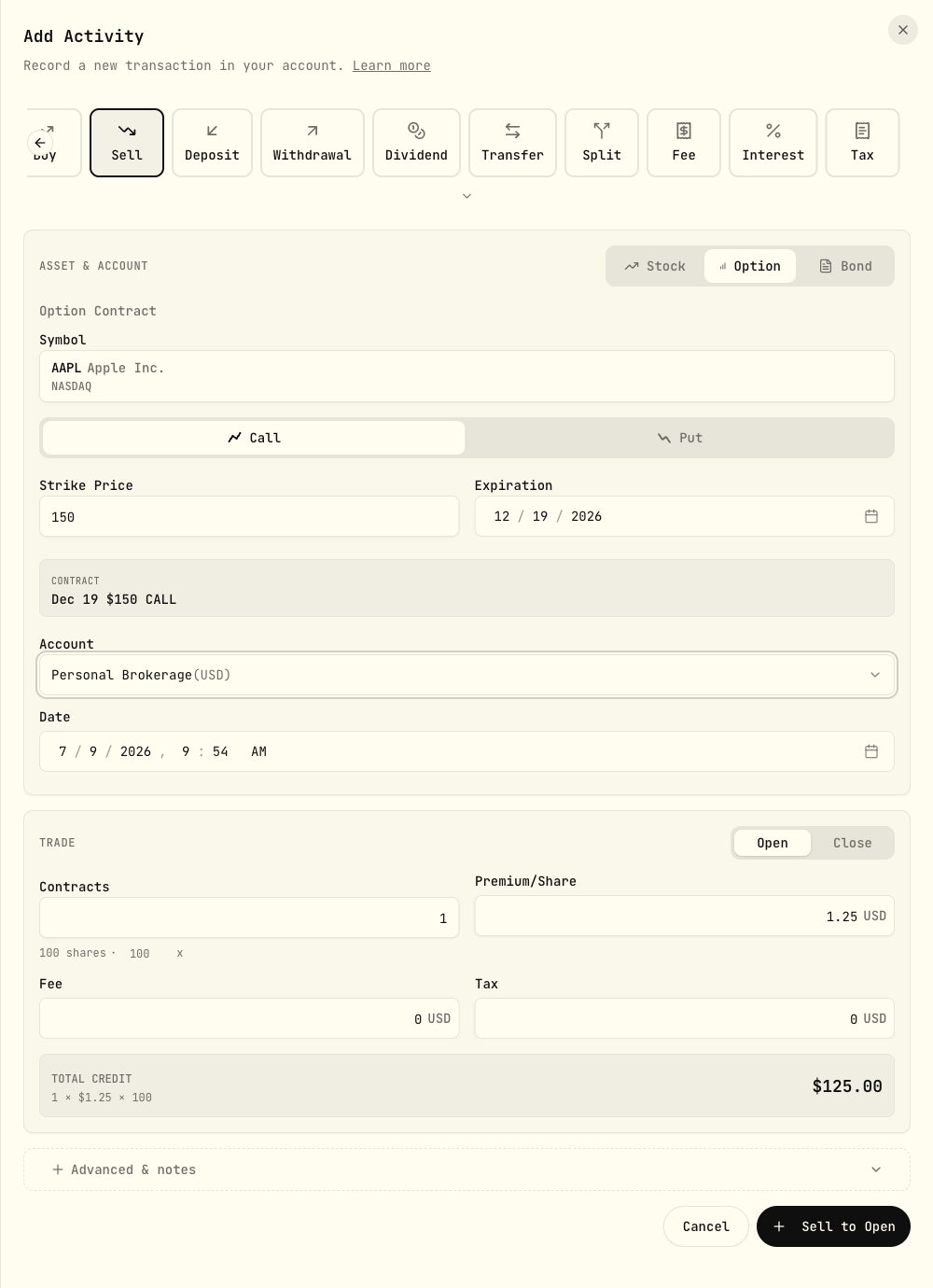
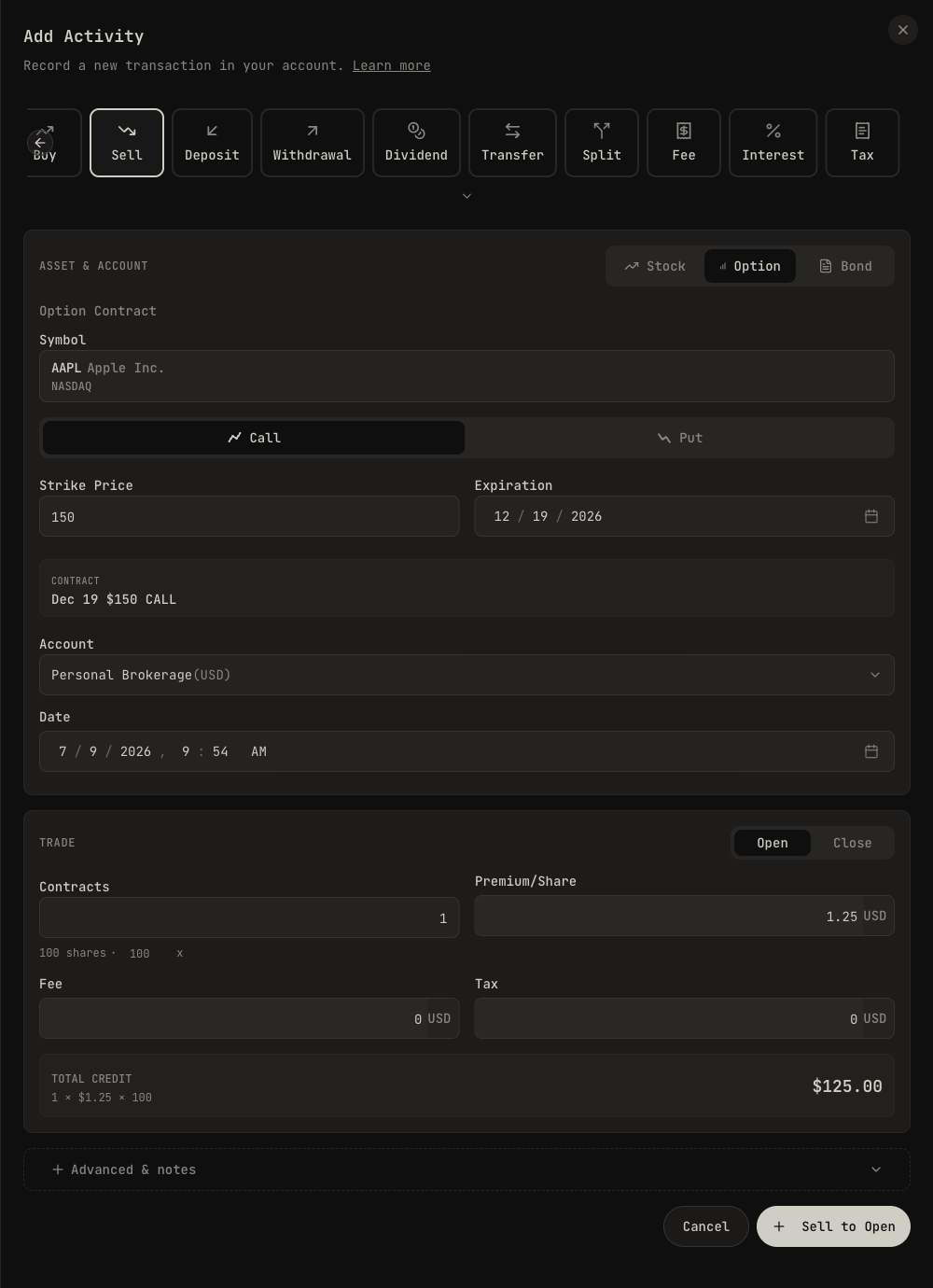
Enter the Premium/Share per share (e.g. 1.25), not the $125 total. Wealthfolio
applies the contract multiplier (100 shares by default, shown next to Contracts and
editable) and previews the running Total — for 1 contract at $1.25 that’s a
$125.00 credit. The premium shows up as cash in, and you now hold a short option lot.
Closing later is the mirror image: Buy + asset Option + Close (Buy to Close) to buy the contract back, or let it expire (below).
Buying options to open
Going long a call or put is Buy + asset Option + Open (Buy to Open) — you pay the premium as a debit. Close it later with Sell + asset Option + Close (Sell to Close). Same contract fields, multiplier, and per-share premium rules apply.
When an option expires worthless
Use ADJUSTMENT → subtype Option Expiry. It closes the option lot to zero with no cash movement — the premium is realized (a loss for a long option you paid for, or the full premium kept as gain for a short option you wrote). Use this instead of a Buy/Sell to Close when nothing traded because the contract simply expired.
When an option is assigned or exercised
Assignment/exercise is two events: the option contract goes away and shares change hands. Record them as two activities:
- Close the option leg — Option Expiry (ADJUSTMENT) removes the contract, or a Close Position trade if your broker showed a closing price.
- Record the resulting stock trade at the strike price: a BUY if you were assigned on a short put or exercised a long call, a SELL if assigned on a short call or exercised a long put.
Importing options from a broker CSV
If your broker’s CSV uses BTO / STO / BTC / STC (or “Buy to Open”, “Sell to Open”, etc.) labels, map them to the matching type + intent in the activity type/subtype mapping step of the import. See CSV Import.
Credit subtypes (Bonus, Trading Rebate, Fee Refund, Reimbursement)
Use CREDIT with the matching subtype. The subtype controls whether the credit counts as new capital (Bonus) or as a cost reduction (Rebate / Refund / Reimbursement).
Full reference: Activity Type subtypes.
3 · Transfers between accounts
Cash and securities transfers between Wealthfolio accounts use a pair of activities:
TRANSFER_OUTon the source account: specify the symbol (or$CASH-<CCY>) and quantity / amount.TRANSFER_INon the destination account: same symbol and quantity / amount.
For securities transfers, the destination account inherits the source’s cost basis, so your gain/loss math stays correct. See How Transfers Work.
Same-day TRANSFER_OUT → TRANSFER_IN gotcha
If both activities are dated the same day, give the OUT an earlier timestamp than the IN. Otherwise Wealthfolio may try to credit the destination before the lot exists on the source side, and the OUT will silently fail to close any shares.
In the manual form: use the time field, not just the date.
In CSV: include the time in the date column (2025-03-15T09:30:00).
Transferring from / to external accounts
If the other side isn’t a Wealthfolio account, check the External flag on the transfer form. The activity records a one-sided cash or asset move from / to an untracked source.
- External
TRANSFER_IN: seeds a position or cash from outside Wealthfolio. Provide the cost basis your broker reported. Useful for opening balances, gifts, inheritances, RSUs. - External
TRANSFER_OUT: removes a position or cash without recording a sale. Lots are closed via FIFO with no gain realised. Useful for crypto sent to a wallet you don’t track, or writing off a worthless position.
Transferring between two Wealthfolio accounts
Leave the External flag unchecked and pick the counterparty account. Wealthfolio
creates the matching TRANSFER_OUT / TRANSFER_IN pair and preserves the original
cost basis on the receiving side.
4 · Activity statuses
Each activity has a status that controls how it’s used in calculations:
| Status | What it means |
|---|---|
| Posted | The default; counted everywhere. |
| Pending | Broker-reported but incomplete (e.g. missing price on a DRIP). Excluded from metrics. |
| Draft | You’re staging this before commit. Hidden from totals. |
| Void | Soft-deleted. Hidden everywhere, but the row remains so you can restore it. |
The Connect importer uses Pending for activities that arrive partially specified. Fix
them up in Wealthfolio and bump them to Posted to make them count.
5 · Bulk edit and delete
Select multiple rows from the activities list (checkboxes on the left), then use the bulk action menu:
- Change account: re-attribute the activities to a different account.
- Change status: set Posted / Pending / Draft / Void.
- Delete: removes the activities. Wealthfolio asks for confirmation first — the action is permanent, so double-check the selection before clicking.
Bulk-changing the type isn’t supported. Wealthfolio doesn’t know which fields to preserve.
6 · CSV import (summary)
The CSV import flow is a separate guide because there’s a lot to cover (broker recipes, column mapping, troubleshooting): see CSV Import.
The 30-second version:
- Activities → Import → Drop CSV file.
- Map columns and activity types.
- Preview, confirm.
Mappings are saved per account; second import is one click.
date,symbol,quantity,activityType,unitPrice,currency,fee,amount
2024-01-01T15:02:36.329Z,MSFT,1,DIVIDEND,57.5,USD,0,57.5
2023-12-15T15:02:36.329Z,MSFT,30,BUY,368.60,USD,0,
2023-08-11T14:55:30.863Z,$CASH-USD,1,DEPOSIT,1,USD,0,600.03
About the amount field: for cash activities (DIVIDEND, DEPOSIT, WITHDRAWAL,
TAX, FEE, INTEREST, TRANSFER_IN, TRANSFER_OUT), amount is mandatory.
quantity and unitPrice are ignored.
7 · Editing and deleting
- Edit: click any activity in the list to open the edit sheet. Synced (Connect)
activities can’t be edited directly. Add an
ADJUSTMENTinstead. - Delete: click an activity → ⋯ menu → Delete. Wealthfolio asks for
confirmation; deletion is permanent. If you want to keep the row but exclude it
from calculations, set its Status to
Voidinstead. - Backdated activities: there’s no restriction on inserting activities into the past. Wealthfolio recalculates all balances forward from the inserted date.
Next step: Activity Types is the full reference for every type, subtype, and the rules that govern them.