

Connect & Broker Sync
Automatically pull activities from your brokerage and sync your data across devices, privately and end-to-end encrypted.
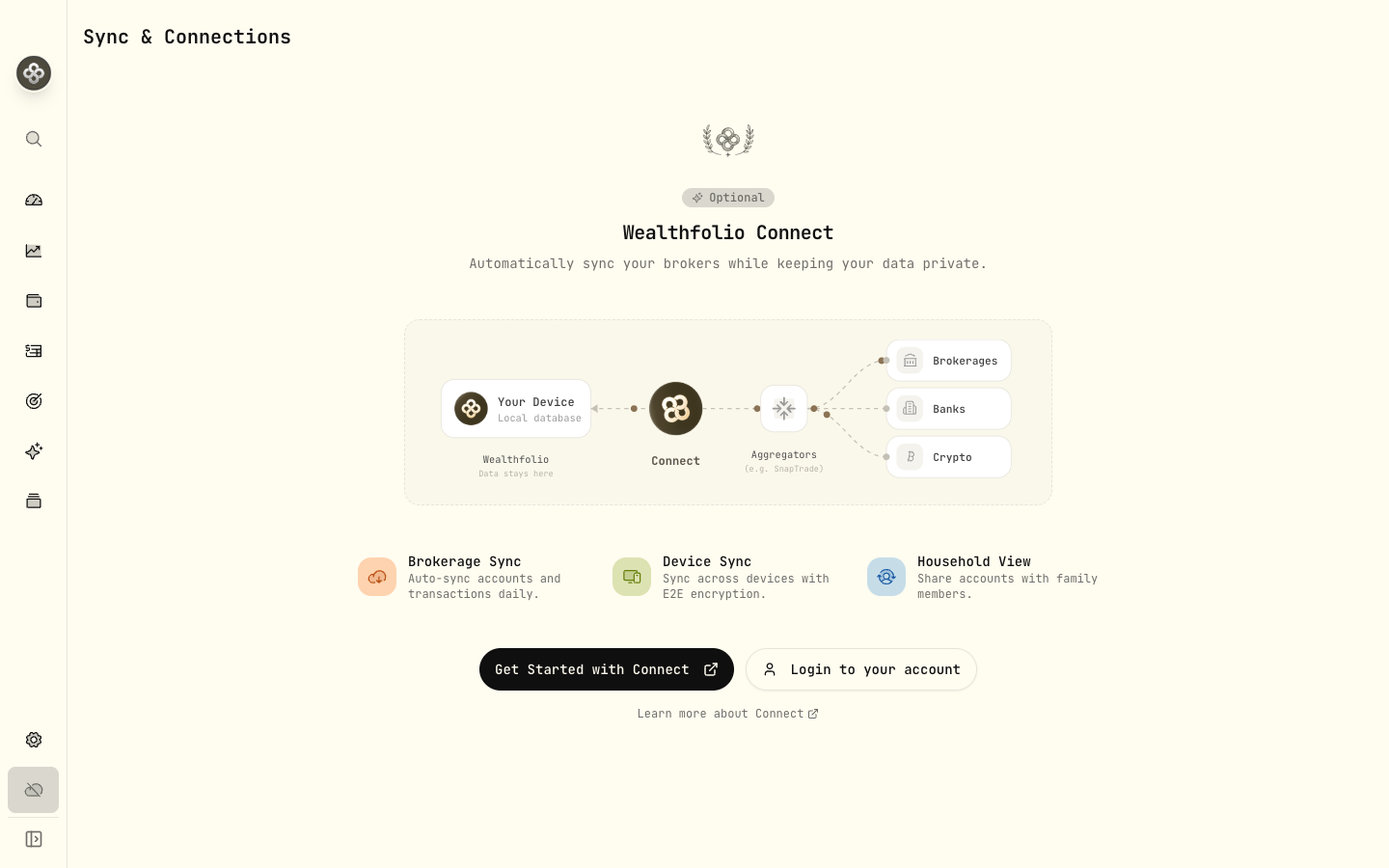
Wealthfolio Connect is an optional paid service that adds two things on top of the free local-first app:
- Automatic broker sync. Activities pulled directly from your brokerage, no CSV exports required.
- End-to-end encrypted device sync. Keep desktop, iOS, and self-hosted instances in step without anyone (us included) being able to read your portfolio.
The core app stays exactly the same with or without Connect. This guide covers what Connect does, what it doesn’t, and how to set it up.
1 · What Connect does (and doesn’t)
| Feature | Free core | Connect |
|---|---|---|
| Local SQLite database, full data ownership | ✅ | ✅ |
| Manual entry + CSV import | ✅ | ✅ |
| Market data (Yahoo + custom providers) | ✅ | ✅ |
| Performance metrics, goals, FIRE, contribution limits | ✅ | ✅ |
| Self-hosting | ✅ | ✅ |
| AI assistant (BYO API key) | ✅ | ✅ |
| Automatic broker sync (SnapTrade integration) | — | ✅ |
| Multi-device sync (E2E encrypted) | — | ✅ |
| Household / family sharing (share selected accounts) | — | ✅ |
Connect is opt-in. If you only want manual + CSV imports, you never need it.
2 · Supported brokerages
Connect uses SnapTrade to talk to your broker. SnapTrade supports the major US, Canadian, and select international brokers. Full list at /connect/brokerages.
Highlights:
- US: Fidelity, Schwab, Robinhood, E*Trade, Webull, Public, TradeStation, tastytrade
- Canada: Questrade, Wealthsimple, Interactive Brokers
- International: Interactive Brokers (global), Trading 212, Kraken (crypto), Coinbase (crypto), Binance (crypto)
If your broker isn’t listed, request it via SnapTrade’s coverage form. Support tends to expand quickly.
3 · Set up broker sync
- Subscribe to Connect at wealthfolio.app/connect.
- Sign in to Connect from the desktop or iOS app via Settings → Connect.
- Link a brokerage: Settings → Connected Accounts → Add brokerage. You’ll be redirected to SnapTrade’s OAuth flow, log into your broker, and grant read-only access.
- First sync runs immediately and pulls all available history (typically the last 1–2 years, broker-dependent). Subsequent syncs run automatically once per day, or on demand via Sync now.
Wealthfolio never sees your broker password. SnapTrade handles the OAuth handshake and returns activity data over an encrypted channel.
4 · How synced data lands in Wealthfolio
Each linked brokerage creates one or more Connect accounts in Wealthfolio. They look like manual accounts, except:
- Activities flow in automatically. You can’t edit synced rows directly (it’d get
overwritten on the next sync). To override a synced activity, use an
ADJUSTMENTactivity on the same date. - Each Connect account shows its last sync time and a status badge (synced, syncing, error).
- You can mix synced and manual activities in adjacent accounts; performance metrics combine them seamlessly.
5 · Multi-device sync
Once Connect is active, devices linked to the same Connect account stay in sync:
- Sign into Connect on each device (desktop, iOS, self-hosted).
- Wealthfolio generates a device-specific keypair on first sign-in.
- Changes are encrypted on-device with your account key and pushed to Connect’s storage tier.
- Other devices pull the encrypted blobs and decrypt locally.
We can’t read the encrypted blobs. If you lose every device, you can recover by linking a new device with your account credentials. But if you also lose your account credentials, the data is unrecoverable. (That’s the deal with E2E encryption.)
Back up your data. E2E means we cannot recover your portfolio for you. Periodically export a full database SQL (Export & Backup) and store it somewhere you trust.
6 · Renaming and grouping Connect accounts
By default, Connect accounts inherit names from your broker (“Joint Brokerage 1234…” gets ugly fast). To clean up:
- Rename: Settings → Accounts → click the synced account → Edit → set a display name. The display name is local; the underlying SnapTrade link is unchanged.
- Group: Use Account Groups to roll up multiple Connect accounts (e.g. “Joint”, “Solo IRA”, “Spouse RRSP”) into one logical bucket for dashboard rollups.
7 · Known limitations
- Joint accounts: SnapTrade returns the same joint account once per linked login. If both spouses link the same brokerage, the joint account appears twice. Disable one of the duplicates from Settings → Accounts (toggle Active off) rather than deleting it. Deletion breaks the Connect link.
- Single-active connection brokers: E*Trade and a few others only allow one active SnapTrade session per user. Re-authenticating on a second device disconnects the first.
- Pending activities: brokers occasionally publish dividends with no share count or
trades with no price. Connect imports these as
Pending. They show up in the activity list, and you can edit them once your broker fills in the missing data.
8 · Disconnecting
To remove a brokerage link: Settings → Connected Accounts → select the brokerage → Disconnect. The Connect account stays in Wealthfolio (with all its synced history) but won’t sync again. To delete the account entirely, also remove it from Settings → Accounts.
9 · Troubleshooting
Sync failed with “authentication error”
Your broker’s OAuth token expired (most brokers expire after 90 days). Settings → Connected Accounts → click the failing brokerage → Reauthorize.
A synced activity looks wrong
Don’t edit the synced row; the next sync will overwrite. Instead, add a balancing
ADJUSTMENT activity on the same date. If a sync is consistently wrong (e.g. broker
sends FX-converted amounts in your base currency by mistake), file a ticket via
Discord. We forward to SnapTrade when needed.
Sync is stuck on “syncing…” for hours
Cancel and retry: Settings → Connected Accounts → Sync now. If it fails again, disconnect and reconnect the brokerage.
Next step: Once your brokers are syncing, the Health Center will flag any inconsistencies between synced data and what Wealthfolio expects (negative cash, missing deposits, stale quotes).