

Mobile
Wealthfolio on iOS, the road for Android, and the PWA workaround for self-hosted instances on any phone.
Wealthfolio’s mobile story has three parts: a native iOS app, a Progressive Web App (PWA) for self-hosted users on any phone, and an Android version that’s planned but not yet built. This guide covers what’s available today.
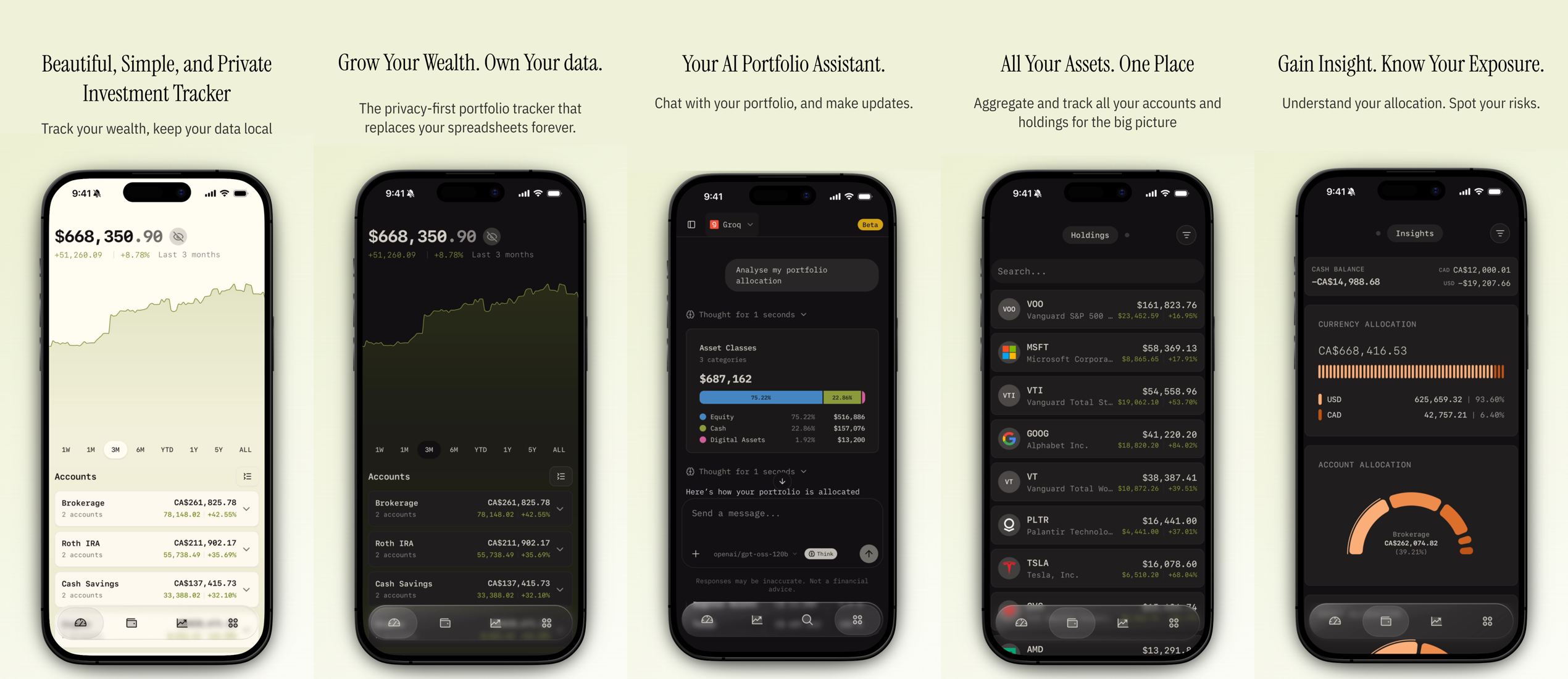
Wealthfolio for iOS and Android — the same engine, in your pocket
1 · iOS app
Wealthfolio for iOS is a full native build of the same engine that powers the desktop app, packaged for iPhone and iPad. It does everything the desktop does, with a layout tuned for touch:
- Portfolio dashboard, holdings, activities, performance, goals.
- Manual entry and CSV import (use a cloud share like iCloud Drive or Dropbox to get the file onto the device).
- Custom market data providers.
- AI Assistant (Ollama is desktop-only; OpenAI / Anthropic work fine on iOS).
- Connect for broker sync and end-to-end encrypted device sync.
Install from the App Store: apps.apple.com/app/wealthfolioapp.
Where your iOS data lives
Each iOS device runs its own SQLite database in the app’s sandbox storage. If iCloud Backup is enabled on your phone, the database is backed up to iCloud along with the rest of your app data, but it isn’t synced to other devices unless you subscribe to Connect.
Multi-device with Connect
Sign into Connect on the iOS app under Settings → Connect. Changes flow to your other devices via E2E-encrypted blobs. See the Connect & Broker Sync guide for the full setup.
2 · Android
There’s no native Android app yet. It’s planned: the engine is Rust + cross-platform so the work is mostly the platform-specific shell, not a rewrite. No date promised.
If you’re on Android today, the PWA below is the path.
3 · Self-hosted on mobile (PWA)
A self-hosted Wealthfolio instance works as a Progressive Web App. On iOS Safari or Android Chrome:
- Navigate to your self-hosted URL (e.g.
https://wealthfolio.mydomain.com). - Sign in.
- iOS Safari: tap the Share button → Add to Home Screen. Android Chrome: tap the menu → Add to Home screen or Install app.
The icon on your home screen launches the app full-screen with no browser chrome. It behaves like a native app for the things that matter: bookmarks, sessions, offline chrome (the data itself still needs your server reachable).
What you give up vs. the native iOS app
- No iCloud backup of an embedded database. The data lives on your self-hosted server, so back it up there.
- No Face ID lock (PWAs don’t get biometric auth APIs the same way native apps do).
- No background sync. Pull-to-refresh works while the app is open; nothing happens while it’s backgrounded.
For most self-hosters this is a perfectly fine setup.
4 · Tips & limitations
- Imports on iOS: to import a CSV, share it from Files / iCloud Drive / Dropbox into the Wealthfolio app. The mapping flow is identical to desktop.
- Custom providers on iOS: custom JSON / HTML providers work the same; bear in mind
that scraping endpoints that block mobile user-agents may need an HTTP-level
User-Agentoverride (configurable in the provider settings). - Connect-required brokers on iOS: broker sync requires Connect. The link flow redirects to SnapTrade’s OAuth UI in an in-app browser window.
- The app and the desktop don’t sync by default. Without Connect, each device runs its own local database.
Next step: if you’re using self-hosting + PWA, the Self-Hosting troubleshooting section covers the most-common server-side hiccups. If you’re using the native iOS app + Connect, the Connect & Broker Sync guide is where to go next.